Wireless Mouse Not Working on Windows 11? 9 Proven Fixes to Get Back on Track
Few things are more frustrating than a wireless mouse that suddenly stops responding while you're in the middle of a task. Whether the issue stems from hardware failure, a drained battery, or a software glitch in Windows 11, diagnosing the root cause is the first step toward a solution. Before you assume your device is broken, try these professional troubleshooting steps to restore functionality. You can also use our online mouse test to verify if your buttons and scroll wheel are being detected once the connection is established.
1. Start With Basic Hardware Diagnostics
Often, the simplest explanation is the correct one. Before diving into complex system settings, ensure the fundamentals are covered. For more general advice on peripheral issues, check our troubleshooting guide.
Re-seat the USB Receiver
Unplug your USB dongle, wait approximately 10 seconds, and plug it back into the port. This "power cycle" for the receiver often forces Windows to re-initialize the connection.
Try a Different USB Port
USB ports can fail or become unresponsive due to static build-up. Switch the receiver to a different port—preferably one directly on the motherboard if you are using a desktop. If you're using a hub, try connecting the mouse directly to the laptop or PC instead.
Check the Mouse Battery
Power issues are the leading cause of wireless mouse failure. Ensure the batteries are seated correctly or replace them with fresh ones. If your mouse is rechargeable, plug it in for at least 30 minutes to ensure it has sufficient charge to maintain a stable connection.
Eliminate USB Interference
Other wireless peripherals or high-speed USB 3.0 devices can sometimes interfere with the 2.4GHz signal of your mouse. Disconnect other non-essential USB devices to see if the mouse starts working again.
Inspect for Physical Damage
Check the USB receiver and the mouse for any signs of physical wear, dirt, or debris in the optical sensor. A quick blast of compressed air in the USB port and the sensor can often resolve tracking issues.
Validate on Another PC
To determine if the fault lies with the mouse or your computer, plug the receiver into a different laptop or PC. If it works there, your Windows 11 installation is the culprit. If it doesn't work anywhere, you likely need a replacement receiver or a new mouse.
2. Adjust USB Power Management Settings
Windows 11 includes aggressive power-saving features that may "suspend" USB ports to save energy, which can inadvertently disable your mouse receiver.
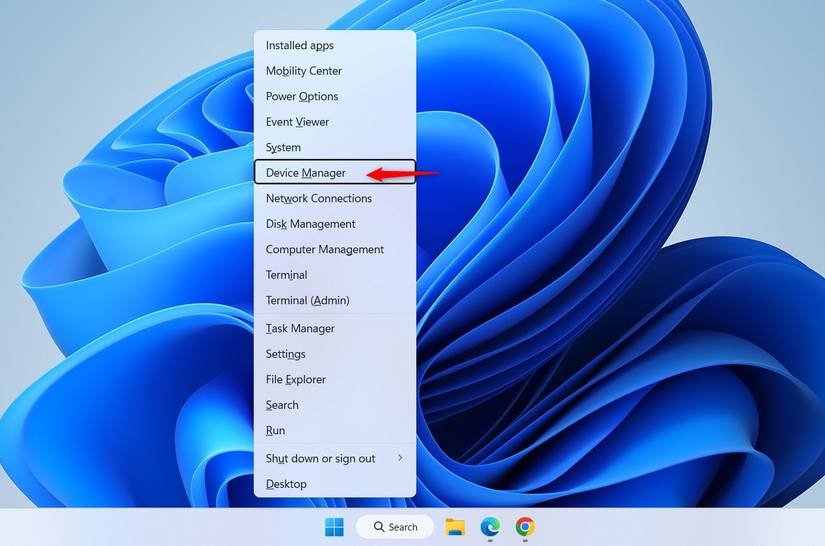
To fix this, right-click the Start button (or press Windows + X) and select Device Manager.
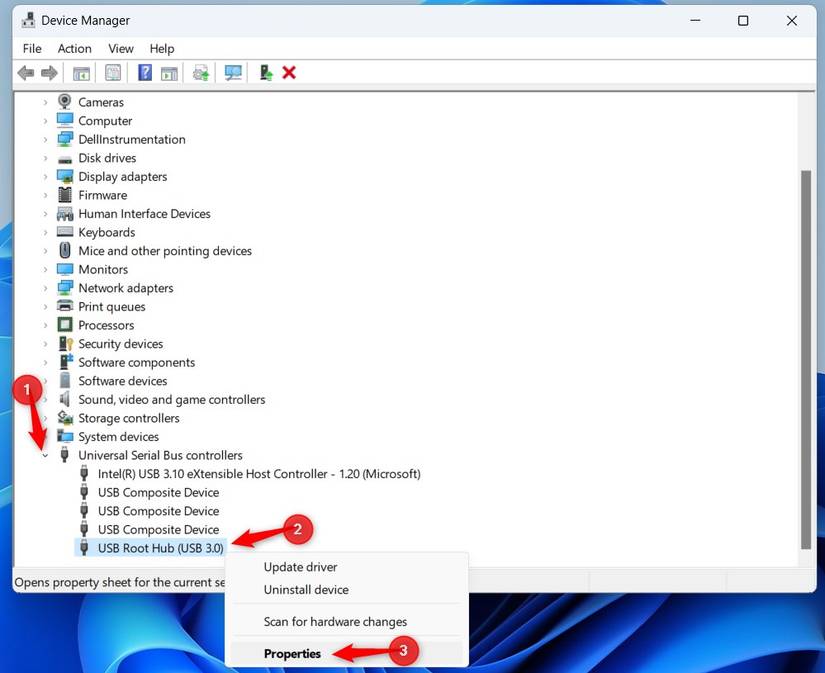
Expand the Universal Serial Bus controllers section. Right-click on USB Root Hub and select Properties.
Navigate to the Power Management tab and uncheck the box labeled "Allow the computer to turn off this device to save power." Click OK and repeat this for any other USB Root Hubs listed.
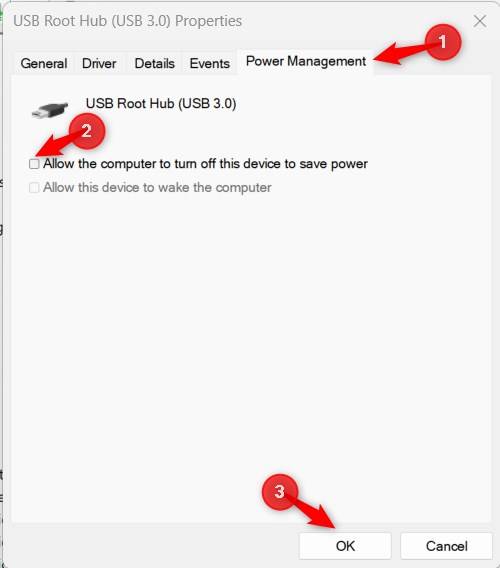
Once finished, reconnect your USB receiver to see if the connection stabilizes.
3. Disable Windows Fast Startup
While Fast Startup helps your PC boot quicker, it does so by saving the system state to a hibernation file, which can occasionally prevent hardware drivers from loading correctly during boot-up.
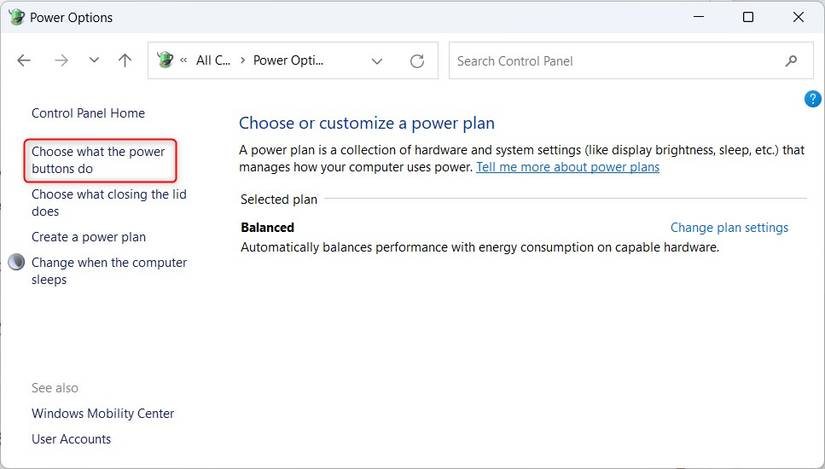
Open the Control Panel, go to Power Options, and click on "Choose what the power buttons do."
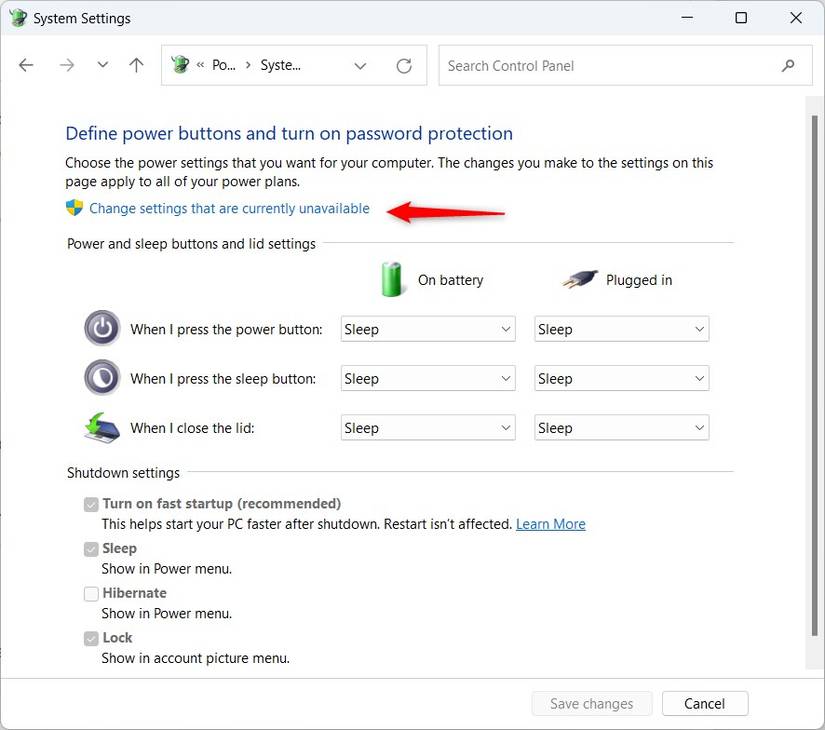
Click the link at the top that says "Change settings that are currently unavailable."
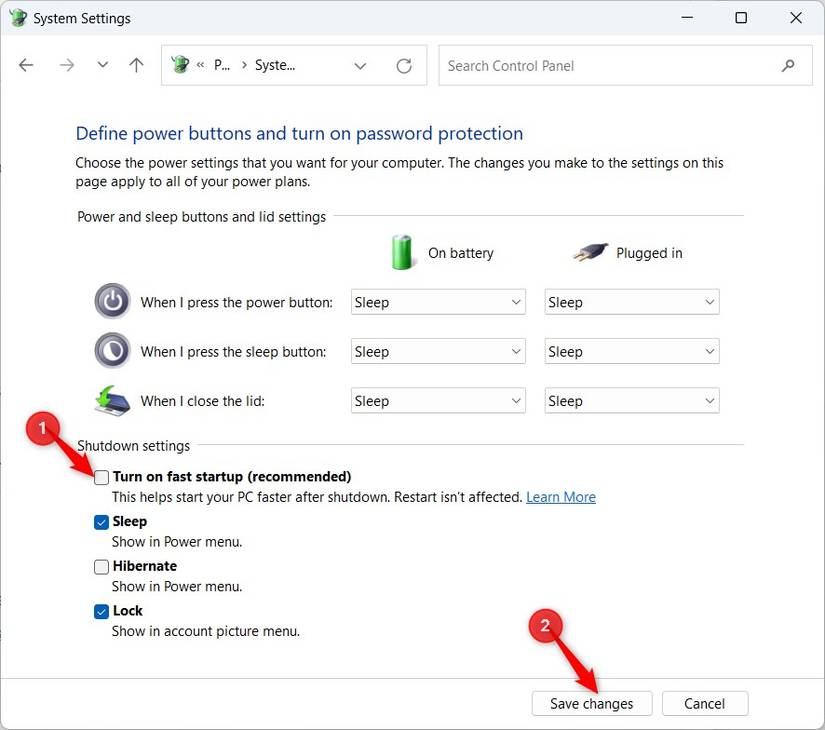
Under the "Shutdown settings" section, uncheck "Turn on fast startup (recommended)" and click Save changes.
Restart your computer completely to see if this resolves the initialization error.
4. Update or Roll Back Mouse Drivers
Software conflicts or outdated drivers are common reasons for a wireless mouse to stop working on Windows 11. You should either update to the latest version or revert to a previous one if the issues started after a recent update.
Updating Drivers via Windows Update
Navigate to Settings > Windows Update > Advanced options > Optional updates. If there are any driver updates related to "HID-compliant mouse" or "USB Input Device," download and install them.
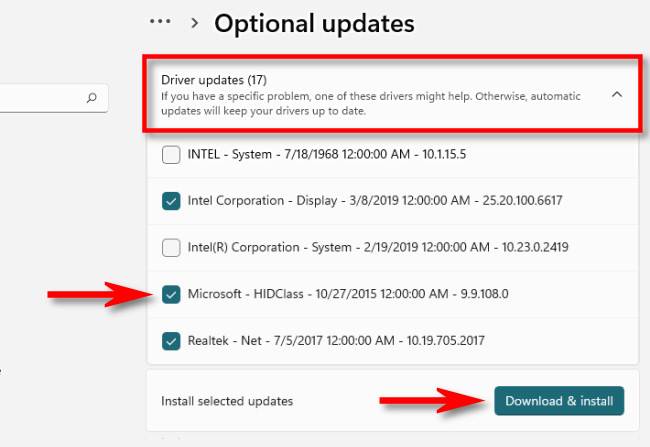
If Windows doesn't find anything, visit the manufacturer's website (e.g., Logitech, Razer, or HP) to download their specific driver management software.
Rolling Back a Problematic Driver
If the mouse stopped working after an update, open Device Manager, expand Mice and other pointing devices, right-click your mouse, and select Properties.
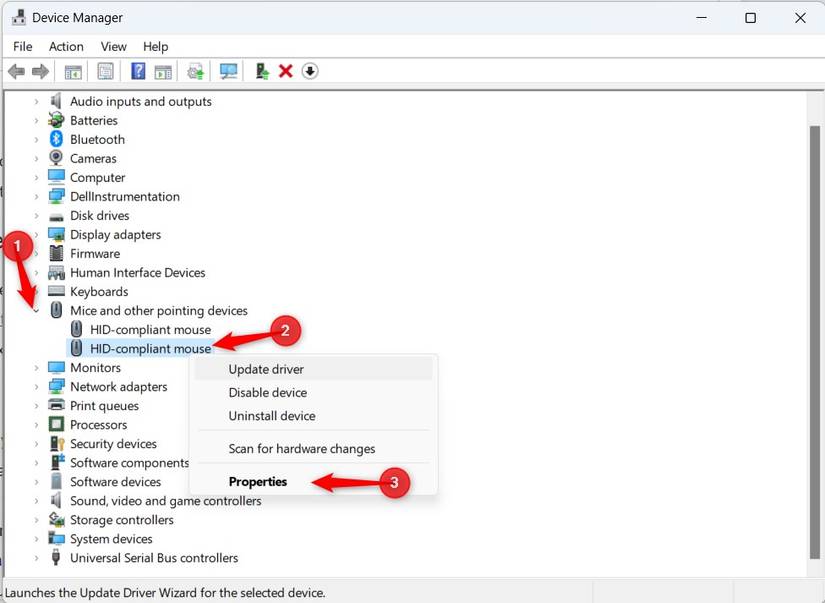
Under the Driver tab, click Roll Back Driver if the option is available.
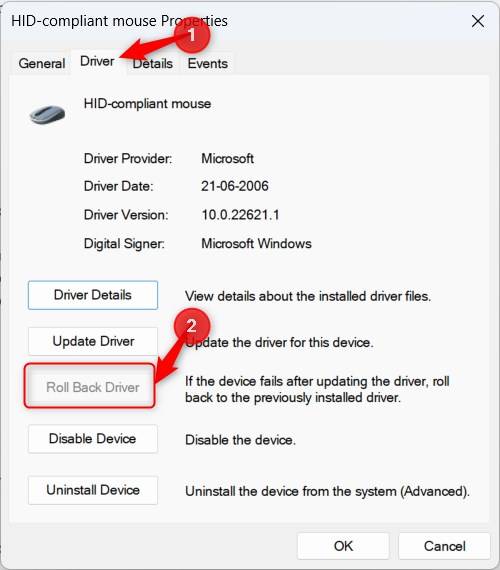
Confirm the action and restart your PC.
5. Reset Your USB Controllers
If the ports themselves are glitching, you can force Windows to reinstall the entire USB stack.
In Device Manager, expand Universal Serial Bus controllers. Right-click USB Root Hub and select Uninstall device.
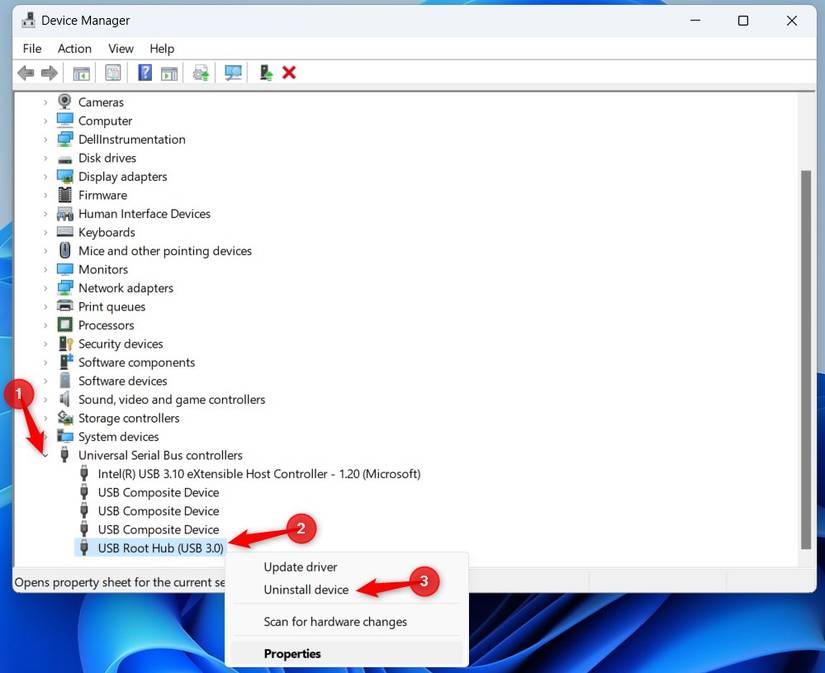
Confirm by clicking Uninstall. Do this for all Root Hub entries.
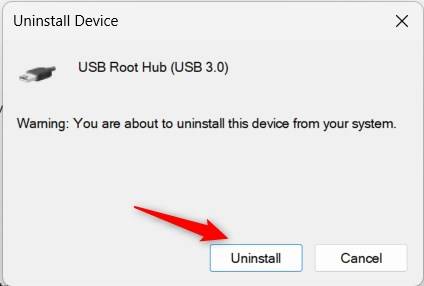
Restart your computer. Windows will automatically detect the "missing" hardware and reinstall the clean default drivers for your USB ports.
6. Keep Windows 11 Updated
Microsoft frequently releases patches for hardware compatibility. Go to Settings > Windows Update and click Check for updates.
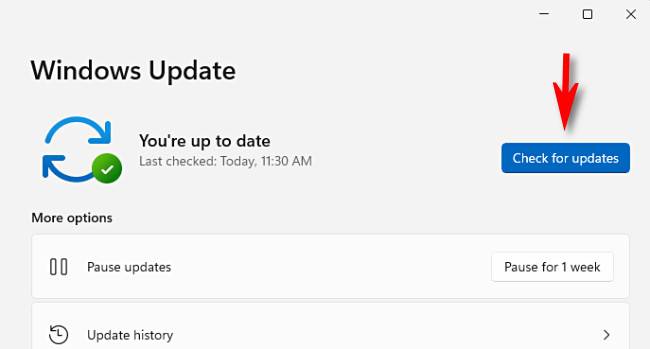
Conversely, if a specific Windows build broke your mouse, you can navigate to Update history > Uninstall updates to remove the most recent "Quality Update."
7. Perform a Malware Scan
Malicious software can sometimes hijack input drivers or cause system instability that affects peripherals. Use Windows Security or a trusted third-party antivirus to run a "Full Scan" of your system to ensure no malware is interfering with your HID (Human Interface Device) services.
8. Try a Bluetooth Connection
Many modern wireless mice are "dual-mode," meaning they support both a USB dongle and Bluetooth. If the USB receiver is broken, Bluetooth is an excellent fallback.
Switch your mouse to pairing mode (refer to your manual for the specific button) and go to Settings > Bluetooth & devices. Toggle the switch to On.
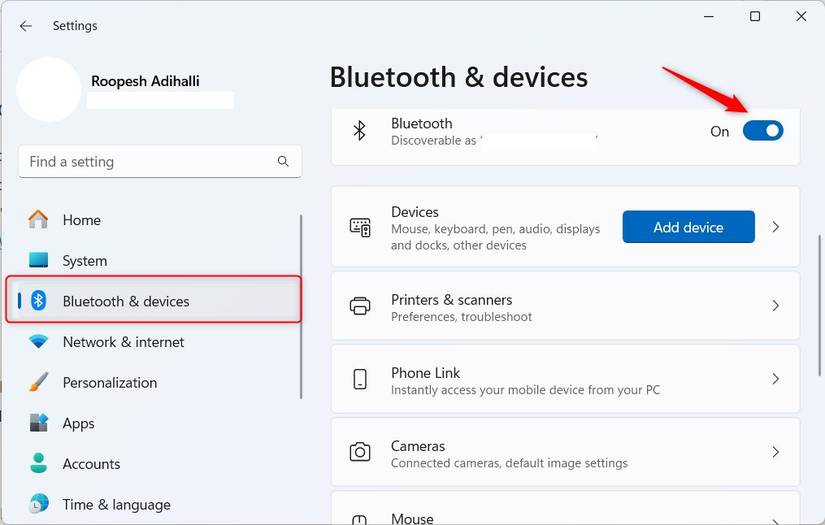
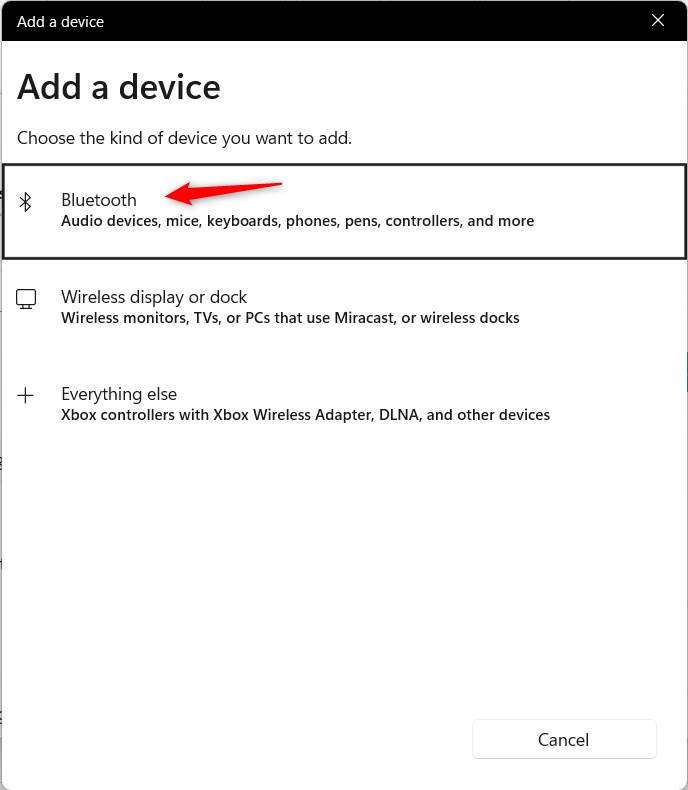
Click Add device and select Bluetooth.
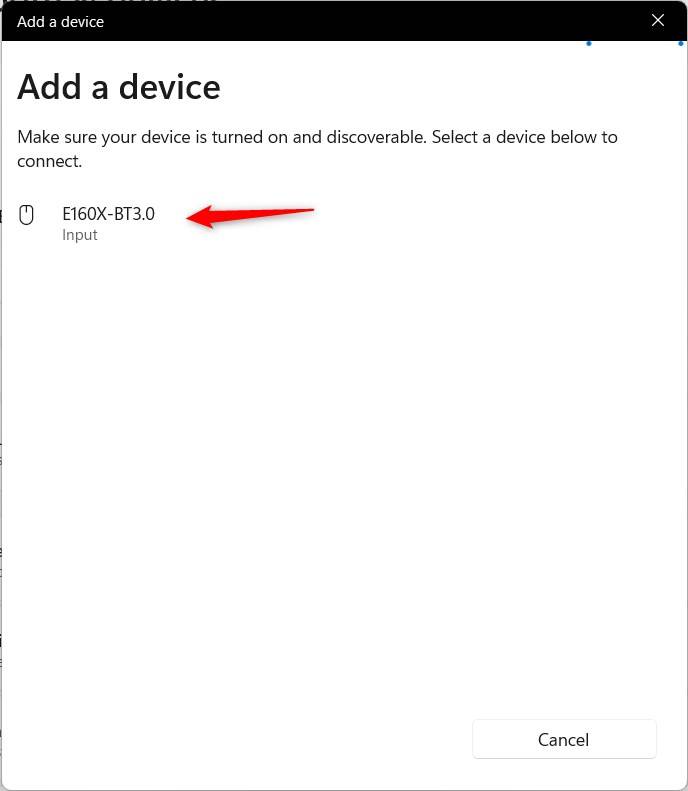
Locate your mouse in the list and click to pair. Once connected, your mouse will bypass the USB receiver entirely.
9. Use System Restore
If your mouse was working perfectly a few days ago, a System Restore can revert your registry and system files to that exact state without affecting your personal documents. Search for "Create a restore point" in the Start menu, click System Restore, and follow the prompts to choose a date when the mouse was functional.
By following these steps, you should be able to get your pointer moving again. Once fixed, don't forget to test your other peripherals with our keyboard test, webcam test, or speaker test to ensure your entire setup is performing at its best.
Frequently Asked Questions
Why did my wireless mouse suddenly stop working?
A wireless mouse can stop working for several reasons: a dead or low battery, a loose USB receiver, outdated or corrupted drivers, USB power management suspending the port, or interference from other wireless devices. Systematically working through the fixes above will help you identify the exact cause.
Can a wireless mouse work without a USB receiver?
Yes, if your mouse supports Bluetooth. Many modern wireless mice are "dual-mode" and can connect via either a USB dongle or Bluetooth. Check the bottom of your mouse for a Bluetooth pairing button or switch.
How do I know if my USB receiver is broken?
The easiest test is to plug the receiver into a different computer. If the mouse still doesn't work on another PC, the receiver (or the mouse itself) is likely defective. You can also try our mouse test tool to check if any input is being detected.
Will resetting USB controllers delete my files?
No. Uninstalling USB controllers from Device Manager only removes the driver software temporarily. When you restart your PC, Windows automatically reinstalls them. Your personal files remain untouched.
How often should I replace my wireless mouse battery?
It depends on usage and battery type. Standard AA/AAA batteries in a wireless mouse typically last 3–12 months. Rechargeable mice should be charged every few weeks. If you notice erratic cursor behavior or frequent disconnections, a low battery is often the culprit.