How to Fix a Monitor That Randomly Goes Black: 15 Pro Troubleshooting Tips
Experiencing a monitor that suddenly turns black while you are in the middle of a project or a gaming session is incredibly frustrating. This behavior usually indicates a communication breakdown between your hardware and software. Use this comprehensive guide to diagnose and resolve display issues. If you want to verify your display's performance, you can also use our online screen test tool.
1. Inspect Physical Cables and Connection Ports
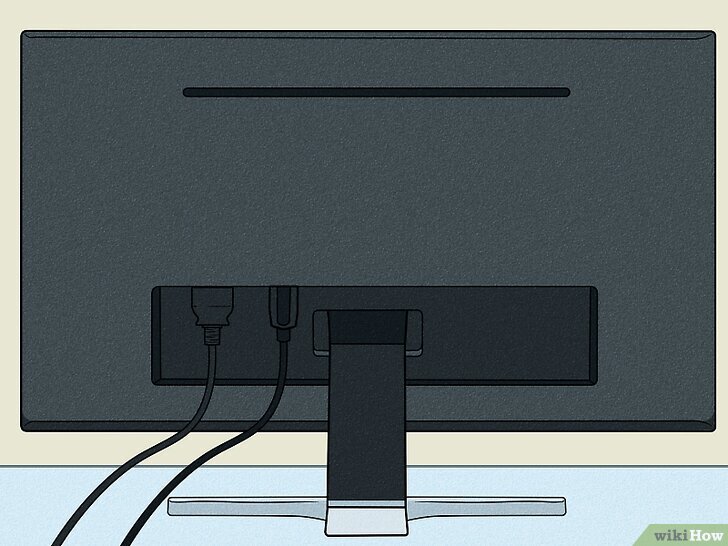
The most common cause of a flickering or black screen is a loose or damaged cable. Ensure that your HDMI, DisplayPort, or VGA cables are firmly seated in both the monitor and the PC. Check the cables for physical damage or sharp bends. Try wiggling the connector—if the screen cuts out, you likely need a replacement. You should also verify that the ports are clean and free of dust or debris. If the issue persists, try connecting to a different display or checking your peripherals with our mouse test or keyboard test to ensure the system is still responsive.
2. Update Your Graphics Drivers
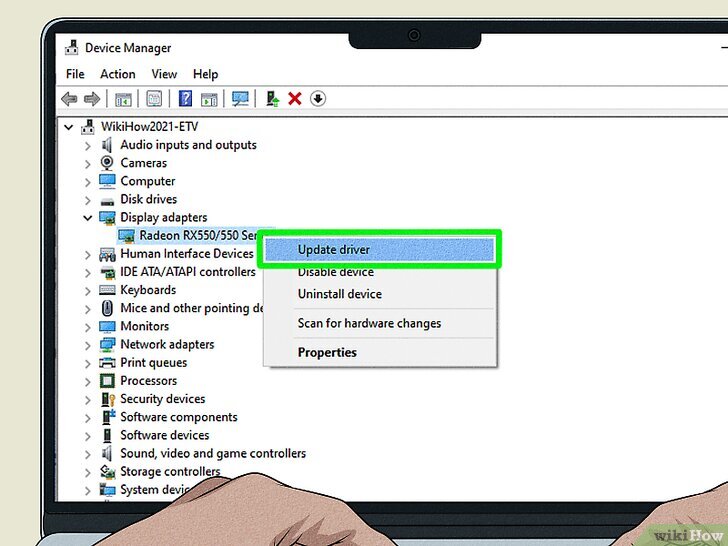
Graphics drivers act as the bridge between your operating system and your GPU. Outdated or incompatible drivers frequently cause display instability. To update your drivers on Windows:
- Right-click the Start button and select Device Manager.
- Expand the Display adapters section.
- Right-click your GPU and select Update driver.
- Choose Search automatically for drivers.
3. Perform a Clean Reinstall of Graphics Drivers
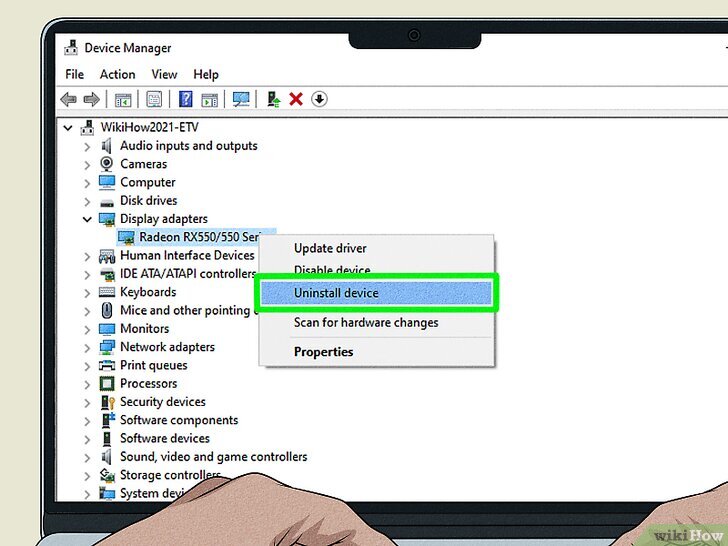
If updating doesn't solve the problem, your current driver might be corrupted. A clean installation ensures that old, broken files are removed. Visit the official manufacturer's site (NVIDIA, AMD, or Intel) to download the latest driver package. In Device Manager, right-click your adapter and select Uninstall device before running the new installer you just downloaded.
4. Restore Monitor Factory Settings
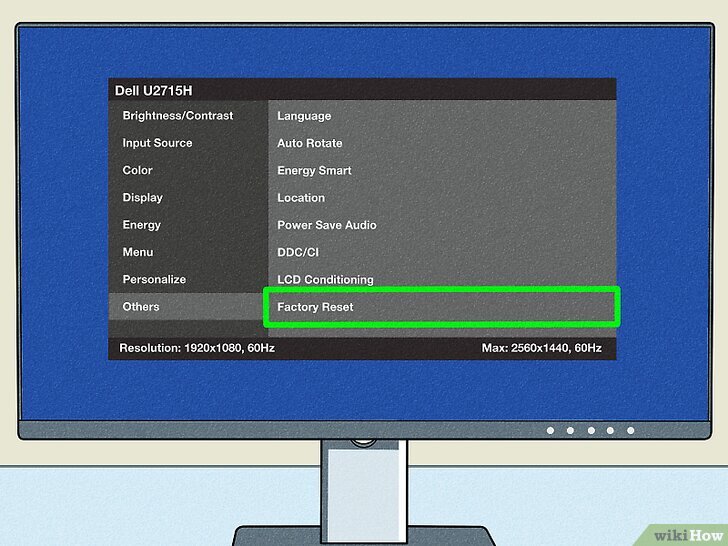
Internal monitor settings can sometimes become misconfigured, leading to power-saving loops or signal errors. Use the physical buttons on your monitor to access the On-Screen Display (OSD) menu and look for a Factory Reset or Reset to Default option. This clears any internal software glitches within the monitor itself.
5. Review Screen Saver Configuration
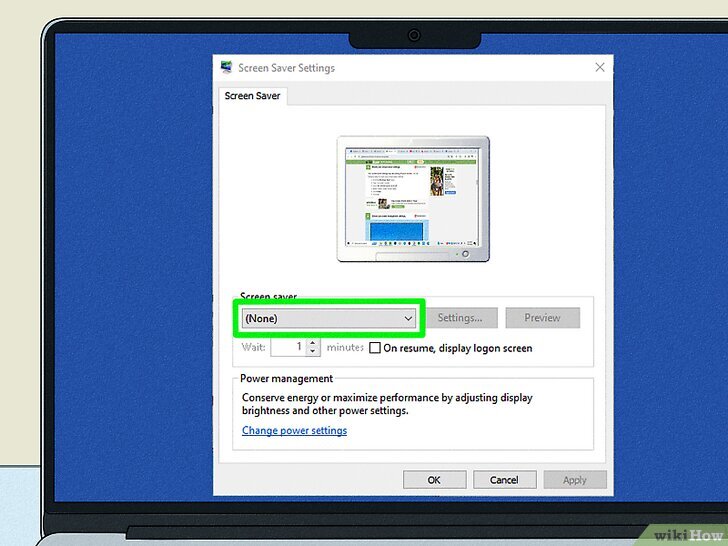
An incorrectly configured screen saver might be triggering too early or causing the monitor to enter a low-power state prematurely. To check this:
- Search for "Change screen saver" in the Windows search bar.
- In the settings window, set the Screen Saver to (None).
- Ensure the "Wait" time is set to a reasonable duration.
- Click Apply and OK.
6. Adjust Power Management Settings
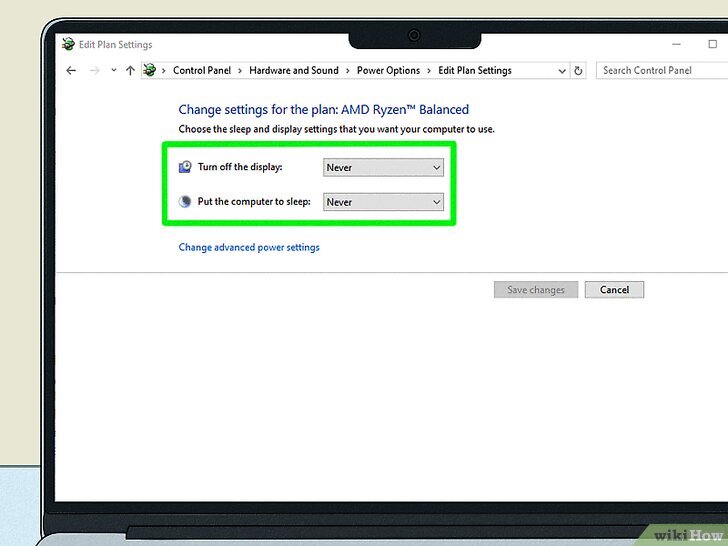
Windows Power Plans are designed to save energy, but they can sometimes be too aggressive, causing the monitor to shut down during use. To adjust this:
- Open the Start menu and type "Edit power plan."
- Select Change settings for the plan.
- Set Turn off the display to Never (or a much longer duration).
- If you are on a laptop, adjust this for both "On battery" and "Plugged in" modes.
7. Match Resolution and Refresh Rates
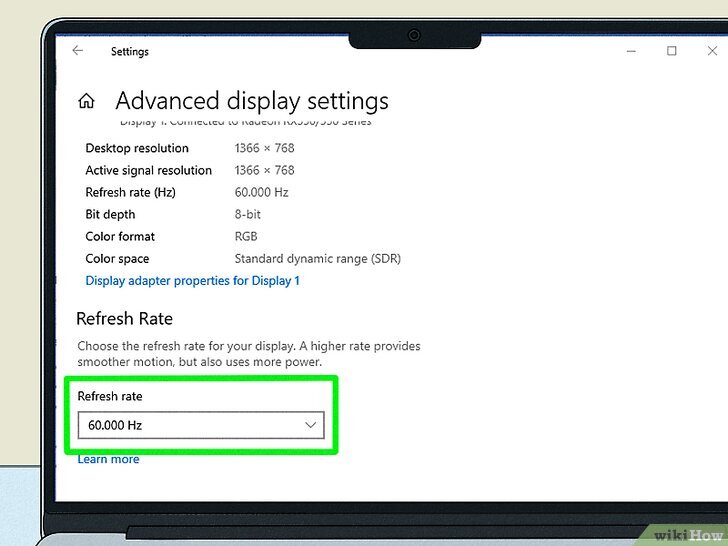
If your computer is pushing a signal that the monitor doesn't natively support, the screen will frequently go black to re-sync. Go to Settings > System > Display. Ensure the Display resolution matches the "Recommended" native resolution of your monitor. Then, click Advanced display and ensure the Refresh rate is set to a supported frequency (usually 60Hz, 120Hz, or 144Hz).
8. Optimize In-Game Graphics Settings
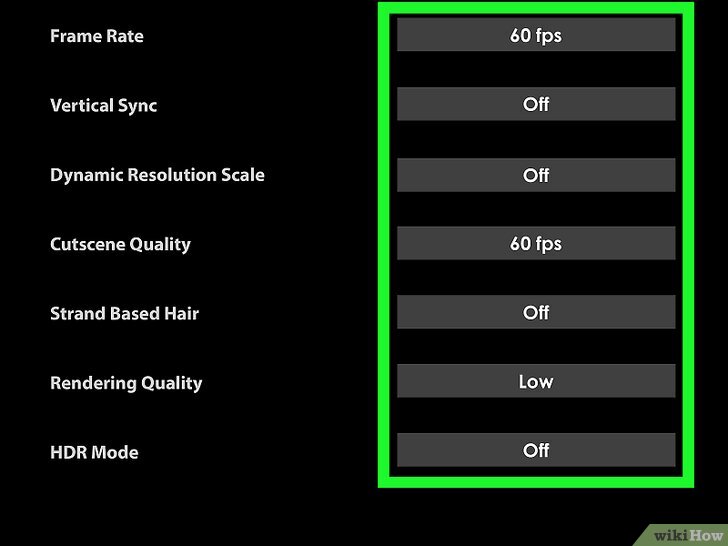
High-end software and AAA games can put an immense load on your GPU. If your hardware is overheating or struggling to keep up, the display signal may drop. If your monitor goes black only during gaming, try lowering the graphical presets to reduce the strain on your system. If you are testing audio during gaming, you can verify your gear with our speaker test.
9. Disable Variable Refresh Rate (G-Sync or FreeSync)
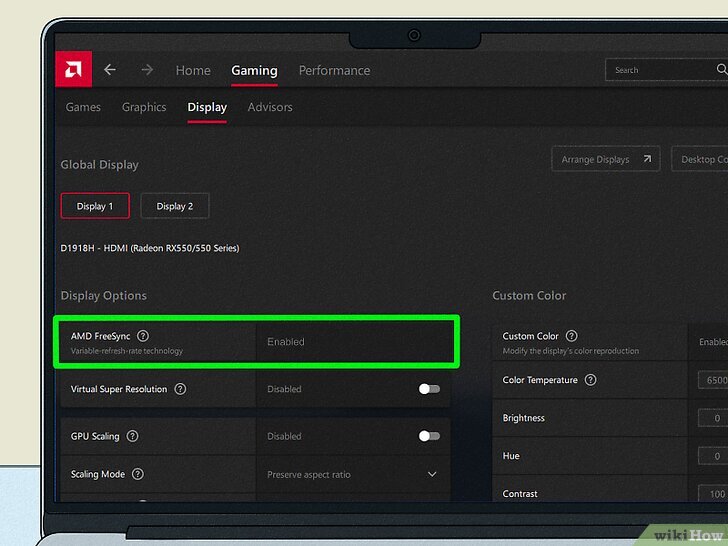
While G-Sync (NVIDIA) and FreeSync (AMD) are excellent for preventing screen tearing, they can cause black screen issues if there is a compatibility mismatch between the driver and the monitor hardware. Try disabling these features in the NVIDIA Control Panel or AMD Radeon Software to see if the black screens stop.
10. Disable High Contrast Mode
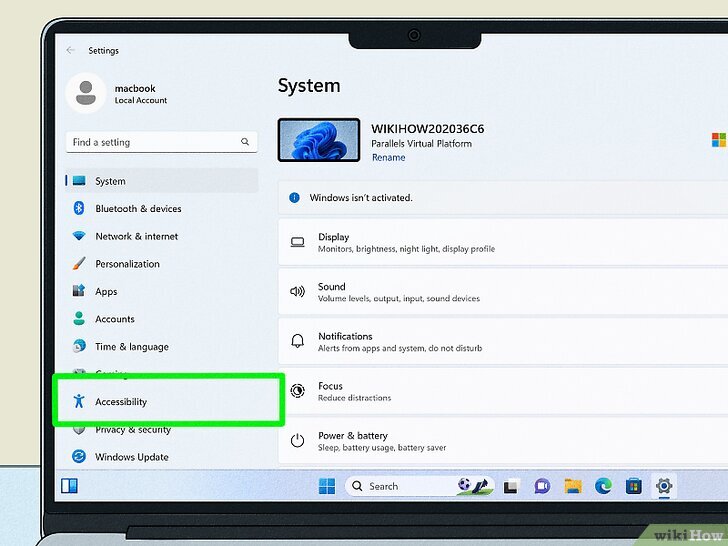
Windows Accessibility features like High Contrast themes can occasionally interfere with the display driver's rendering. Navigate to Settings > Accessibility > Contrast themes. Ensure that the theme is set to None and click Apply to revert to standard display rendering.
11. Identify and Uninstall Conflicting Applications
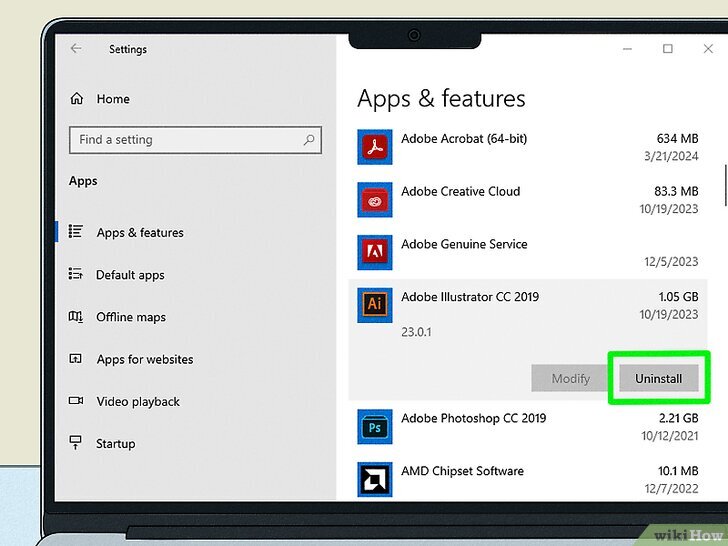
Third-party software—especially screen recording tools, optimizers, or overclocking utilities—can conflict with your display output. If the black screen issue began after installing a new program, go to Settings > Apps > Installed apps and uninstall the recently added software to rule out a conflict.
12. Reset Overclocking Settings
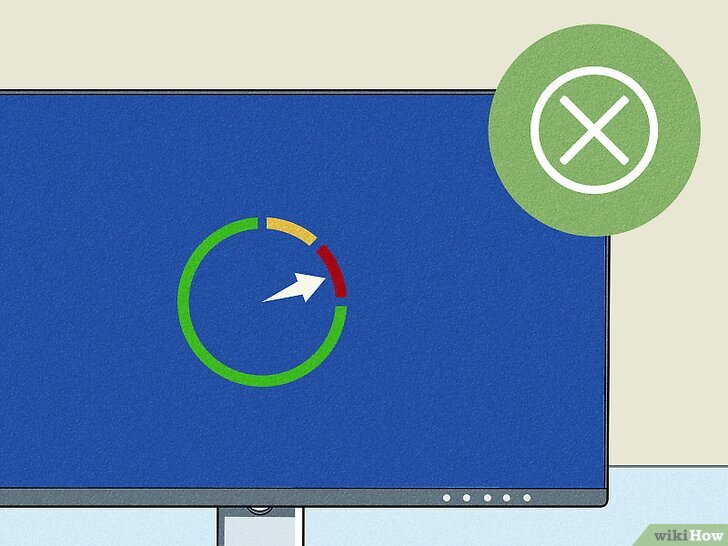
Overclocking your CPU or GPU pushes your hardware beyond its factory-certified limits. This can lead to instability and sudden display loss. If you are using MSI Afterburner, EVGA Precision, or BIOS-level overclocking, revert your settings to the default Stock values to ensure stability.
13. Scan for Corrupted System Files
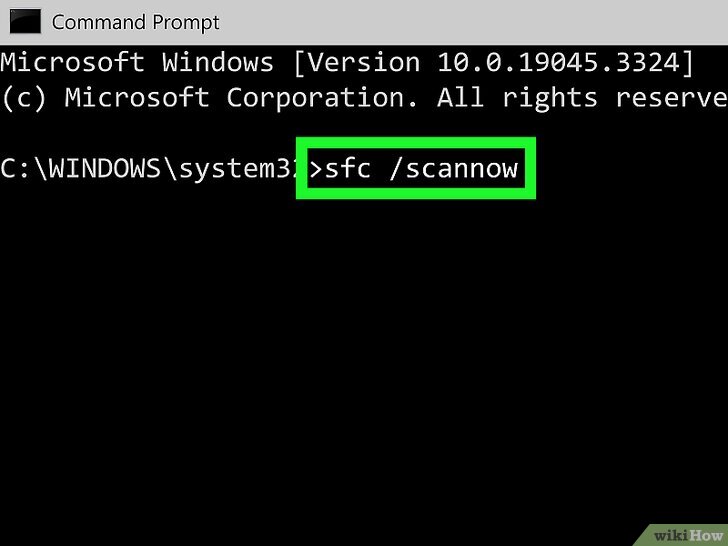
Corruption within the Windows system files can disrupt the way drivers interact with the OS. You can use the built-in System File Checker to fix these errors:
- Type "CMD" in the Start menu, right-click it, and Run as Administrator.
- Type
sfc /scannowand press Enter. - Windows will automatically detect and repair damaged files.
14. Run a Comprehensive Malware Scan
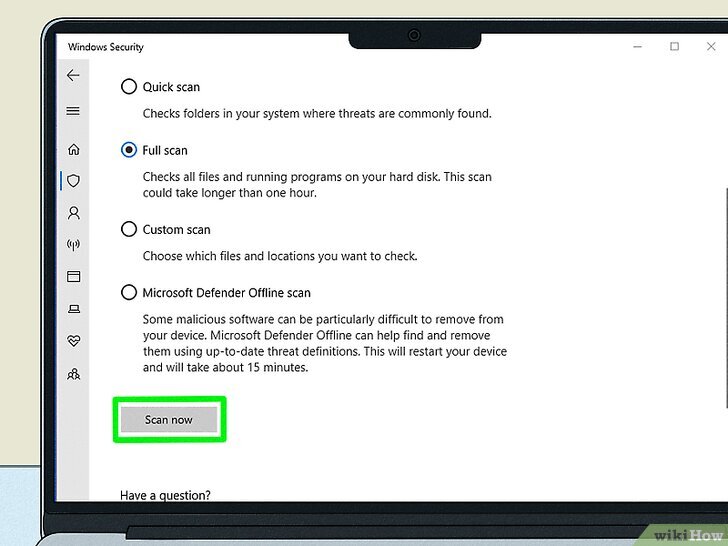
Certain types of malware or viruses can hijack your GPU resources or interfere with system processes, leading to hardware malfunctions. Use Windows Defender or a reputable third-party antivirus to perform a Full Scan of your system to ensure it is clean.
15. Evaluate Hardware and Power Supply Health
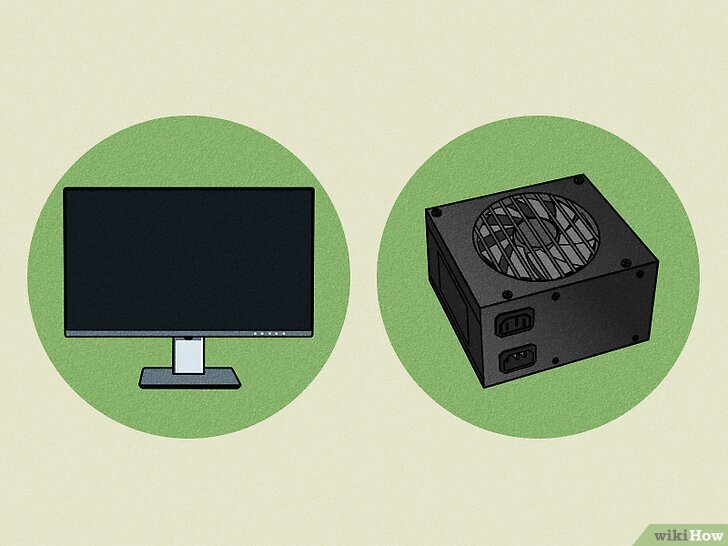
If none of the software fixes work, you may be facing a hardware failure. This could be a dying backlight in the monitor or a Power Supply Unit (PSU) that can no longer provide consistent voltage to your graphics card. Try using a different power outlet or testing the monitor with another PC. For more complex hardware issues, refer to our troubleshooting guide or consult a professional technician. If you need to test other components like your audio input, visit our microphone test page.
Frequently Asked Questions
Why does my monitor go black for a second then come back?
This is typically caused by a loose cable, a momentary refresh rate mismatch, or G-Sync/FreeSync handshaking issues. Start by reseating your video cables and ensuring your refresh rate matches your monitor's native rate.
Can a bad HDMI cable cause a black screen?
Absolutely. Damaged or low-quality HDMI cables can drop the signal intermittently, especially at higher resolutions and refresh rates. Try a certified Premium High Speed or Ultra High Speed HDMI cable.
Why does my monitor go black only when gaming?
This often points to GPU overheating, an unstable overclock, or G-Sync/FreeSync incompatibility. Monitor your GPU temperatures and try lowering graphics settings or disabling VRR features.
How do I know if my monitor is dying?
Signs include flickering, random blackouts that increase in frequency, color distortion, or buzzing sounds. Test the monitor on another PC—if the same issues occur, the hardware is likely failing.
Can malware cause my monitor to go black?
Yes. Some malware targets GPU drivers or hijacks system resources, causing display instability. Run a full system scan with Windows Defender or a reputable antivirus program.