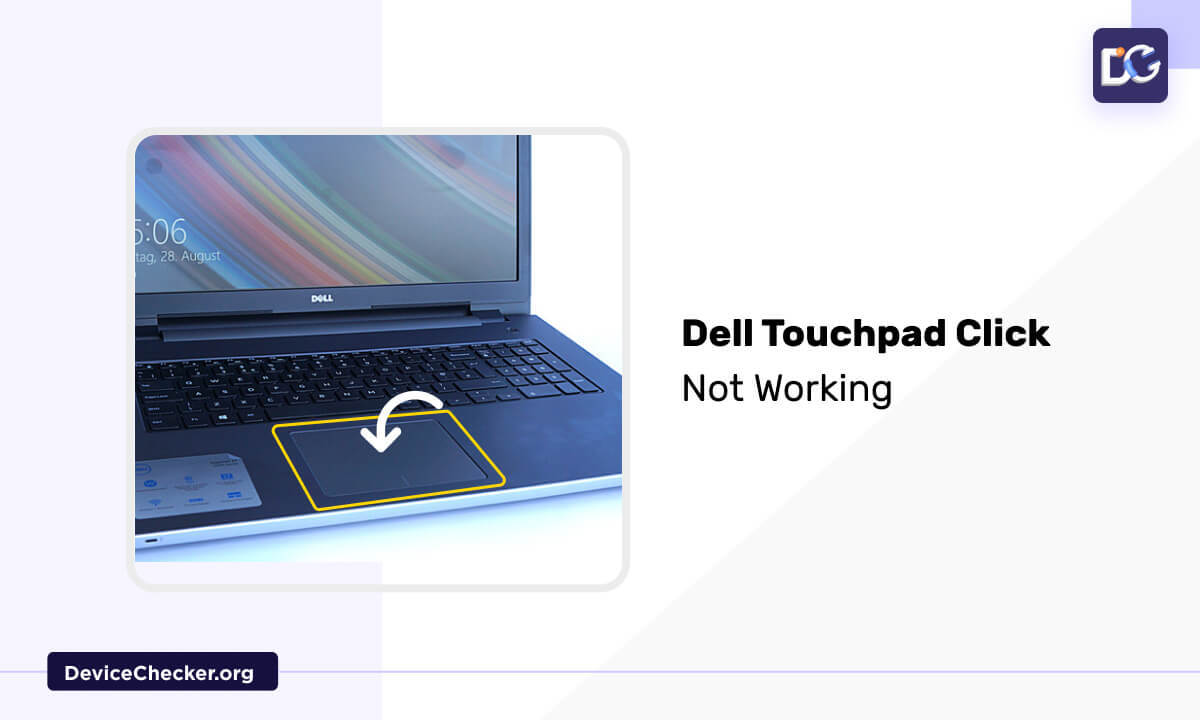
Few things are more frustrating than a Dell touchpad click not working when you're in the middle of an important task. Whether it's a physical hardware failure or a software glitch, losing the ability to click can bring your productivity to a standstill. At audiotest.app, we specialize in helping users diagnose device issues—from speaker tests to microphone checks—and today we're tackling one of the most common laptop hurdles: the unresponsive Dell touchpad.
Understanding Why Your Dell Touchpad Isn't Clicking
Hardware Factors
- Physical Impact: Laptops are portable, making them prone to drops or pressure. A cracked or misaligned touchpad surface often results in a "dead" click.
- Debris and Moisture: Dust, crumbs, or spilled liquids can seep under the click buttons, causing them to stick or fail to register pressure.
- Loose Internal Cables: Over time, the ribbon cable connecting the touchpad to the motherboard can wiggle loose, interrupting the signal.
Software and Configuration Hurdles
- Legacy Drivers: Using outdated or corrupt drivers can prevent the operating system from recognizing your clicks correctly.
- Misconfigured Precision Settings: Windows 10 and 11 offer "Precision Touchpad" settings that, if toggled incorrectly, might disable certain click functions.
- System Resource Conflicts: Occasionally, background software or updates can conflict with your input devices.
How to Fix Your Dell Touchpad Click Issues
1. Toggle the Touchpad Function Key
Many Dell laptops include a dedicated toggle to enable or disable the touchpad. This is usually triggered by holding the Fn key and pressing the corresponding function key (often F5, F7, or F9) marked with a touchpad icon. If your keys aren't responding as expected, you can verify your keyboard health with our keyboard-test tool.
2. Verify Windows Settings
If the hotkey doesn't work, check your system settings manually:
- Press Windows + S and search for "Touchpad settings."
- Ensure the "Touchpad" toggle is switched to On.
- Check the "Taps" section to ensure "Press the lower right corner of the touchpad to right-click" and "Tap with a single finger to single-click" are enabled.
3. Clean the Touchpad Surface
A dirty touchpad can cause "ghost touches" or prevent clicks from registering. Use a lint-free microfiber cloth lightly dampened with 70% isopropyl alcohol. Gently wipe the surface and the edges of the click buttons. Once clean, use a dry cloth to remove any remaining moisture before testing it again.
4. Perform a System Restart
A simple reboot can clear temporary software glitches. If your mouse isn't working, you can restart using only your keyboard:
- Press Ctrl + Alt + Delete.
- Use the Tab key to navigate to the Power icon in the bottom right.
- Press Enter, select "Restart" using the arrow keys, and hit Enter again.
5. Update or Reinstall Drivers
To ensure your hardware is communicating properly with Windows:
- Right-click the Start button and select Device Manager.
- Expand Mice and other pointing devices.
- Right-click your Dell Touchpad and select Update driver.
- Select Search automatically for drivers.
After updating, visit our mouse-test page to verify that your clicks and movement are back to normal.
6. Check BIOS Configuration
In some cases, the touchpad may be disabled at the hardware level in the BIOS. Restart your laptop and repeatedly tap F2 or F12 during startup to enter the BIOS menu. Look for "Post Behavior" or "System Configuration" and ensure the "Internal Pointing Device" is set to Enabled.
7. Run Integrated Dell Diagnostics
Dell laptops come with built-in hardware diagnostics (ePSA). To run them, restart your PC and tap F12 at the Dell logo, then select Diagnostics. This will test the physical integrity of the touchpad sensor and buttons.
Frequently Asked Questions
Why did my Dell touchpad suddenly stop clicking?
The most common causes are accidental disabling via the function keys, a recent Windows update that corrupted the driver, or physical debris blocking the button mechanism.
How can I test if it's a hardware or software issue?
If the touchpad works in the BIOS menu but not in Windows, it is a software/driver issue. If it doesn't work in either, it is likely a hardware failure. For more help, see our troubleshooting guide.
Can I use my laptop without the touchpad?
Yes, you can plug in any USB or Bluetooth mouse. This is also a great way to confirm if the issue is specific to the built-in hardware or the entire Windows pointing system.
Still having trouble with your laptop components? Whether you need a camera-test or a screen-test, audiotest.app provides the tools you need to keep your gear in peak condition.