Dealing with the "headphones not working on Windows 10" problem can be incredibly frustrating, especially when you're in the middle of a call, gaming session, or trying to enjoy your favorite music. If your laptop or desktop suddenly stops recognizing your headset, don't worry—this is a common issue that is usually caused by software glitches or incorrect settings rather than hardware failure.
Before diving into the technical fixes, we recommend using our free speaker test tool to verify if any sound is coming through at all. If you're still stuck, our comprehensive troubleshooting guide is here to help you get back online in minutes.
In this guide, we will walk you through four reliable solutions to resolve the "Windows 10 headphones not working" error and restore your audio experience.
Solution 1: Perform a Physical Re-connection and System Reboot
Often, the simplest solution is the most effective. Windows 10 may sometimes fail to detect a newly plugged-in peripheral due to a minor temporary glitch in the OS kernel. To resolve this, follow these two quick steps:
- Unplug your headphones from the 3.5mm jack or USB port and shut down your computer completely.
- Plug your headphones back in and power on your computer. Check if the sound has returned to your headset.
Solution 2: Configure Headphones as the Default Playback Device
Windows doesn't always automatically switch the audio output to your headphones when they are connected. If your system is still trying to send audio to your built-in speakers, you won't hear anything through your headset. Manually setting your headphones as the default device often clears this up immediately.
How to Set Your Default Audio Device:
- Press the Windows Key, type
Control Panelin the search bar, and hit Enter. - In the Control Panel, set the "View by" option to Large icons and click on Sound.
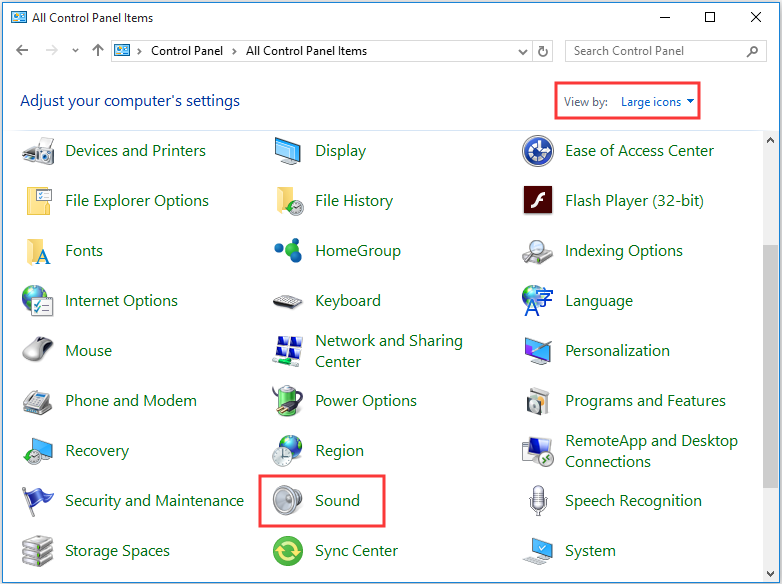
- Navigate to the Playback tab. Find your Headphones in the list, right-click them, and select Set as Default Device.
- Click Apply and then OK to confirm your changes.
If your headphones also have a built-in mic, you might want to visit our microphone test page to ensure your voice is being picked up correctly as well.
Solution 3: Update Your Audio Drivers
Outdated, corrupted, or missing audio drivers are a primary culprit for sound issues on Windows 10. Updating your drivers ensures compatibility with the latest Windows updates and fixes known bugs.
Steps to Update via Device Manager:
- Right-click the Start button (or press
Win + X) and select Device Manager from the menu. - Locate and expand the Sound, video and game controllers section.
- Right-click your primary audio device (e.g., Realtek High Definition Audio) and choose Update driver.
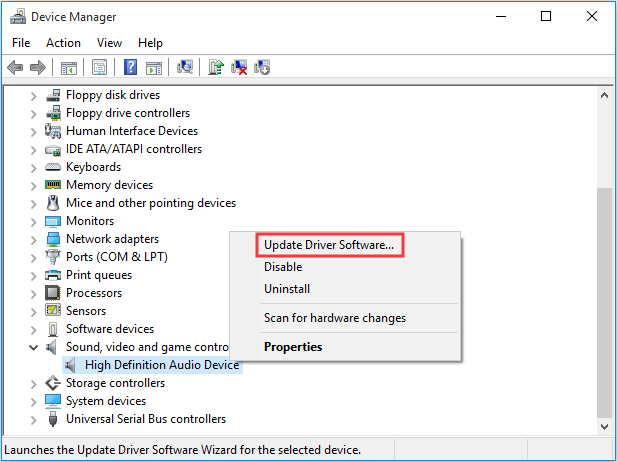
- Select Search automatically for updated driver software. Windows will search your computer and the internet for the latest software.
- Follow the on-screen prompts to complete the installation and restart your PC.
Solution 4: Adjust Realtek HD Audio Manager Settings
If you have the Realtek HD Audio Manager installed, it might be overriding your Windows settings. Specifically, the "front panel jack detection" feature can sometimes malfunction, causing the system to ignore plugged-in headphones.
- Open the Realtek HD Audio Manager from your taskbar or Control Panel.
- Click the small folder icon located in the upper-right corner of the window.
- Check the box labeled Disable front panel jack detection and click OK.
- Restart your system and test your audio.
Frequently Asked Questions
Why did my headphones stop working after a Windows 10 update?
Major Windows updates can sometimes overwrite or conflict with existing audio drivers. If this happens, try rolling back the driver in Device Manager or reinstalling it from the manufacturer's website. You can also use our speaker test tool to quickly check if audio output is working after any driver changes.
How do I know if my headphone jack is broken?
Test your headphones on another device first. If they work elsewhere, the issue is likely your PC's jack or software. Try plugging into a different port (front vs. back panel) to rule out a hardware fault with a specific jack.
Can Bluetooth headphones have the same issue on Windows 10?
Yes. Bluetooth headphones can fail to connect or produce no sound due to driver issues, interference, or pairing conflicts. Try removing the device and re-pairing it, and ensure your Bluetooth drivers are up to date.
Why do my headphones work but the microphone doesn't?
This usually means the mic input is set to a different device. Check your recording devices in Sound settings and set your headphone mic as the default. Run our microphone test to verify it's working properly.
Should I use third-party driver update tools?
We recommend using Windows Device Manager or downloading drivers directly from your hardware manufacturer's website (Realtek, Intel, etc.). Third-party tools can sometimes install incorrect or bundled software.
If you've followed these steps and your audio is still behaving strangely, you can use our speaker test or comprehensive troubleshooting suite to narrow down the cause. Remember to also check other peripherals like your keyboard or mouse if you suspect a broader system issue.