What Is Monitor Ghosting and Why Does It Happen?
Monitor ghosting is one of the most frustrating visual artifacts for gamers and creative professionals alike. If you've ever noticed a faint, blurry trail or "shadow" following moving objects on your screen, you've experienced ghosting. This phenomenon can turn a high-stakes FPS match into a distracting mess, making it difficult to track targets or enjoy fluid cinematic scenes. Fortunately, ghosting isn't always a permanent hardware flaw; in many cases, it's a result of incorrect settings that can be easily optimized.
Whether you're using a high-end gaming display or a standard office monitor, understanding the root cause is the first step toward a fix. If you suspect other peripherals are acting up, you can always use our keyboard test or mouse test to ensure your entire setup is performing at its peak.
Monitor Ghosting: What Is It and What Causes It?
At its core, monitor ghosting occurs when a display's pixels cannot change colors fast enough to keep up with the movement on the screen. This delay causes the "old" image to linger for a fraction of a second, creating a trailing effect behind moving objects. It is most noticeable during fast-paced action in games, movies, or even when dragging a window across your desktop.
The primary technical culprit is slow pixel response time. Response time, often measured in milliseconds (ms) as "Gray-to-Gray" (GtG), represents how quickly a pixel can transition from one color to another. If the response time is significantly slower than the monitor's refresh rate, ghosting becomes inevitable. While modern panels have made leaps in performance, certain panel types—particularly VA (Vertical Alignment) panels—are more prone to "black smearing" and ghosting than IPS or TN panels.
Below is a visual example of how monitor ghosting can degrade your image quality. To see if your screen is affected, you can use specialized tools like the Blur Busters UFO test or our own screen test suite.
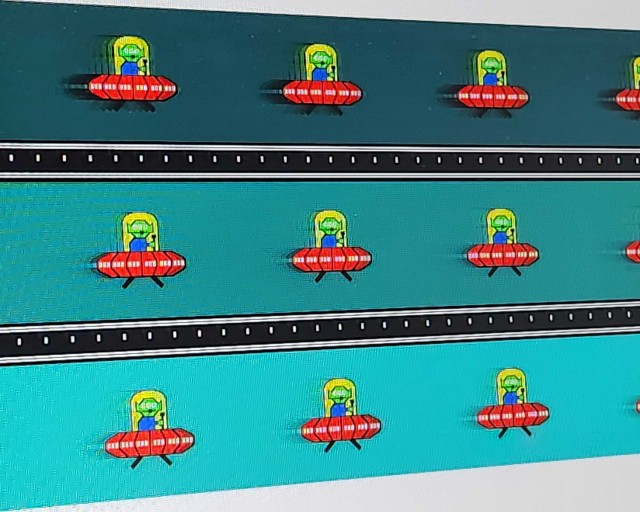
In the pursuit of perfect motion clarity, manufacturers have pushed refresh rates to 360Hz and even 500Hz. However, a high refresh rate alone isn't a silver bullet. If your pixel response time doesn't match the speed of the refresh rate, the ghosting will simply happen more frequently. This is why many monitors include specific technologies like ELMB (Extreme Low Motion Blur) or BenQ's DyAc to "clean up" the image between frames.
Before you assume your hardware is faulty, check your configuration. Running a 144Hz monitor at 60Hz, using an unoptimized display profile, or ignoring your GPU settings are common reasons for avoidable ghosting. If you're experiencing issues across multiple devices, our troubleshooting guide can help you narrow down the cause.
How to Fix Monitor Ghosting: 5 Best Methods
If you're ready to clear up your display and get back to a blur-free experience, try these five proven methods to mitigate or eliminate monitor ghosting.
1. Maximize Your Windows Refresh Rate
It's surprisingly common for users to buy a high-refresh-rate monitor but forget to enable the feature in Windows. If your monitor is capable of 144Hz but is stuck at 60Hz, the lack of fluid updates will make any inherent ghosting much more apparent. This is also a good time to check your audio output with a speaker test to ensure your entire multimedia experience is synchronized.
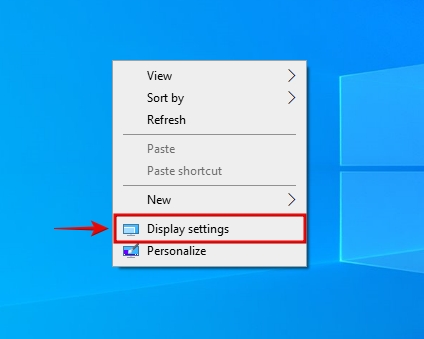
- Right-click on your desktop, and click on DISPLAY settings.
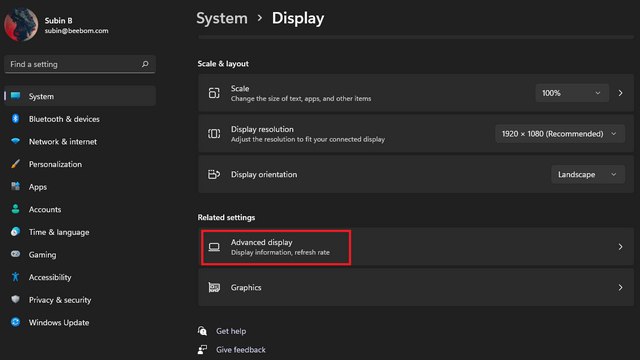
- Next, click on Advanced display.
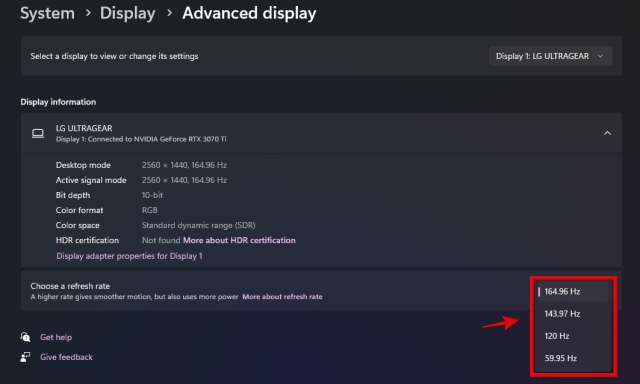
- Now, click on the drop-down menu to change your refresh rate to the highest value, and you will be done applying the fix.
2. Change Display Profile to Gaming Mode
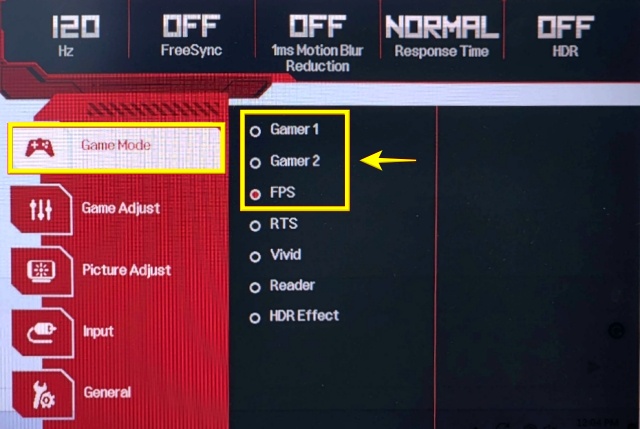
Use your monitor's buttons to access the settings, and look for a menu where you can change display profiles. Most gaming monitors offer several presets—Gamer 1, Gamer 2, FPS, RTS, Vivid, Reader, and HDR Effect. The best one for reducing motion blur and ghosting is usually the FPS or Gamer profile.
3. Adjust Monitor Response Time (Overdrive) Settings
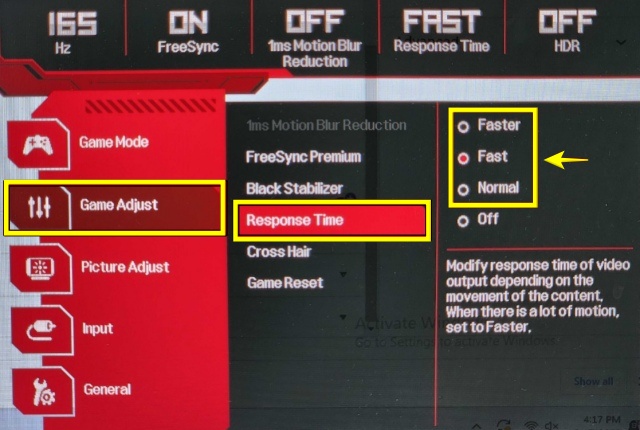
Most gaming monitors feature an Overdrive setting (sometimes labeled as Response Time, AMA, or Trace Free). Overdrive works by applying a higher voltage to the liquid crystals, forcing them to shift colors faster. This is often the single most effective way to reduce ghosting.
- Use your monitor's buttons to access the settings. Then, find the response time setting and change it to "Fastest" or experiment with other options to see which reduces ghosting most. For many LG monitors, the option is under Game Adjust > Response Time.
- Tip: Avoid the "Extreme" or "Ultra-Fast" settings if they cause "overshoot" or inverse ghosting, where bright halos appear around objects instead of dark trails.
4. Enable Motion Blur Reduction Features
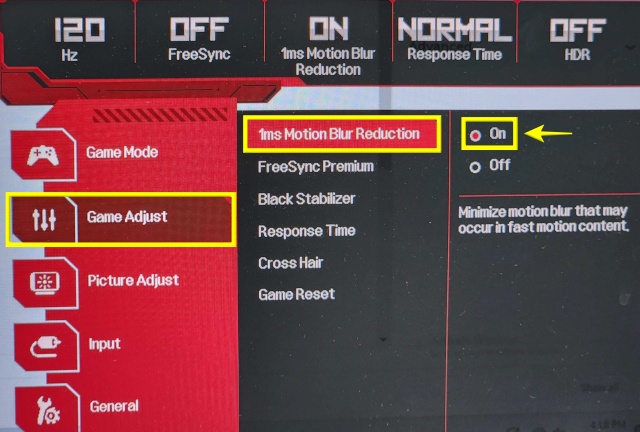
Many monitors feature motion blur reduction technologies. In BenQ Zowie monitors, it's called DyAc. In ASUS monitors, it's ELMB or ELMB Sync. On LG monitors, look for the 1ms Motion Blur Reduction setting. These features strobe the backlight in sync with the refresh rate, effectively hiding pixel transitions from the human eye.
- Access your monitor's OSD menu and find the motion blur reduction setting. On an LG Ultragear 32-inch 165Hz monitor, the option is under Game Adjust > 1ms Motion Blur Reduction.
- Note: enabling motion blur reduction may not be possible in conjunction with G-Sync/FreeSync, so test both to see which results in less ghosting.
5. Enable VRR, G-Sync, or FreeSync
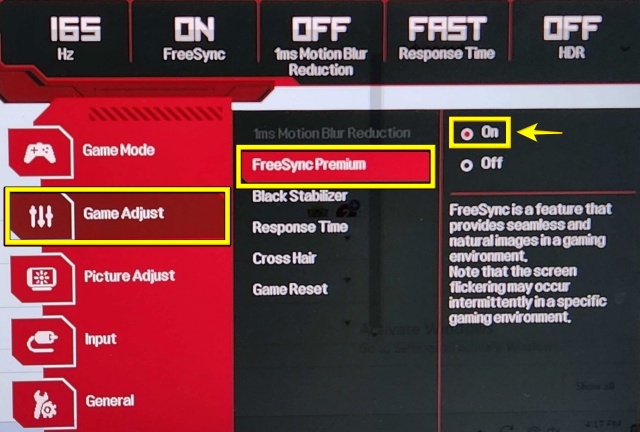
G-Sync and FreeSync, along with variable refresh rate (VRR) in Windows 11, are aimed at fixing screen tearing issues. However, they can also alleviate ghosting by ensuring your monitor and GPU are perfectly synchronized. When frame rate and refresh rate are mismatched, stuttering and artifacts can exacerbate the appearance of ghosting.
- Go to your monitor's OSD settings and look for FreeSync or G-Sync. On many LG Ultragear monitors, it's under Game Adjust > Freesync Premium.
- Also enable the feature in your GPU's control panel (NVIDIA Control Panel or AMD Adrenalin).
Testing Your Results
Once you've applied these fixes, verify the results. Use a combination of high-motion gaming, the Blur Busters UFO test, and our own screen test tool to compare before and after. If you find that your monitor is finally clear, but your teammates are complaining about your voice quality, take a moment to run our microphone test or camera test to ensure the rest of your hardware is up to the same standard as your display.
Frequently Asked Questions (FAQ)
Can monitor ghosting be fixed completely?
While settings and Overdrive can significantly reduce ghosting, the base level is determined by the physical panel. You can mitigate it to the point where it's unnoticeable, but you cannot change the hardware limits.
Does G-Sync cause ghosting?
No, G-Sync itself doesn't cause ghosting. However, if your frame rate drops very low, the monitor's refresh rate drops to match it, and some panels exhibit more ghosting at lower refresh rates.
Do IPS panels have ghosting?
Yes, IPS panels can exhibit ghosting. Some very fast IPS panels have little to no ghosting, but the problem itself doesn't go away just from having an IPS panel.
Is ghosting harmful to my monitor?
Not at all. Ghosting is a visual artifact related to pixel response time and does not cause any physical damage to your display hardware.
Does high refresh rate reduce ghosting?
Yes, a higher refresh rate can reduce perceived ghosting because each frame is displayed for a shorter duration, giving pixels less time to trail.