There is perhaps nothing more frustrating than sitting down to type an important email or finish a project, only to realize that your keyboard has a mind of its own. You press "Q" and get an "A," or you try to type an "@" symbol and end up with double quotes. When your keyboard starts typing the wrong characters, it can feel like a hardware failure, but more often than not, the culprit is a hidden software setting, a regional mismatch, or a simple toggle key you accidentally bumped.
Understanding why your keyboard is behaving this way is the first step toward a permanent fix. Common causes range from the infamous NumLock key on compact laptops to deep-seated driver corruption in the Windows registry. Sometimes, the operating system's regional settings have defaulted to a different language, such as English (UK) instead of English (US), which moves critical symbols like the pound sign and the at-symbol.
Before diving into complex registry edits, the most effective first step is to diagnose the behavior. We recommend using our online keyboard test tool. This tool allows you to see exactly which "scan codes" your computer is receiving. If the tool shows that your "Y" key is registering as a "Z," you know immediately that you are dealing with a layout mismatch (likely the German QWERTZ layout) rather than a broken physical switch.
Why Do Keyboards Type the Wrong Characters?
To fix the issue, we must look at the technical stack. When you press a key, the keyboard sends a "Scan Code" to the operating system. The OS then looks at its "Keyboard Layout Map" to determine which character that code represents. If the map is set to French (AZERTY), but you are using a standard US keyboard (QWERTY), the characters will never match.
- NumLock Interference: On many laptops, the right side of the keyboard doubles as a numeric keypad. If NumLock is on, letters like J, K, and L turn into 1, 2, and 3.
- Layout Mismatch: Switching between US, UK, or International layouts changes where symbols are located.
- Driver Corruption: The HID (Human Interface Device) driver might be outdated or corrupted, causing the OS to misinterpret signals.
- Regional Settings: Windows and macOS often "helpfully" add language profiles based on your location, leading to accidental swaps.
- Hardware Damage: Liquid spills can create "bridges" between traces on the keyboard's PCB, causing one keypress to trigger multiple or incorrect characters.
Quick Fixes Anyone Can Try
Before you start digging into the control panel, try these "low-hanging fruit" solutions that resolve roughly 70% of keyboard issues instantly.
1. The NumLock Culprit
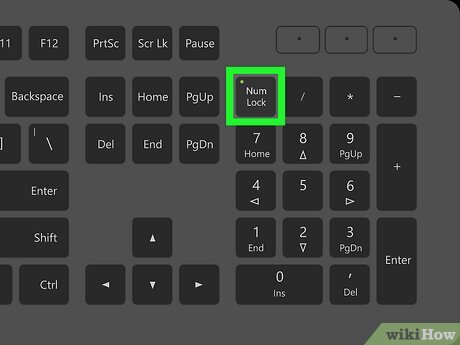
If your laptop is typing numbers instead of letters (specifically on the right side), the NumLock key is almost certainly enabled. On smaller laptops that lack a dedicated number pad, manufacturers "embed" a numpad into the main keys. Look for a key labeled "NumLk" or a small lock icon with a "1" inside it. You may need to hold the Fn key while pressing it to toggle it off.
2. The "Ghost" Language Switch
Did you know that Windows has a built-in shortcut to swap keyboard languages? It is incredibly easy to hit Windows Key + Spacebar or Alt + Shift while gaming or typing quickly. This cycles through your installed languages. If you accidentally switched from "US" to "CMS" (Canadian Multilingual Standard), your "/" key might suddenly start typing "é".
Check the bottom right corner of your taskbar. You should see a three-letter code (like ENG or FRA). Click it to ensure you have the correct layout selected. If you only see one language, this menu might not appear, but the shortcut could still be active if "hidden" layouts are present in the system registry.
Fix Keyboard Layout Issues on Windows 11
Windows 11 moved many settings around, making it slightly more difficult to find the deep language options. If your keyboard is consistently typing the wrong characters even after a reboot, you need to verify the primary input method.
- Open Settings: Press
Win + Ito open the Settings menu. - Navigate to Language: Click on Time & Language in the left sidebar, then select Language & region.
- Check Preferred Languages: Look at the list under "Preferred languages." Ensure your primary language is at the top.
- Language Options: Click the three dots (...) next to your language and select Language options.
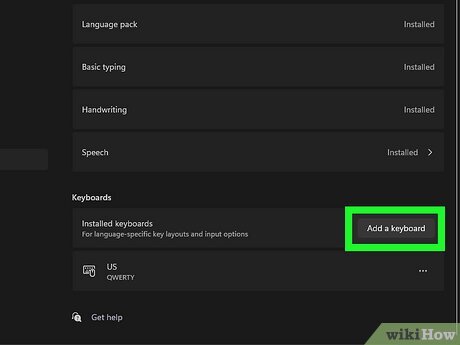
Once you are in the Language Options menu, scroll down to the Keyboards section. This is where the magic happens. If you see "United Kingdom" listed but you have a "US" keyboard, you will find that the " and @ keys are swapped. Click Add a keyboard, find the correct layout (usually "US QWERTY"), and then remove the incorrect one to prevent it from switching back automatically.
Fix Keyboard Layout on Windows 10
Windows 10 remains the most widely used operating system, and its language management is slightly more segmented. If your keyboard layout is wrong here, follow these steps to reset the input logic.
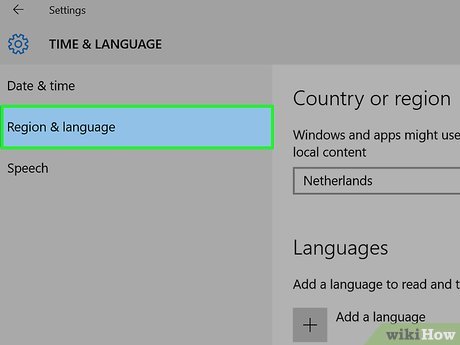
First, access the Control Panel or the Settings app. The Settings app is preferred for modern HID devices. Go to Time & Language and then click Language on the left-hand side. Here, you will see a section for "Preferred languages."
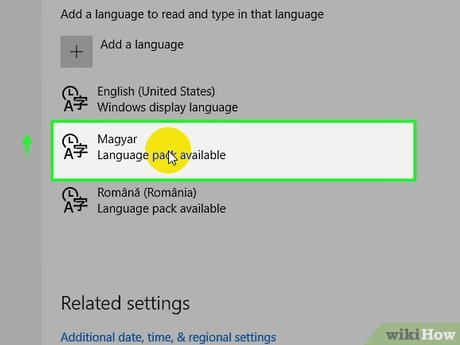
Technical Tip: Sometimes Windows 10 "bundles" several keyboard layouts under one language. For example, "English (United States)" might have both "US" and "Dvorak" layouts attached. Click on the language, select Options, and ensure only the layout that matches your physical hardware is listed. If your keyboard is still acting up, try our troubleshooting guide for deeper OS-level fixes.
Fix Keyboard Issues on macOS (Sonoma/Ventura)
Apple’s macOS handles keyboards differently than Windows. Instead of "drivers" in the traditional sense, macOS uses "Input Sources." If you are on a recent version of macOS like Sonoma or Ventura, the system settings have been redesigned to look more like iPadOS.
To fix a Mac keyboard typing wrong characters:
- Click the Apple Menu and select System Settings.
- Scroll down to Keyboard in the left sidebar.
- Under the Text Input section, click the Edit... button next to "Input Sources."
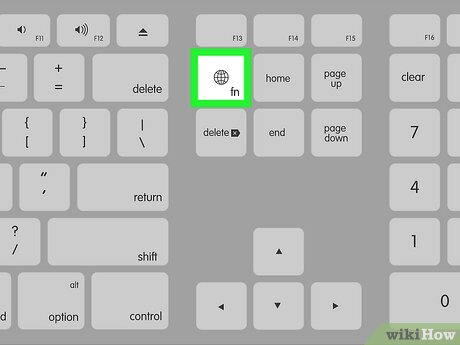
In the Input Sources window, you will see a list of active layouts. If you see something like "British" or "U.S. International - PC," and you are using a standard American MacBook, this is why your keys feel "off." The "U.S. International" layout, for example, uses "dead keys" for accents. If you type a single quote ' and then e, it turns into é. This can be infuriating if you aren't expecting it.
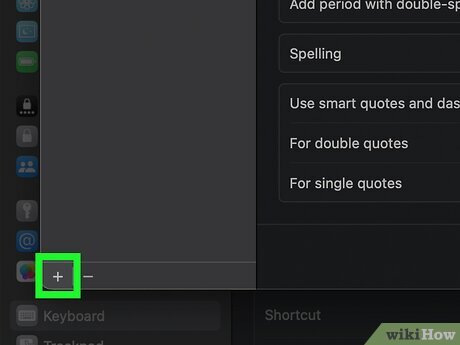
Use the + button to add "U.S." and then remove any others. You should also ensure that "Show Input menu in menu bar" is checked. This gives you a flag icon in your top right menu bar, allowing you to quickly see which layout is active at any given moment.
Third-Party Keyboard Fixes (Logitech, Razer, Keychron)
If you are using a high-end mechanical or gaming keyboard, the problem might not be the operating system at all. Modern keyboards often have "on-board memory" and physical switches that can change their behavior independent of Windows or Mac settings.
Keychron and Mechanical Keyboards
Most Keychron keyboards have a physical toggle switch on the side or back labeled Win/Android and Mac/iOS. If this switch is in the wrong position, your Windows/Command and Alt/Option keys will be swapped. This is a common point of confusion for new mechanical keyboard owners. Always check the physical switches first!
Razer Synapse and Logitech G-Hub
Gaming keyboards allow for "remapping" through software. You might have accidentally recorded a "Macro" or changed a profile. In Razer Synapse, check if "Hypershift" is active. Hypershift allows every key to have a secondary function. If you accidentally toggled Hypershift on, your keyboard will type whatever secondary functions you (or a default profile) assigned. Similarly, in Logitech G-Hub, check your active "Profiles." Some profiles automatically activate when a specific game launches, which could remap your keys for that specific application.
Update or Reinstall Keyboard Drivers
If software settings are correct but the keyboard still types gibberish, your drivers might be at fault. This is especially common after a major Windows Update, which can sometimes overwrite specialized drivers with generic HID versions.
To reinstall your drivers:
- Right-click the Start button and select Device Manager.
- Expand the Keyboards section.
- Right-click on your keyboard (often listed as "HID Keyboard Device") and select Uninstall device.
- Warning: Your keyboard will stop working immediately after this step.
- Restart your computer using your mouse. Upon reboot, Windows will automatically detect the keyboard and install a fresh, clean driver.
This process flushes the temporary configurations and forces the OS to "re-handshake" with the hardware. If you are using a wireless keyboard, ensure you are also checking the drivers for the USB dongle or the Bluetooth adapter.
Hardware Troubleshooting
If you have tried every software fix and the keyboard still produces the wrong characters, we must consider hardware failure. Here is how to verify if your keyboard is physically broken:
- The External Test: Plug your keyboard into a different computer or a laptop. If it still types the wrong characters, the issue is definitely the keyboard hardware. If it works perfectly, the issue is a setting on your original PC.
- Sticky Keys and Debris: If a key is physically stuck or has crumbs under it, it might be triggering "shortcuts." For example, if your
Ctrlkey is stuck down, pressingSwill try to "Save" instead of typing the letter. Use our keyboard tester to see if any keys are showing as "held down" (usually highlighted in a different color). - Liquid Damage: Even a tiny drop of water can cause a "short." This often manifests as one key press resulting in two different characters (e.g., typing "e" gives you "er"). In this case, the keyboard's internal membrane or PCB is damaged and likely needs replacement.
While you are at it, it's a good idea to check your other peripherals. Issues with the keyboard can sometimes be part of a larger USB controller problem. Test your other devices with our mouse test, speaker test, and microphone test to ensure your hardware ports are functioning correctly.
FAQ Section
1. Why does my "@" key type double quotes (") instead?
This is the classic "UK vs US" layout mismatch. On a US keyboard, Shift + 2 is @. On a UK keyboard, Shift + 2 is ". You need to change your keyboard layout in Windows settings to "English (United States)" and remove "English (United Kingdom)."
2. My keyboard is typing symbols like "é" or "à" instead of characters. Why?
You likely have the "United States-International" layout or a French/Canadian layout active. These layouts use "dead keys" to create accented characters. Switching back to the standard "US" layout will fix this.
3. Can a virus cause my keyboard to type wrong characters?
While rare, some "prank" malware or keyloggers can intercept and change your typing. If you've tried layout fixes and they don't work, run a full system scan with Windows Defender or Malwarebytes. However, check your keyboard test results first—if the codes are consistent, it's almost certainly a layout setting.
4. Why do numbers appear when I try to type letters on my laptop?
Your NumLock is on. On many laptops without a dedicated number pad, keys like M, J, K, L, U, I, and O act as a numeric keypad when NumLock is enabled. Toggle it off using the Fn + NumLock key combination.
5. My keyboard works fine in BIOS but not in Windows. What's wrong?
This confirms the issue is 100% software-related. Since the BIOS uses a basic, universal driver, it works. Once Windows loads, it applies your specific (and currently incorrect) language and driver settings. Follow the driver reinstallation steps mentioned above.
Summary and Prevention Tips
Fixing a keyboard that types the wrong characters is usually a matter of matching your software settings to your physical hardware. Whether it's a NumLock toggle or a regional layout mismatch, the solution is often just a few clicks away.
To prevent this from happening in the future:
- Remove Unused Languages: If you only speak English, don't keep multiple language packs installed. This prevents accidental switches via shortcuts.
- Disable the Switch Shortcut: In Windows, you can disable the
Alt + Shiftshortcut in the "Advanced Key Settings" menu to prevent "accidental" layout changes. - Keep it Clean: Use compressed air to keep debris out from under your keys. This prevents "ghost" presses and stuck keys.
- Periodic Testing: Every few months, run a quick check on your hardware. Use camera test and screen test to ensure your entire workstation is in top shape.
By understanding the relationship between scan codes, layouts, and regional settings, you can troubleshoot any keyboard issue like a professional. If you're ever in doubt, head back to audiotest.app to verify your hardware's performance instantly.