Few things are more disruptive to your workflow or gaming session than a mouse cursor that intermittently freezes. Whether you are dealing with a complete lock-up or annoying stuttering, identifying the root cause is essential to getting back on track. At audiotest.app, we specialize in helping users verify their hardware, and our mouse test is a great place to start your diagnostic journey.
In this guide, we have compiled 21 expert-vetted solutions to troubleshoot and fix a mouse that keeps freezing on Windows 10 and 11.
Immediate Troubleshooting Steps
1. Perform a System Restart
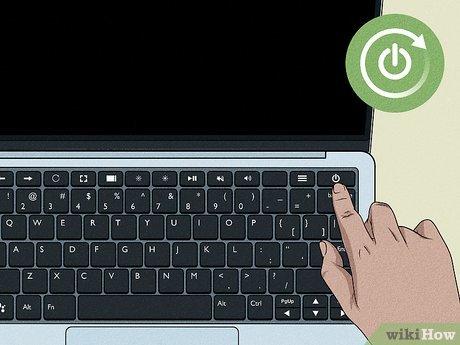
The simplest solution is often the most effective. A full reboot clears the system temporary memory (RAM), terminates background processes that might be hung, and re-initializes hardware drivers. If your cursor is completely stuck, use the physical power button to force a restart.
2. Verify Touchpad Activation
Laptop users often accidentally disable their touchpads via a keyboard shortcut (usually Fn + a function key like F5 or F9). Open your Windows settings by pressing Win + I, navigate to Bluetooth & devices > Touchpad, and ensure the toggle is set to "On." If you suspect other input issues, you can also run a keyboard test to ensure your keys are functioning correctly.
3. Check Battery Levels
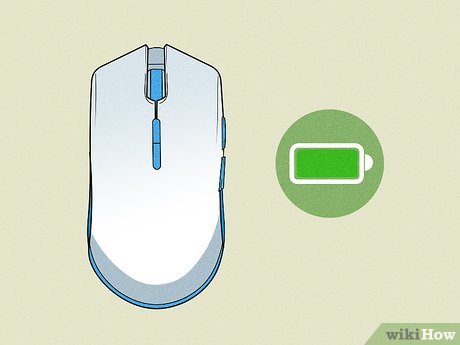
Wireless mice are highly sensitive to low voltage. When a battery is near depletion, the sensor may struggle to transmit data, resulting in a freezing cursor. Replace your AA/AAA batteries or plug in your rechargeable mouse for at least 30 minutes to see if performance improves.
Hardware and Connection Diagnostics
4. Inspect for Physical Damage
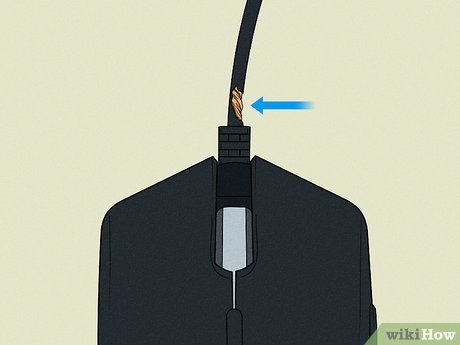
Carefully examine the length of your mouse cable for any signs of fraying or sharp bends. For wireless users, inspect the USB dongle for bent connectors or corrosion. Internal wire breakage is a common cause of intermittent connectivity loss.
5. Reseat the Connection
The connection between your mouse and the computer can sometimes loosen. Unplug the USB cable or wireless receiver, wait five seconds, and plug it back in firmly. Ensure the port is free of lint or debris that could block the contact pins.
6. Switch USB Ports
USB ports can fail over time or suffer from power fluctuations. If your mouse is plugged into a front-panel port or a USB hub, try moving it to a high-speed port directly on the motherboard (at the back of your PC case) to ensure a stable power supply and data connection.
7. Reduce Wireless Interference
Wireless mice operate on frequencies that can be disrupted by other electronics. Ensure the distance between your mouse and the USB receiver is minimal. If your PC is under a desk, use a USB extension cable to bring the receiver onto your desktop for a clear line of sight.
8. Clean the Optical Sensor
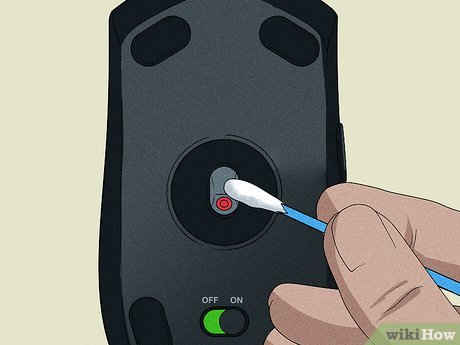
Dust, hair, or even a small fingerprint on the optical sensor lens can cause the cursor to jump or freeze. Use a can of compressed air to blow out the sensor area or gently wipe it with a dry microfiber cloth. Additionally, ensure your mousepad is clean, as oily residue can interfere with tracking accuracy.
9. Cross-Test with Another Device
To determine if the fault lies with the mouse or the computer, try using a different mouse on your PC. If the second mouse works perfectly, your original device is likely failing. If both mice freeze, you are dealing with a software or system-level issue that may require our general troubleshooting steps.
Software and Driver Optimization
10. Run Windows Update
Microsoft frequently releases patches for hardware compatibility. Check for updates by going to Settings > Windows Update. Install all available "Optional updates" as well, as these often contain specific driver improvements for HID (Human Interface Device) peripherals.
11. Perform a Malware Scan
Aggressive malware or background crypto-miners can consume system resources, causing the GUI (including the mouse cursor) to lag or freeze. Use Windows Security or a trusted third-party antivirus to run a "Full Scan" and eliminate any threats.
12. Update Device Drivers
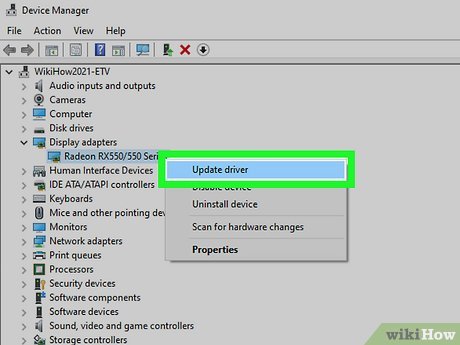
Outdated drivers are a primary culprit for input lag. Right-click the Start button and select Device Manager. Expand Mice and other pointing devices, right-click your mouse entry, and select Update driver. Choose the automatic search option to let Windows find the best available software.
13. Reinstall the Mouse Driver
If updating does not work, the driver might be corrupted. In Device Manager, right-click your mouse and select Uninstall device. After doing this, restart your computer. Windows will detect the "new" hardware upon boot and install a fresh copy of the generic driver.
14. Roll Back Recent Driver Changes
If the freezing started immediately after a driver update, you should revert to the previous version. Open the mouse properties in Device Manager, go to the Driver tab, and click Roll Back Driver if the option is available.
15. Utilize the Hardware Troubleshooter
Windows includes a hidden diagnostic tool for hardware issues. Press Win + R, type msdt.exe -id DeviceDiagnostic, and hit Enter. Follow the on-screen instructions to let the system automatically detect and repair configuration errors.
Advanced System Adjustments
16. Restart Windows Explorer
The explorer.exe process manages the taskbar and desktop. If it becomes unresponsive, your mouse may appear to freeze. Press Ctrl + Shift + Esc to open Task Manager, find "Windows Explorer," right-click it, and select Restart.
17. Disable the Fast Startup Feature
Fast Startup saves a system image to your drive to speed up boot times, but it can occasionally cause hardware initialization errors. Disable it under Control Panel > Hardware and Sound > Power Options > Choose what the power buttons do. Click "Change settings that are currently unavailable" and uncheck "Turn on fast startup."
18. Execute an SFC Scan
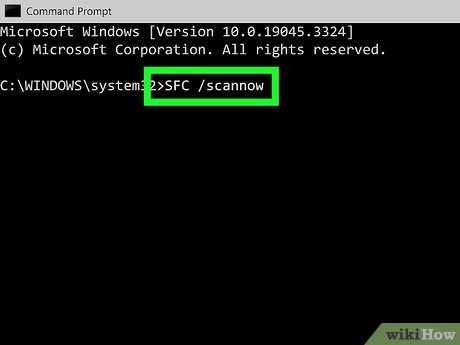
Corrupt system files can lead to erratic peripheral behavior. Open a Command Prompt as an administrator and type sfc /scannow. This utility will verify the integrity of all protected system files and replace any corrupted versions.
19. Check for Software Conflicts
Third-party "mouse enhancement" software or gaming overlays can sometimes conflict with Windows native input handling. Try performing a "Clean Boot" or uninstalling recently added applications to see if the freezing ceases.
20. Adjust USB Power Management
Windows may power down USB ports to conserve energy, leading to "wake-up" lag or freezing. In Device Manager, find your USB Root Hub entries under "Universal Serial Bus controllers." In the Power Management tab, uncheck "Allow the computer to turn off this device to save power."
21. Disable Enhance Pointer Precision
This setting adds software-based acceleration to your mouse movement, which can feel like freezing or "stiffness" to some users. Navigate to Settings > Bluetooth & devices > Mouse > Additional mouse settings. In the "Pointer Options" tab, uncheck Enhance pointer precision.
Is it Time for a New Mouse?
If you have exhausted all 21 fixes and your cursor still hitches, the hardware may have reached the end of its lifespan. Hardware failure is likely if you notice:
- Ghost clicking or double-clicking on a single press.
- The sensor failing to track on specific surfaces.
- The scroll wheel becoming erratic or non-responsive.
- Connection drops that only resolve by wiggling the cable.
Before purchasing a new one, make sure to visit our mouse test page to confirm the hardware failure. If you need to check other peripherals, we also offer a camera test, speaker test, and screen test to ensure your entire setup is in top shape.