In the world of audio engineering, a microphone is strictly an input device. Its sole purpose is to capture sound waves, convert them into electrical signals, and send them to your computer. Because of this design, a microphone should never produce sound itself. However, users occasionally encounter a frustrating phenomenon where their microphone starts acting like a speaker, outputting audio from PC.
If you find that your system audio or voice chat is bleeding through your microphone, you are experiencing a routing or configuration error. In this guide, we will investigate root causes of this issue and provide step-by-step solutions to restore your audio setup. For a quick verification of your current setup, you can use our online microphone test to see exactly what your device is capturing.
Common Causes for a Microphone Playing Audio
The most frequent reason a microphone outputs sound is absence of a dedicated audio output device, leading to operating system to "improvise" by using the mic's diaphragm to vibrate and create sound. Other culprits include incorrect playback settings, outdated drivers, or misconfigured software enhancements.
To stop audio from coming out of your microphone, you must ensure your headphones or speakers are active, select correct default playback device, and disable conflicting Windows features like "Listen to this device" or "Stereo Mix."
1. Rule Out Hardware Faults
Before diving into complex software configurations, it is vital to ensure your hardware isn't physically damaged. A simple way to verify this is by connecting your microphone to a different computer or laptop.
- If the issue persists on another device: The microphone's internal wiring or diaphragm may be defective. You should consult a repair specialist or consider upgrading to a high-quality USB or XLR microphone.
- If the microphone works perfectly elsewhere: The problem lies within your primary computer's settings or drivers. Continue with the troubleshooting steps below.
2. Perform Essential Preliminary Checks
Small mistakes in setup often lead to confusing audio issues. Before proceeding, go through this troubleshooting checklist:
- Verify that your microphone is plugged into the correct input jack (usually pink or labeled with a mic icon) and not an output jack (usually green).
- Test your PC's audio ports with a known working device to ensure the jacks themselves aren't faulty.
- If you are using a desktop PC, try switching from the front-panel jacks to the rear motherboard jacks to avoid interference.
- Run the built-in Windows "Playing Audio" troubleshooter to let the system diagnose automatic fixes.
- Check if the problem is specific to one application (like Discord or Zoom). If so, reset the audio settings within that specific app's menu.
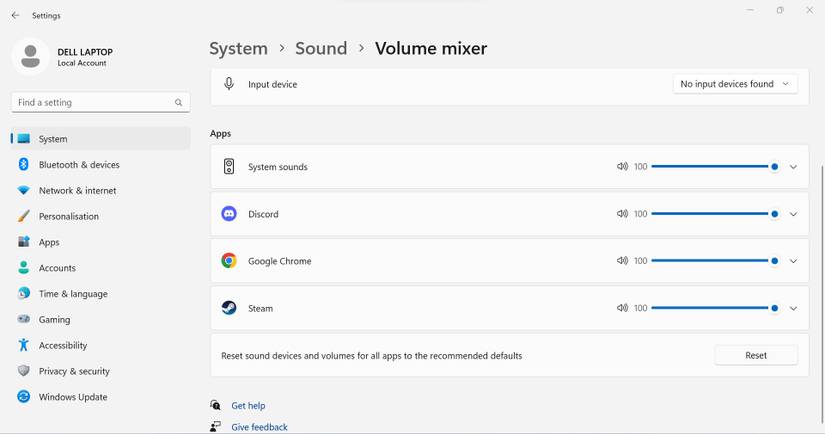
- Reset your global Windows volume settings by navigating to System > Sound > Volume Mixer and clicking Reset.
3. Verify Your Audio Output Connection
Your computer needs a path to send sound. If no speakers or headphones are detected, Windows may attempt to route audio through any available diaphragm, including your microphone. To ensure your PC recognizes your actual speakers, follow these steps:
- Ensure your headphones or speakers are fully seated in jack or USB port.
- Open the Control Panel, go to Sound, and select the Playback tab.
- Right-click your intended output device and select Test.
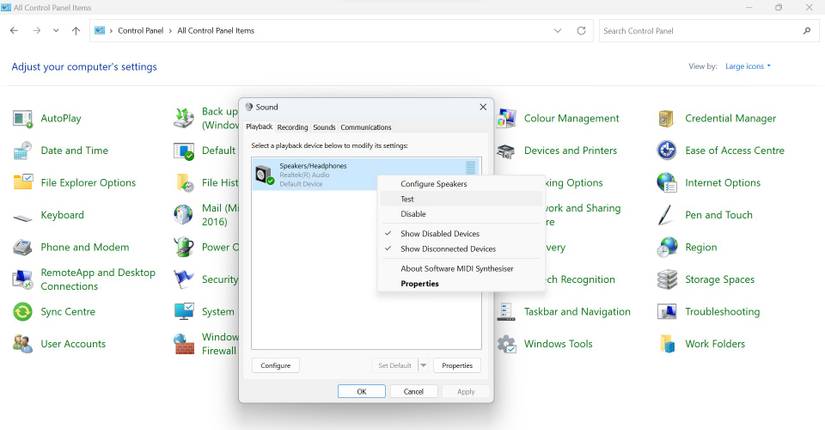
If you don't hear the test chimes, your output device is not working correctly. You can further verify your speakers using our speaker test tool.
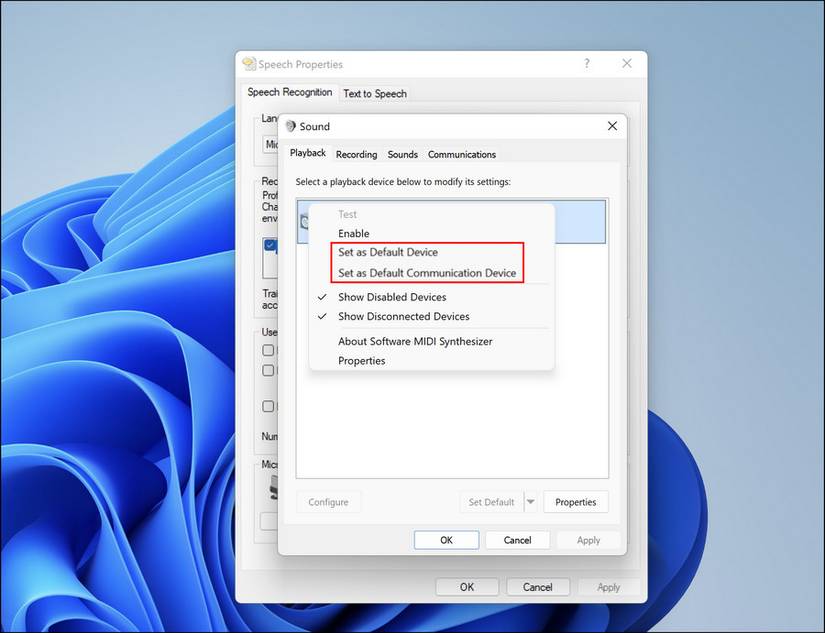
4. Set the Correct Default Playback Device
If your microphone is accidentally set as the default "Playback" device, Windows will treat it as a speaker. You must manually define your speakers as the primary output.
- Open the Control Panel and navigate to the Sound settings.
- Under the Playback tab, find your speakers or headphones.
- If they aren't already marked with a green checkmark, right-click them and select Set as Default Device.
5. Update Your Sound Drivers
Corrupted or outdated audio drivers can cause erratic behavior, such as audio bleed or incorrect device identification. Keeping your drivers current is essential for stable performance.
- Right-click the Start button and select Device Manager.
- Locate and expand Sound, video, and game controllers.
- Right-click your audio driver (e.g., Realtek Audio) and choose Update driver.
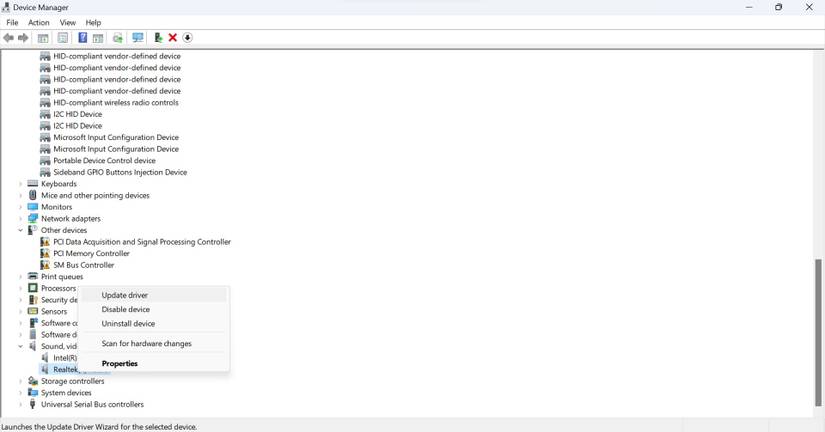
In some cases, specific legacy drivers (like the Realtek 2.82 version) have been known to solve persistent "mic playing sound" issues when modern drivers fail.
6. Disable Conflicting Sound Settings
Several "hidden" settings in Windows can cause your microphone to echo or play back system sounds. Disabling these features often provides the final fix.
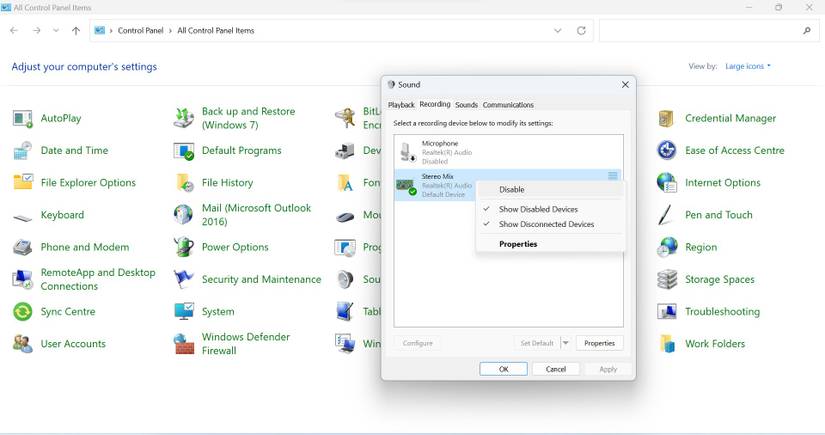
- Disable Stereo Mix: This feature blends your output and input together. In the Sound window, go to the Recording tab, right-click Stereo Mix, and select Disable.
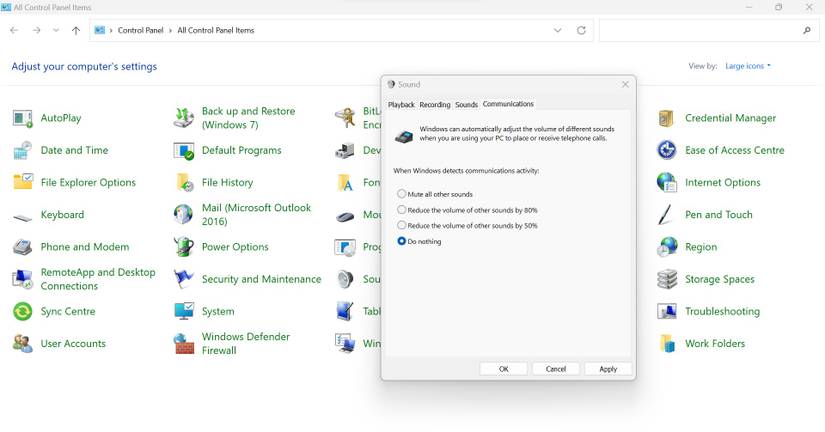
- Communication Settings: Go to the Communications tab in the Sound window and select Do nothing to prevent Windows from automatically adjusting volumes.
- Uncheck "Listen to this device": This is a common culprit. Right-click your microphone in the Recording tab, select Properties, and navigate to the Listen tab. Ensure Listen to this device is unchecked.
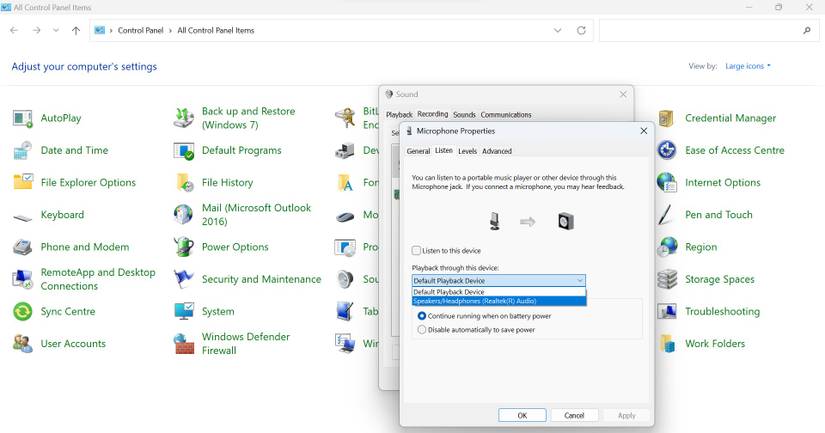
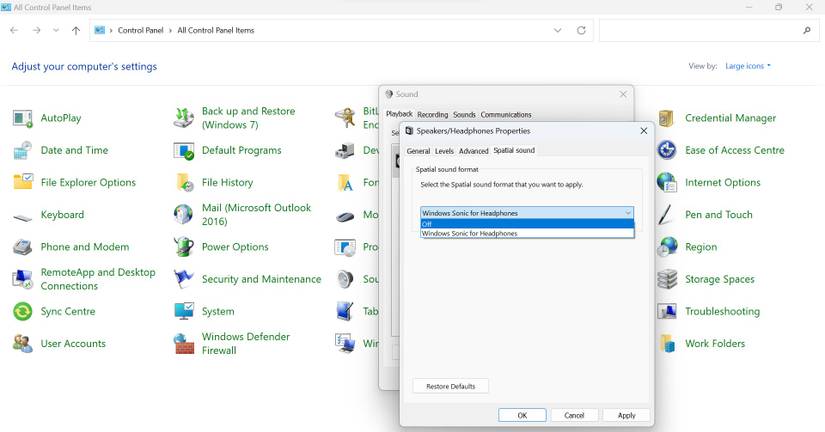
- Disable Enhancements and Spatial Sound: Audio "improvements" can sometimes cause routing loops. In your Speaker properties, go to the Advanced and Enhancements tabs to disable all extra processing, and turn off Spatial Sound.
Conclusion: Keep Your Input and Output Separate
A microphone that starts "talking" is a sign of a misconfigured audio ecosystem. By following these steps—verifying hardware, setting correct defaults, and disabling features like Stereo Mix—you can ensure your microphone stays quiet and only captures what you intend. If your audio setup still feels off, visit our troubleshooting hub for more specialized guides on fixing input and output errors.
Frequently Asked Questions
Why is my microphone acting like a speaker?
This typically happens when Windows can't find your speakers or headphones, so it attempts to route audio through your microphone's diaphragm. It can also occur if "Listen to this device" is enabled in microphone properties or if Stereo Mix is active.
How do I test if my microphone is working correctly?
Use our free online microphone test to verify that your device is capturing audio input without playing it back. This tool helps you distinguish between hardware faults and configuration errors.
What is Stereo Mix and should I disable it?
Stereo Mix is a Windows feature that allows you to record what your speakers are playing. While useful for recording audio, it can cause routing issues when enabled unintentionally. If you're experiencing audio bleeding through your microphone, disabling Stereo Mix often resolves the problem.
Can outdated drivers cause audio routing issues?
Yes, corrupted or outdated audio drivers can lead to unpredictable behavior, including your microphone outputting sound. Regularly updating your sound drivers from Device Manager or your manufacturer's website can prevent and fix these issues.
What if none of these fixes work?
If you've tried all the above steps and your microphone still plays sound, the hardware itself may be defective. Try connecting it to another computer to confirm. If it behaves the same way, consider replacing it with a quality USB or XLR microphone.