How to Fix a Windows Webcam Displaying a Black Screen
There is nothing more frustrating than joining an important video call only to find your feed is a complete void. Whether you are prepping for a stream or a remote meeting, a webcam black screen is a common Windows issue that usually stems from software conflicts or simple setting errors rather than hardware failure. Before you consider a replacement, use our free online camera test to confirm the issue, then follow this professional troubleshooting guide to get your video back online.
Quick Webcam Troubleshooting
- Inspect your device for physical blockers like privacy sliders or covers.
- Check your video calling software settings to ensure the correct hardware is selected.
- Restart your PC to clear temporary system glitches and background conflicts.
- Visit our hardware troubleshooting hub for more device-specific tips.
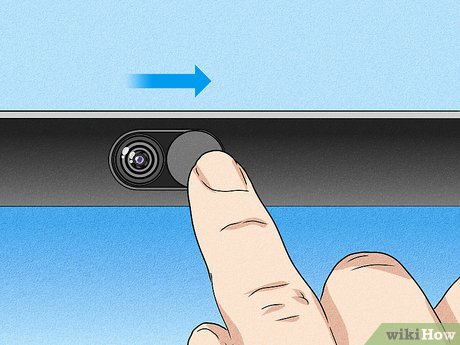
Step 1: Inspect for Physical Obstructions
It may sound basic, but the most common cause of a black screen is a closed privacy shutter. Many modern laptops and external webcams feature built-in plastic sliders. Ensure this is fully retracted. Additionally, check for dust, stickers, or debris on the lens and give it a gentle wipe with a microfiber cloth. If you use an external USB camera, ensure the cable is pushed all the way into the port.
Step 2: Close Competing Background Applications
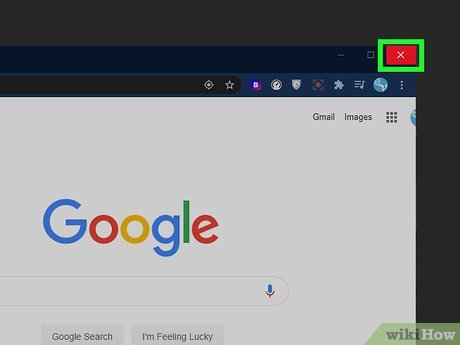
Windows typically only allows one application to access the camera stream at a time. If a status light (usually green or red) is active near your lens but the screen is black, another app is likely "hogging" the device. Close all other programs that might use video, such as Skype, Discord, or even background browser tabs. Check your system tray (near the clock) for hidden apps and consider a quick restart to force-close any stubborn background processes.
Step 3: Manually Select the Correct Device in-App
In many cases, the software you are using (like Zoom or Microsoft Teams) may be trying to pull video from a "Virtual Camera" or an inactive device. Navigate to the video settings within your specific app and look for a "Camera" dropdown menu. Ensure your primary webcam is selected. While you are there, it is a good idea to perform a microphone test and speaker test to ensure your full setup is ready for the call.
Step 4: Verify Windows Camera Privacy Permissions
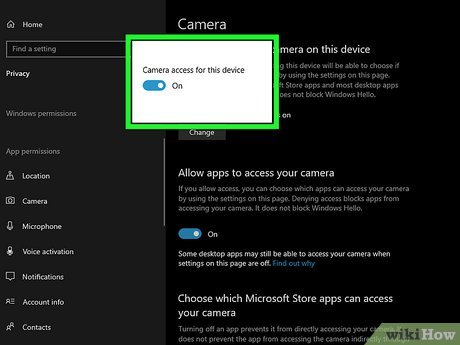
Windows includes robust privacy controls that can disable your camera system-wide. To check this, open the Start menu and select the Settings (gear icon). Go to Privacy, then find Camera under "App Permissions" in the left sidebar. Ensure that "Camera access for this device" is turned On. Furthermore, scroll down to ensure the toggle for "Allow desktop apps to access your camera" is also enabled for the specific software you are trying to use.
Step 5: Reset Your Webcam App Configuration
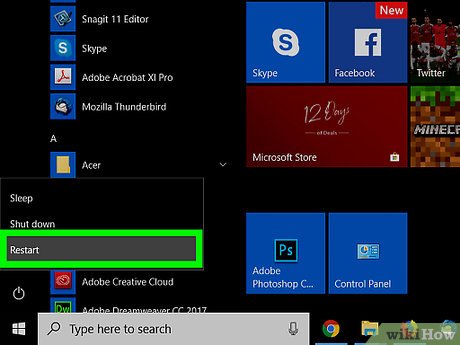
Updates to your operating system can occasionally corrupt the settings of your camera software. Open the native Windows Camera app to see if it displays a picture there. If you use specialized software from manufacturers like Logitech or Razer, open their dashboard and reset the video settings to "Default." If you suspect the issue might be related to how your monitor is rendering the image, you can also run a quick screen test to verify your display's health.
Step 6: Diagnose USB Connection Issues
USB bandwidth limitations or faulty ports can result in a failed video feed. If you are using an external camera, try unplugging other non-essential peripherals like your mouse or keyboard to see if it resolves the conflict. Always try connecting the webcam to a different USB port—preferably a high-speed USB 3.0 port located directly on the computer's motherboard rather than a USB hub.
Step 7: Boot into Safe Mode for Diagnostics
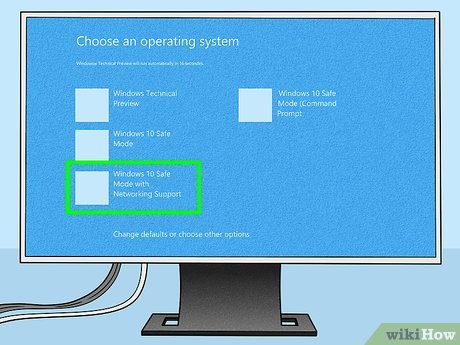
If the black screen persists, boot Windows into Safe Mode with Networking. This environment only loads essential drivers, helping you determine if a third-party startup program (like an antivirus or firewall) is blocking the camera. If the camera works in Safe Mode, you likely have a software conflict that needs to be addressed by disabling startup items.
Step 8: Update Your Webcam Drivers
Outdated or corrupted drivers are a primary culprit for hardware malfunctions on Windows. Search for Device Manager in the Start menu. Find the Cameras or Imaging Devices section and expand it. Right-click on your webcam and select Update driver, then click Search automatically for drivers. Windows will attempt to find and install the most compatible software version for your device.
Step 9: Install Manufacturer-Specific Drivers
If the generic Windows update doesn't work, you may need the official driver from the manufacturer. Visit the support website for your laptop (e.g., Lenovo, Dell, HP) or your webcam brand (e.g., Logitech). Search for your specific model number and download the latest driver package. Once installed, restart your PC and use our camera tester to verify the fix. While you're at it, you can also verify your inputs with a keyboard test to ensure all system drivers are functioning correctly.
Frequently Asked Questions
Why does my webcam show a black screen on Zoom but works elsewhere?
This usually indicates that Zoom is targeting the wrong device. Go to Zoom Settings > Video and manually select your hardware from the dropdown. Also, ensure no other video apps are running in the background.
Can a recent Windows update cause camera failure?
Yes, updates can sometimes replace stable drivers with incompatible versions. If your camera stopped working after an update, you can try "Roll Back Driver" in the Device Manager or download the latest version from the manufacturer's site.
Is my webcam broken or is it a software bug?
Test your device on a neutral platform like audiotest.app/camera-test. If the camera works on our site but not in a specific app, it is a software or permission issue. If it fails to load on any site or app, it may be a hardware or driver failure.
My laptop camera is black after a factory reset. How do I fix it?
A factory reset often reverts drivers to basic versions that may not support your specific hardware. Visit your laptop manufacturer's support page to download the dedicated "Camera Driver" or "Chipset" package for your specific model.