Understanding Monitor Ghosting: Definition and Symptoms
Monitor ghosting is a common display phenomenon where faint, translucent trails—often referred to as "ghosts"—follow moving objects across your screen. Unlike screen tearing, which involves horizontal misalignment, or general motion blur, ghosting produces distinct but delayed replicas of the original image. These artifacts are usually lighter in color and trail behind fast-moving elements, resulting in a disjointed and distracting visual experience. Before diving into fixes, it is helpful to perform a comprehensive screen test to identify the specific areas of your display affected by trailing.
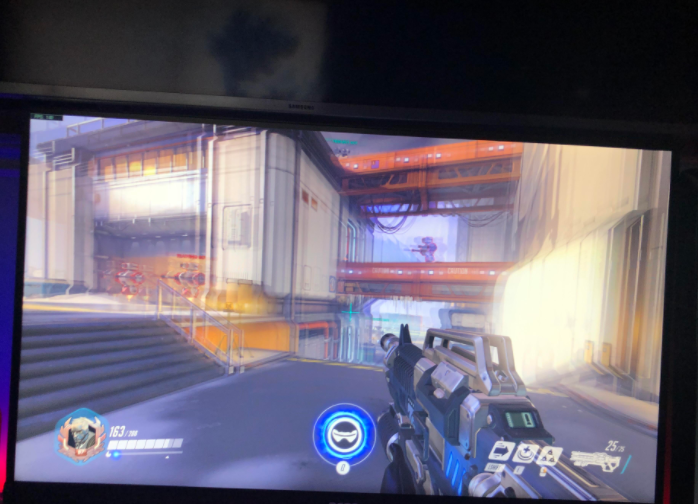
Ghosting becomes most apparent during high-speed activities:
- Competitive Gaming: Rapid movements in fast-paced titles like Apex Legends, Call of Duty, or Rocket League.
- High-Definition Video: Cinematic action sequences or fast-moving sports broadcasts.
- Productivity: Quickly scrolling through complex spreadsheets, long documents, or media-heavy webpages.
Fortunately, ghosting is typically a functional issue related to pixel response times rather than permanent hardware damage like screen burn-in, meaning it can usually be corrected through software or hardware calibration.
The Technical Causes Behind Screen Ghosting
To effectively eliminate ghosting, you must understand the underlying mechanics of LCD and LED panels. These displays utilize liquid crystals that shift to change colors based on electrical impulses. The duration it takes for a pixel to transition from one color to another is known as "response time" (measured in milliseconds). Ghosting occurs when these pixels cannot update fast enough to keep pace with the moving image.
1. Suboptimal Pixel Response Times
High response times (10ms or greater) are the primary cause of motion artifacts. While many modern gaming monitors boast response times between 1ms and 5ms, ghosting can still occur if the display is not properly configured for high-speed output.
2. Aggressive Overdrive Settings
Many manufacturers include an "Overdrive" or "Response Time Compensation" feature to force pixels to transition faster. However, if this setting is tuned too high, it can lead to "inverse ghosting" or "overshoot," where pixels bypass their target color and create bright or dark halos around objects.
3. Refresh Rate and FPS Mismatch
A monitor's refresh rate (Hz) determines how many times per second the screen updates. If your GPU produces frames faster than your monitor can display them (or significantly slower), the pixels may struggle to reset cleanly, exacerbating visual smearing.
4. Signal Degradation and Cables
Using low-quality or damaged HDMI and DisplayPort cables can introduce signal interference. A stable, high-bandwidth connection is essential for maintaining a clean image during fast motion.
5. Display Panel Limitations
Different panel technologies handle motion differently:
- TN (Twisted Nematic): Offers the fastest response times but often sacrifices color accuracy.
- VA (Vertical Alignment): Known for high contrast, but historically prone to "dark level smearing" or ghosting.
- IPS (In-Plane Switching): Offers superior colors and has improved significantly in response speed, though it requires precise tuning to avoid blur.
Proven Solutions to Stop Monitor Ghosting
If you are experiencing visual artifacts, follow these steps to restore clarity to your display. If you encounter other hardware issues during this process, you can consult our troubleshooting guide for further assistance.
1. Calibrate Overdrive (Response Time) Settings
Overdrive is often the most effective tool for reducing ghosting. Access your monitor's On-Screen Display (OSD) menu and look for settings labeled "Overdrive," "Response Time," or "Trace Free." Experiment with the presets—usually, "Medium" or "Fast" provides the best balance, whereas "Extreme" may introduce unwanted artifacts.
2. Synchronize Refresh Rates
Ensure your monitor is running at its maximum rated frequency. In Windows, navigate to Display Settings to confirm your refresh rate (e.g., 144Hz or 240Hz). Additionally, enable variable refresh rate technologies like NVIDIA G-SYNC or AMD FreeSync to keep your GPU and monitor in perfect harmony. While you're at it, ensure your input devices are performing optimally with our mouse test and keyboard test.
3. Update Drivers and Firmware
Manufacturers frequently release firmware updates for monitors and driver updates for GPUs (NVIDIA, AMD, Intel) to improve motion handling and compatibility. Keep your software current to ensure the best possible performance.
4. Verify Cable Integrity
Swap out generic cables for certified high-speed versions, such as DisplayPort 1.4 or HDMI 2.1. Ensure all connections are secure, as loose cables are a frequent source of signal noise and visual flickering.
5. Optimize Brightness and Contrast
Excessive contrast can make the transition between light and dark pixels more noticeable, highlighting ghosting. Adjust your contrast to around 70-75% and set brightness to a level that is comfortable for your environment to minimize the visibility of trailing.
6. Adjust In-Game Configurations
In your game settings, try disabling "Motion Blur" and "Depth of Field," as these effects can often mask or worsen existing hardware ghosting. If your GPU is struggling, capping your frame rate slightly below your monitor's refresh rate can also provide more consistent frame delivery.
Frequently Asked Questions
Can monitor ghosting damage my screen?
No. Unlike burn-in, ghosting is a temporary artifact caused by slow pixel transitions. It does not cause permanent damage to your monitor.
Is ghosting the same as screen tearing?
No. Screen tearing creates visible horizontal splits when the GPU and monitor are out of sync. Ghosting produces trailing images behind moving objects due to slow response times.
Can a bad HDMI cable cause ghosting?
Yes. Low-quality or damaged cables can introduce signal degradation, leading to visual artifacts including ghosting. Always use certified high-speed cables.
Does ghosting affect all types of monitors?
Ghosting is most common on LCD-based panels (TN, VA, IPS). OLED monitors have near-instantaneous pixel response times and are virtually immune to ghosting.
Conclusion: Maintaining Peak Display Performance
Monitor ghosting is a widespread but fixable issue that can significantly impact your gaming and productivity experience. By understanding the root causes—from slow pixel response times to misconfigured overdrive settings—you can take targeted action to eliminate those frustrating trailing artifacts. Start by testing your display, calibrating your monitor's overdrive, ensuring proper cable connections, and keeping your drivers updated. With the right adjustments, you can enjoy crisp, smooth visuals across all your activities. To ensure your entire workstation is in top shape, consider running a microphone test, camera test, or speaker test to verify your audio and video peripherals are ready for action.