Few things are more aggravating than a mouse that registers two clicks when you only meant to click once. This common glitch, known as "mouse double-clicking," can wreak havoc on your productivity by accidentally opening files, closing windows, or selecting the wrong text. Whether you are using a high-end gaming mouse or a standard office peripheral, this guide provides a step-by-step path to resolving the issue. Before you start, we recommend using our mouse test tool to confirm the frequency and pattern of the phantom clicks.
Preliminary Checks and Software Adjustments
Before assuming your hardware is broken, try these simple software-based solutions. Often, a quick configuration change is all you need to get back to work.
Reboot Your System
It sounds cliché, but a simple restart can solve many peripheral issues by clearing temporary cache and resetting active drivers. Save your progress, reboot, and see if the clicking behavior persists.
Adjusting Click Sensitivity Settings
Operating systems allow you to define the "double-click threshold." If this setting is too sensitive, even a slight tremor in your finger might trigger a double-click action.
Windows Configuration
- Open the Control Panel and navigate to Hardware and Sound.
- Select Mouse to open the properties window.
- Under the Buttons tab, locate the Double-click speed slider.
- Drag the slider toward Slow and test it in the folder icon provided.
- Click Apply and OK.
macOS Configuration
- Open System Settings from the Apple menu.
- Scroll down to Mouse.
- Adjust the Double-Click speed slider to a slower setting.
- Close the window to save your changes.
Linux Configuration
- GNOME: Navigate to Settings → Accessibility → Pointing & Clicking to adjust double-click delay.
- KDE Plasma: Go to System Settings → Input Devices → Mouse → Advanced settings.
External Maintenance
Debris trapped under the mouse buttons can interfere with mechanical movement. Disconnect the device and use a can of compressed air to blow out any dust from the gaps around the buttons. Wipe the surface with a lint-free cloth dampened with a tiny amount of isopropyl alcohol.
Port and Connection Testing
Sometimes the issue isn't the mouse, but the port it's plugged into. Switch your mouse to a different USB port—preferably a USB 3.0 port directly on your computer's chassis rather than a hub. If you are experiencing broader hardware issues, visit our troubleshooting hub for more tips.
Cross-Platform Verification
To isolate the problem, connect your mouse to a different computer. If the double-clicking continues on the second machine, the problem is likely hardware-related. Conversely, if you connect a different mouse to your primary computer and it works perfectly, you've confirmed that your original mouse is the culprit.
Driver and Software Troubleshooting
If physical cleaning and basic settings don't work, the next step is to look at the software layer communicating with your hardware.
Refresh Your Mouse Drivers
Corrupted or outdated drivers can cause erratic input signals. In Windows, you can force a driver refresh easily:
- Right-click the Start button and open Device Manager.
- Expand Mice and other pointing devices.
- Right-click your specific mouse and choose Uninstall device.
- Restart your PC; Windows will automatically detect and reinstall the correct driver upon boot.
Check Manufacturer Software
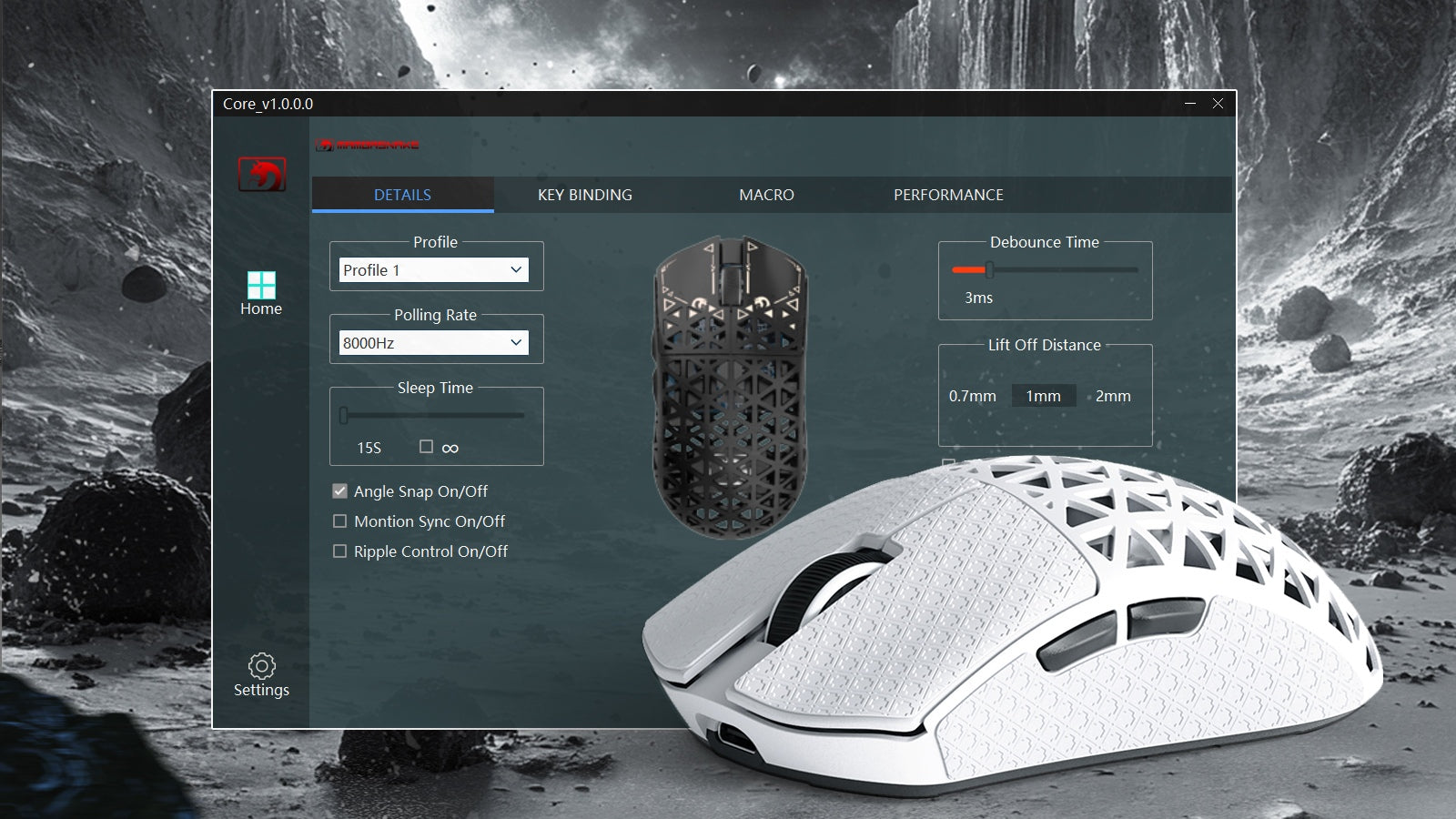
Many modern mice from brands like Logitech, Razer, or Corsair use dedicated software suites (e.g., G Hub or Synapse). Ensure these programs are updated to the latest version. Sometimes, a firmware update for the mouse itself can fix known clicking bugs. If your mouse isn't the only thing acting up, you can also perform a keyboard test to ensure your other input devices are functioning correctly.
Identify Software Conflicts
Third-party "auto-clickers" or macro software can interfere with your mouse's native behavior. Disable any customization tools or accessibility features that modify input handling to see if the problem disappears.
Testing in Safe Mode
Booting your computer into Safe Mode loads only the essential drivers. If your mouse functions perfectly in Safe Mode, then a background application or a non-essential driver is likely causing the double-click issue. While in Safe Mode, you might also want to check your other hardware with our camera test or microphone test if you suspect a system-wide driver conflict.
Hardware Repairs and Physical Fixes
When software fixes fail, it's time to look under the hood. Hardware issues are usually related to power, interference, or mechanical wear.
Battery and Power Management
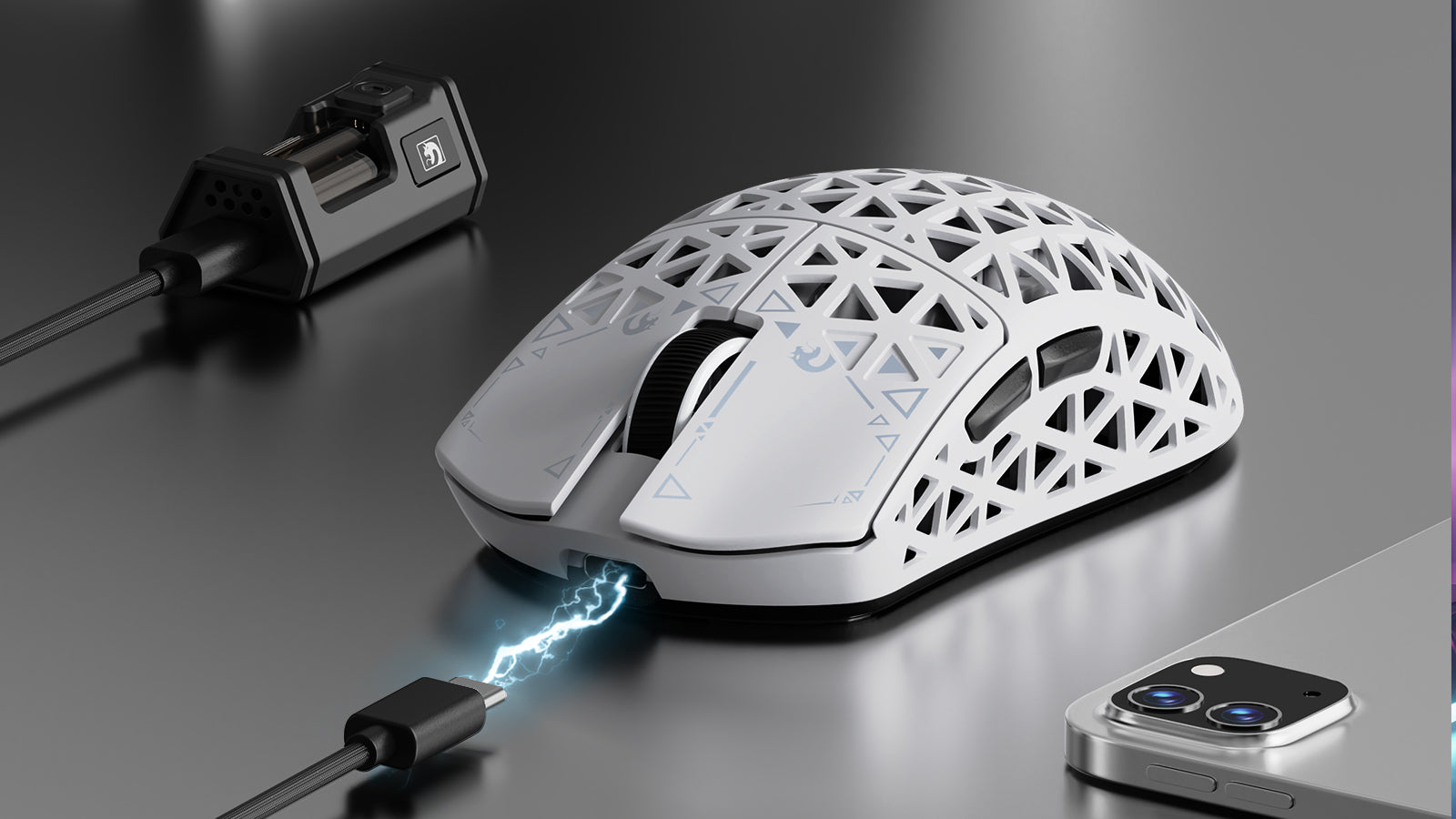
Low voltage in wireless mice can cause signal instability. Replace your batteries with fresh ones, ensuring you don't mix different brands. Clean the battery contacts with a cotton swab and a drop of isopropyl alcohol to ensure a clean connection.
Reducing Wireless Interference
Wireless mice operating on the 2.4GHz band can suffer from interference from Wi-Fi routers, microwaves, or other Bluetooth peripherals. Try moving your USB receiver closer to the mouse using a USB extension cable. To ensure your display isn't also suffering from signal interference or artifacts, you can run a quick screen test.
Deep Cleaning the Internal Mechanism
If you're comfortable with basic electronics, you can carefully disassemble your mouse to clean the microswitches directly. Dust or hair inside the switch housing is a common cause of "phantom" clicks. Use a small amount of contact cleaner or isopropyl alcohol on a toothpick to clean the actual switch button.
Addressing Worn-Out Microswitches
The microswitches inside a mouse have a finite lifespan, often rated for millions of clicks. Over time, the internal spring can lose its tension or develop "chatter." Common symptoms include clicks not holding during a drag-and-drop or a single click triggering twice.
For expensive gaming mice, you might consider desoldering the old switch and installing a new one. However, for most users, it may be more economical to replace the mouse entirely. If you're checking your audio setup alongside your mouse, don't forget to run a speaker test to ensure your sound system is clear.
Advanced System-Level Fixes
If you've ruled out hardware, the problem might be deep within your operating system's file structure.
Repair System Integrity (Windows)
Corrupted system files can sometimes affect how Windows interprets HID (Human Interface Device) signals. Open Command Prompt as an Administrator and run sfc /scannow. For more comprehensive repairs, use the DISM /Online /Cleanup-Image /RestoreHealth command followed by a restart.
Scan for Malware
Some types of malicious software are designed to interfere with user input. Run a deep scan with a reputable antivirus and a secondary scanner like Malwarebytes. If the clicking issue only happens in your web browser, check for suspicious extensions or browser hijackers.
System Restoration
If the problem started immediately after a recent update or software installation, use System Restore (Windows) or Time Machine (macOS) to revert your computer to a previous state when everything was working correctly.
FAQ: Frequently Asked Questions
How do I know if my mouse is physically broken?
The best way to tell is by testing the mouse on another device. If it double-clicks on every computer you plug it into, the hardware switch is likely worn out. You can use our online mouse tester for an objective measurement.
Will changing my mouse settings fix a mechanical failure?
Adjusting the double-click speed in your OS can sometimes hide the symptoms for a short period, but it is not a permanent fix for a failing microswitch. The hardware will eventually fail completely.
Is it worth repairing a cheap mouse?
Generally, no. If your mouse cost less than $40, the time and effort required for a hardware repair usually exceed the cost of a new, more reliable model.
Can low battery cause clicking issues?
Yes, signal "stutter" due to low power can often be misinterpreted by the operating system as multiple distinct clicks. Always try a fresh set of batteries before pursuing more complex fixes.
Where can I test my mouse buttons?
You can use the audiotest.app mouse test to verify your left, right, and middle click behavior, as well as your scroll wheel accuracy.