Monitor Ghosting Explained: How to Identify and Fix Visual Smearing
Monitor ghosting is a common but distracting visual artifact where moving images on your display leave a faint, blurry trail behind them. Whether you are tracking an opponent in a fast-paced shooter or quickly navigating a complex spreadsheet, this "smearing" effect can break immersion for gamers and lead to significant eye strain for professionals. At audiotest.app, we believe every part of your setup should be optimized for performance. This guide explores the physics of pixel response times, how to use the industry-standard UFO test, and a comprehensive 5-step plan to fix ghosting on any monitor.
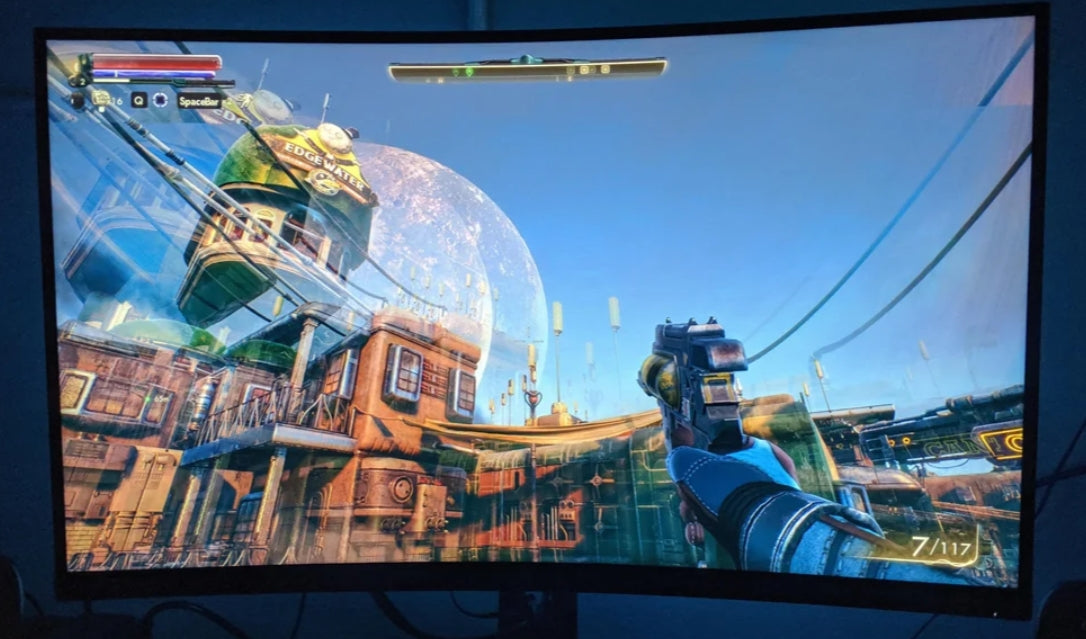
Is It Ghosting? Quick Comparison vs. Other Artifacts
Before diving into fixes, it is important to ensure you are not dealing with a different display issue. If your hardware is acting up in other ways, you can visit our troubleshooting guide for broader help.
- Ghosting: A trail or "ghost" follows moving objects. This is caused by slow pixels and can often be adjusted via monitor settings.
- Screen Tearing: The image looks "sliced" horizontally. This is a synchronization issue between your GPU and monitor, usually fixed by enabling G-Sync or FreeSync.
- Image Burn-In: A static image remains visible even when the screen changes. This is typically permanent hardware damage, common in older OLED panels.
Common Culprits: Why Your Monitor is Smearing
Before adjusting software, check these three common hardware factors that contribute to motion blur:
- Panel Type Matters: Vertical Alignment (VA) panels are famous for "black smearing," particularly in dark scenes. For superior motion clarity, In-Plane Switching (IPS) panels are the professional standard.
- The Overdrive Balance: Many monitors have a "Response Time" setting. While it sounds helpful, setting it to "Extreme" often causes inverse ghosting (bright, colorful trails).
- Operating Temperature: Liquid crystals move slower in cold environments. If your workspace is chilly, give your monitor 30 minutes to warm up before performing a screen test.
The Science of Pixel Response Times
Modern LCD screens consist of millions of liquid crystals that must physically twist to change colors. This transition speed is usually measured as Gray-to-Gray (GtG). Ghosting occurs when the movement on your screen happens faster than your pixels can finish their color transition.
Essentially, the pixels are lagging behind the action. Because the previous frame color has not fully faded before the new frame arrives, your eye perceives a "ghost" of where the object used to be. This is a hardware limitation tied directly to your display internal Response Time.
Comparison of Panel Technologies
| Panel Technology | Avg. Response Time | Ghosting Risk | Best Use Case |
|---|---|---|---|
| TN (Twisted Nematic) | ~1ms | Very Low | Esports and competitive gaming where speed is the only priority. |
| IPS (In-Plane Switching) | ~4ms to 7ms | Low | The ideal balance for gaming, creative work, and office productivity. |
| VA (Vertical Alignment) | ~8ms to 15ms | High | High-contrast movie watching; generally poor for fast-motion gaming. |
How to Perform the UFO Ghosting Test
To accurately diagnose the issue, you should use an objective benchmark rather than relying on gameplay alone. The Blur Busters UFO Test is the gold standard for measuring motion clarity.
- Navigate to TestUFO.com using a modern browser like Chrome.
- Observe the alien spaceships as they move across your screen.
- Standard Ghosting: Indicated by a dark or blurry trail behind the UFO.
- Inverse Ghosting: Indicated by a bright white or translucent "halo" (corona) trailing the UFO, usually caused by aggressive Overdrive settings.
While testing your display, it is a great time to ensure your other peripherals are responsive using our mouse test or keyboard test.
5 Steps to Fix Monitor Ghosting
1. Optimize the Overdrive or Response Time Setting
Most gaming monitors include a feature called Overdrive (sometimes labeled as Trace Free, AMA, or Response Time). This increases the voltage to the pixels to make them transition faster. Locate this in your monitor physical OSD menu and set it to "Normal" or "Medium." Avoid the "Fastest" or "Extreme" settings, as these typically cause distracting inverse ghosting.
2. Activate Variable Refresh Rate (VRR)
Ensure that G-Sync (for NVIDIA users) or FreeSync (for AMD users) is enabled in both your monitor settings and your GPU control panel. This synchronizes your monitor refresh rate with your frame rate, leading to a much smoother visual experience.
3. Verify Your Refresh Rate in Windows
A common mistake is using a high-refresh-rate monitor that is still set to 60Hz in software. Navigate to Settings > System > Display > Advanced Display and ensure your monitor is set to its maximum rated Hertz (e.g., 144Hz or 240Hz). You can verify your display performance with our screen test tool.
4. Disable Post-Processing Enhancements
Many monitors come with software features like "Motion Blur Reduction," "Dynamic Contrast," or "Noise Reduction" enabled by default. While they sound beneficial, they often introduce input lag and can actually worsen the appearance of smearing. Turn these off for the cleanest possible image.
5. Inspect Your Cables and Connections
While ghosting is a panel issue, signal interference from a damaged or low-quality HDMI or DisplayPort cable can cause flickering and other artifacts. Ensure you are using a high-quality cable that is rated for your monitor specific resolution and refresh rate.
Frequently Asked Questions
Is monitor ghosting a permanent defect?
No. Ghosting is a temporary visual artifact that occurs during motion. It does not damage your screen and can often be mitigated through the settings mentioned above.
Can a software update fix ghosting?
While ghosting is primarily hardware-based, updating your graphics drivers can improve how your GPU communicates with your monitor, which may help with overall motion stability.
What is the difference between ghosting and motion blur?
Ghosting is a hardware limitation where pixels cannot keep up with the image. Motion blur is often a deliberate software effect added by game developers to create a sense of speed, or a natural result of how the human eye tracks objects on a sample-and-hold display.
Once you have optimized your visuals, do not forget to test the rest of your hardware. Check your audio with our speaker test and microphone test, or ensure your video is crisp with our camera test.