Is your computer suddenly silent? Whether you're trying to join a video call, watch a movie, or listen to music, audio issues can be incredibly frustrating. Before you assume your hardware is broken, there are several software-based solutions that can get your sound back. This guide covers everything from basic checks to advanced system repairs to help you restore audio on your Windows device. If you're specifically worried about your hardware, you can quickly use our speaker test or microphone test to verify your peripherals.
1. Confirm Your Audio Isn't Muted
It sounds simple, but many sound issues are caused by an accidental press of a mute button or a low volume slider. Before diving into complex settings, ensure that Windows isn't silencing your output. Check your keyboard for dedicated volume keys or a physical mute toggle. You should also look at the "Speaker" icon located in the system tray near your clock.
If you see an "X" next to the speaker icon, as shown below, your system audio is currently muted. Click the icon to open the volume control panel.

Once the panel is open, click the speaker icon to the left of the volume slider to unmute the device.

Don't forget to check your physical hardware as well. External speakers often have their own volume knobs or power switches. Ensure all cables are securely plugged into the correct ports. If you're using a headset, check for an inline mute switch that might have been flipped. If you've confirmed the hardware is connected but still silent, our troubleshooting guide offers further hardware-specific advice.
2. Verify the Default Playback Device
Windows can sometimes get confused when multiple audio devices are connected, such as Bluetooth headphones, USB monitors, and built-in speakers. If Windows is sending audio to a device that isn't currently in use, you won't hear anything.
Via the Taskbar
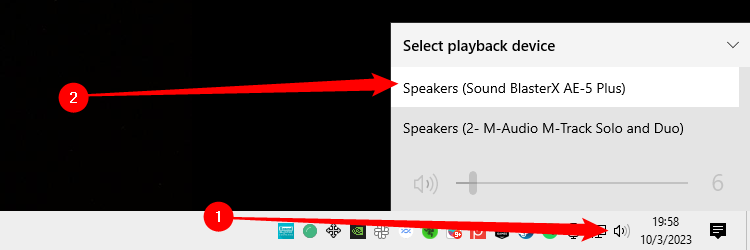
The quickest way to switch devices is through the taskbar. Click the speaker icon, then click the name of the current playback device listed above the volume slider. This will open a list of all available output options. Cycle through them to see if sound returns.
Via the Control Panel
For more control, you can use the classic Control Panel. Search for "Control Panel" in the Start menu, then navigate to Hardware and Sound > Sound.
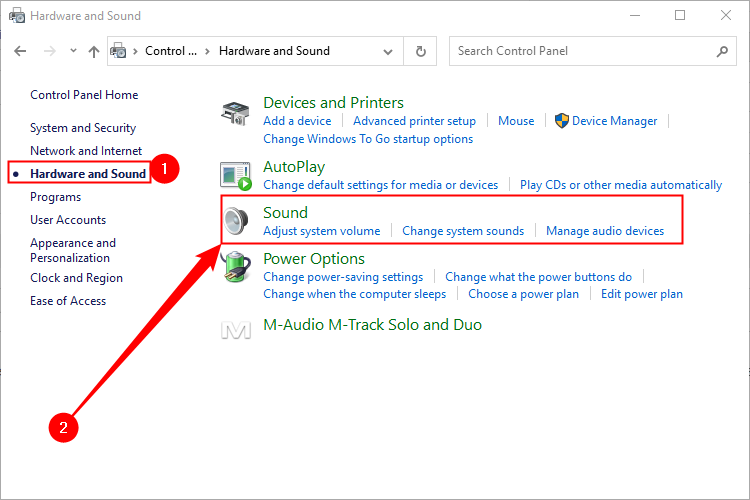
In the Sound window, look for your preferred device. If it's not marked with a green checkmark, select it and click Set Default. Click OK to save your changes and test your audio again.
3. Utilize the Built-in Windows Audio Troubleshooter
Microsoft includes automated tools designed to diagnose and fix common system errors. The audio troubleshooter can scan for driver conflicts, service failures, and incorrect settings.
To run it, type "Find and Fix Problems with Playing Sound" into your Start menu search bar and select the corresponding result. This will launch the automated wizard.
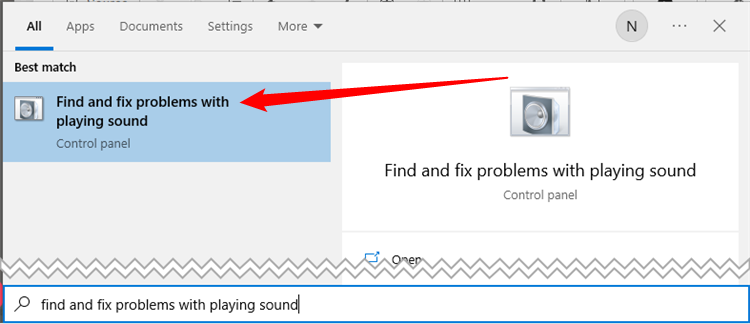
Follow the on-screen prompts, select the device you are having trouble with, and let Windows attempt a repair. If it detects an issue, it will provide instructions on how to apply the fix.
4. Restart Core Windows Audio Services
Sometimes the underlying background processes that handle audio in Windows can freeze or crash. Restarting these services can often "jumpstart" your sound system without requiring a full reboot.
Search for "Services" in the Start menu and open the application. You will need to locate and restart three specific services: Remote Procedure Call (RPC), Windows Audio, and Windows Audio Endpoint Builder.
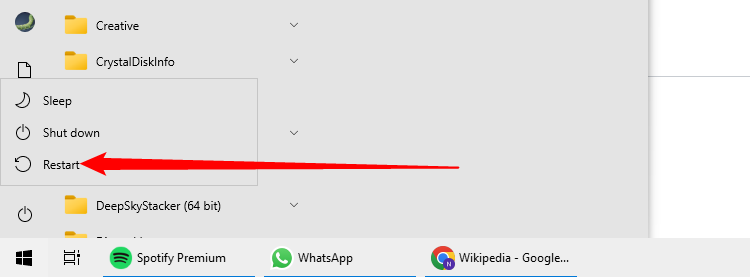
Right-click each service and select Restart. If the restart option is unavailable, try Refresh. Once all three have been processed, check if your speakers are working.
5. Disable Audio Enhancements
While audio enhancements are intended to improve sound quality, they can occasionally cause compatibility issues with certain drivers or hardware, leading to silence or distortion.
Return to the Sound settings in the Control Panel (as described in step 2). Right-click your default playback device and select Properties. Navigate to the Enhancements tab and check the box labeled Disable All Sound Effects (or Disable All Enhancements).
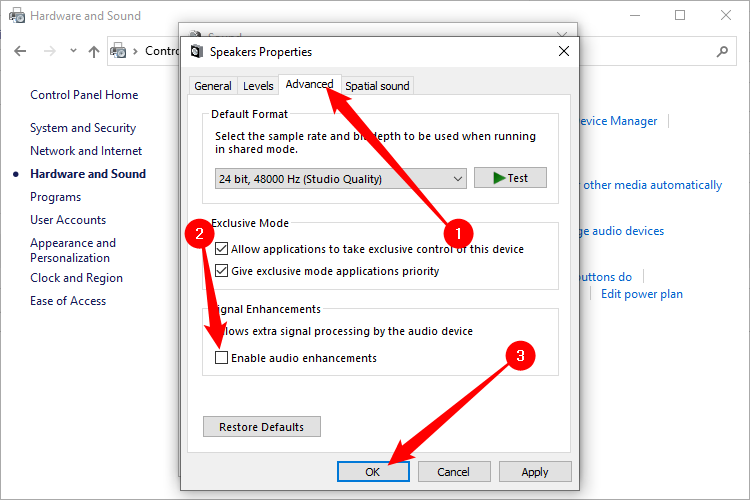
Click OK and test your sound. If this resolves the issue, you may want to check for a driver update that supports these features better.
6. Adjust the Default Audio Format
If the sample rate or bit depth of your audio output is set higher than what your hardware supports, you might experience total audio failure. Changing this setting to a more standard format can often solve the problem.
In the Properties window for your playback device, go to the Advanced tab. Under the Default Format section, use the drop-down menu to select a different frequency (such as 24-bit, 48000 Hz) and click the Test button.
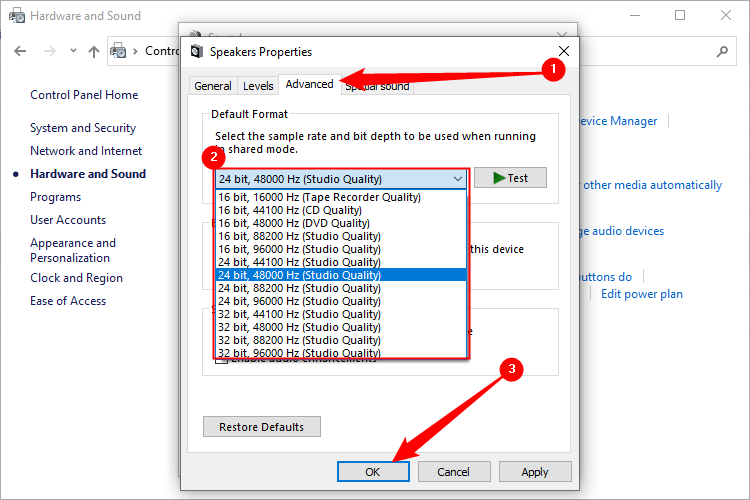
If you hear the test chime, click Apply and OK. If not, try another format until you find one that works.
7. Update Your Sound Drivers
Outdated or corrupt drivers are a frequent cause of Windows audio problems. You can update them manually through the Device Manager or use a manufacturer-provided utility.
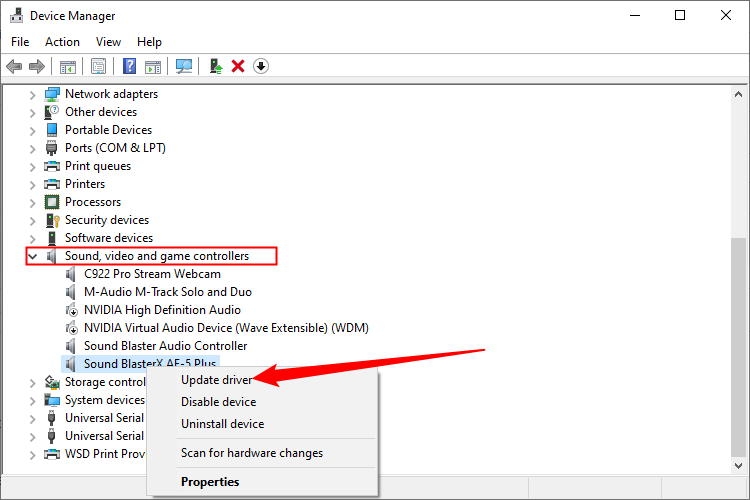
Right-click the Start button and select Device Manager. Expand the Sound, video, and game controllers category. Right-click your primary audio device and choose Update Driver.
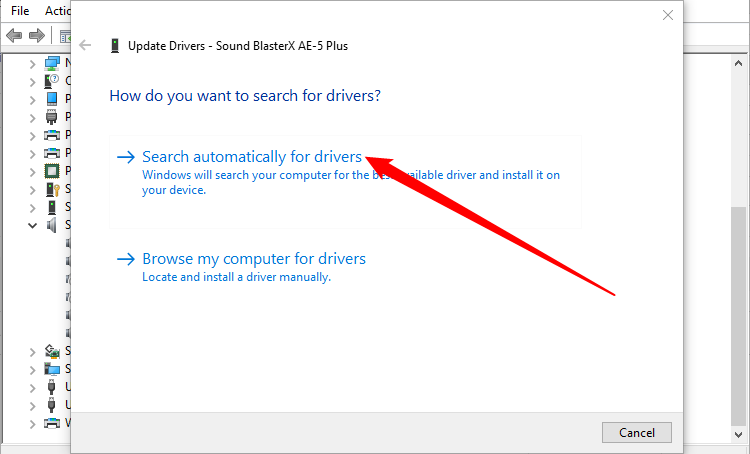
Select Search automatically for updated driver software. Windows will then search the internet and your computer for the latest software version available for your device.
8. Reinstall the Audio Device
If updating doesn't work, the driver might be fundamentally broken. In this case, uninstalling the device and letting Windows "discover" it again can force a fresh installation.
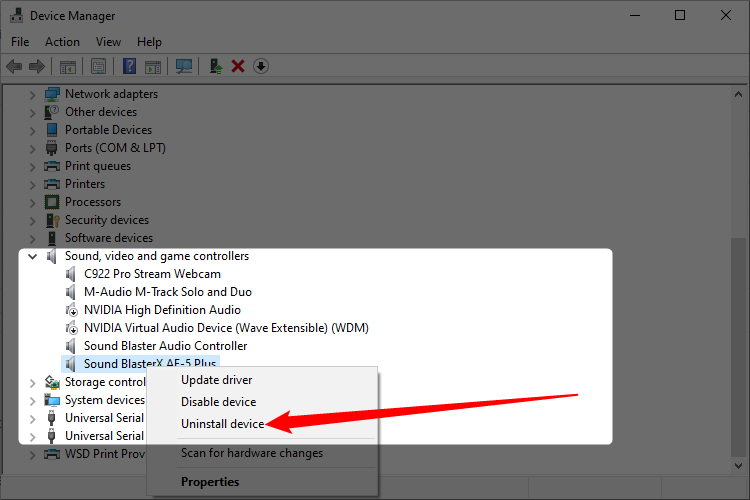
In Device Manager, right-click your audio device and select Uninstall device. Confirm the action and then restart your computer.
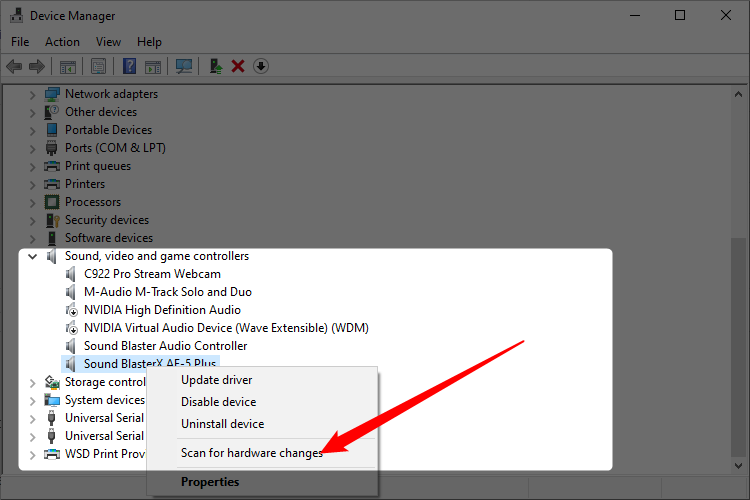
Upon rebooting, Windows should automatically detect the hardware and reinstall the drivers. If the device doesn't reappear, go back to Device Manager, right-click the top of the list (your PC name), and select Scan for hardware changes.
9. Perform a System Restore
If your sound worked recently but stopped after a specific update or software installation, a System Restore might be the best solution. This rolls your system settings back to a previous point in time without affecting your personal files.
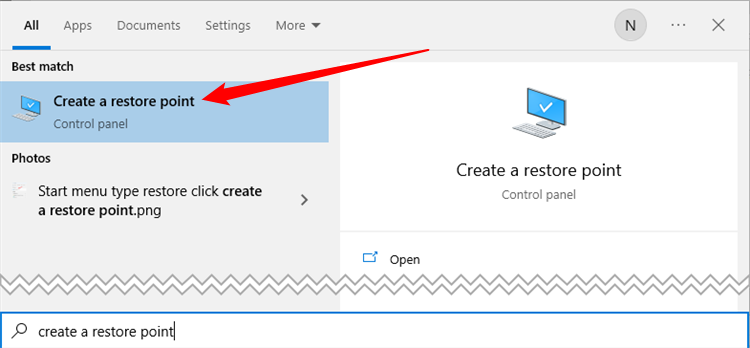
Search for "Create a restore point" in the Start menu. In the window that appears, click the System Restore... button. Follow the wizard to choose a restore point from a date when your audio was functioning correctly.
After the process completes and your computer restarts, your audio should be restored to its previous state. If you are still having issues with other devices like your mouse, keyboard, camera, or screen, feel free to use our free diagnostic tools here at audiotest.app.
Frequently Asked Questions
Why did my computer suddenly lose sound?
Sudden audio loss is usually caused by a Windows update that changed your audio driver, a disconnected cable, or an accidental mute. Try the steps in order — most issues are resolved within the first few fixes.
How do I know if my speakers are broken?
Plug your speakers or headphones into another device (like a phone). If they still don't work, the hardware is likely faulty. You can also use our free online speaker test to quickly check.
Why is there no sound after a Windows update?
Windows updates sometimes replace your audio driver with a generic one that doesn't work with your hardware. Follow steps 7 and 8 above to update or reinstall the correct driver.
Can I fix sound issues without reinstalling Windows?
Almost always yes. The methods in this guide cover the vast majority of audio problems. Only in rare cases of deep system corruption would a full reinstallation be necessary.