How to Fix Microphone Not Working in Windows 11: 7 Proven Solutions
Whether you are on a crucial Zoom call or recording a podcast, a malfunctioning microphone can be a major headache. Before diving into complex software settings, it is essential to rule out simple hardware errors. Most microphone issues in Windows 11 stem from privacy settings, driver conflicts, or incorrect input selections rather than physical damage.
Preliminary Checks: Hardware & Basics
If your microphone is not detecting sound, start with these quick physical checks:
- Check the Connection: Ensure your external mic is plugged in securely. If your PC has separate audio jacks, make sure it is in the input (pink) port, not the output. For USB mics, try switching to a different USB port.
- Unmute the Hardware: Many USB microphones have a physical mute button or switch. Ensure it is disengaged. Also, check if the issue is isolated to a specific app like Teams or Discord, which might have its own mute settings.
Advanced Fixes for Windows 11 Microphone Issues
If the hardware checks out, use the following solutions to resolve software-related problems.
1. Enable the Microphone in Device Manager
Sometimes, the microphone adapter is accidentally disabled in the system.
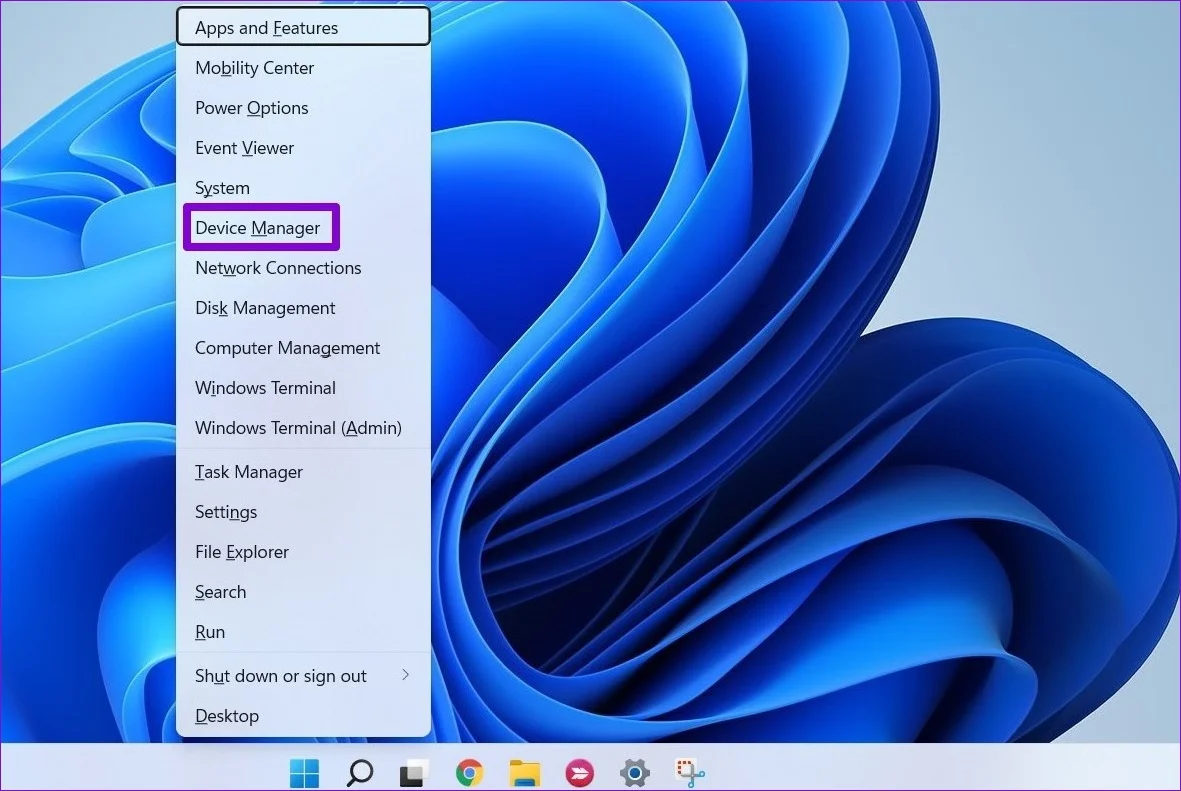
- Right-click the Start button and select Device Manager.
- Double-click Audio inputs and outputs to expand the list.
- Right-click on your Microphone and select Enable device.
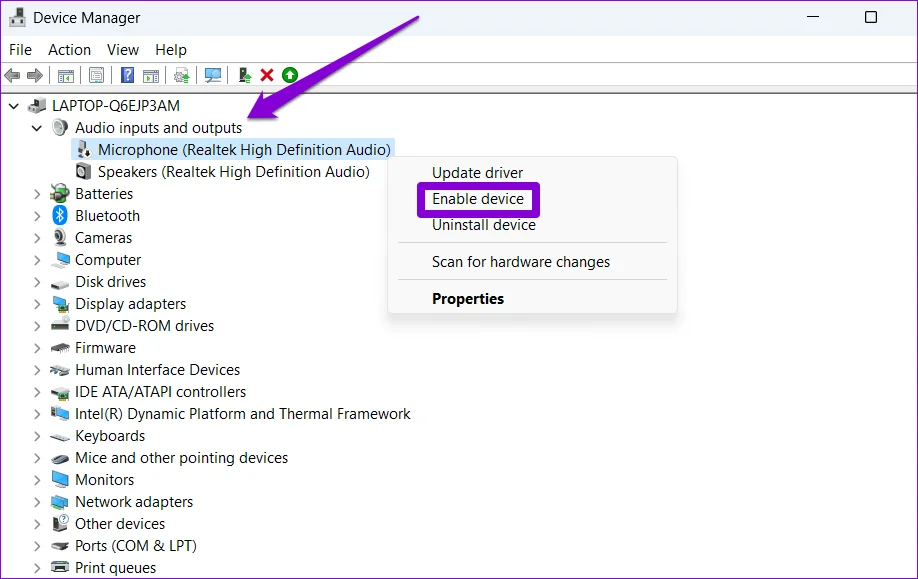
If it is already enabled, try disabling it and then re-enabling it to refresh the connection.
2. Grant App Permissions to Use the Microphone
Windows 11 security features may block apps from accessing your audio input. You must explicitly grant permission.
- Press Windows key + I to open Settings.
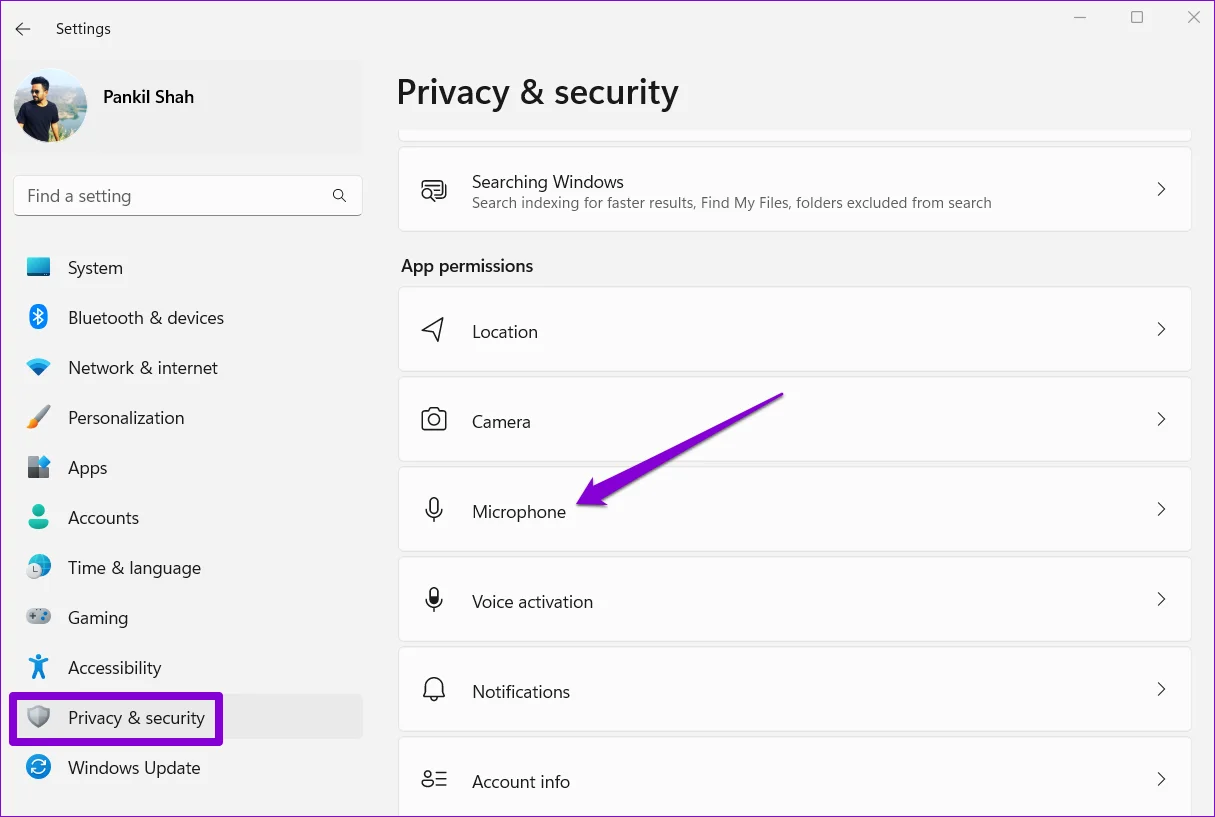
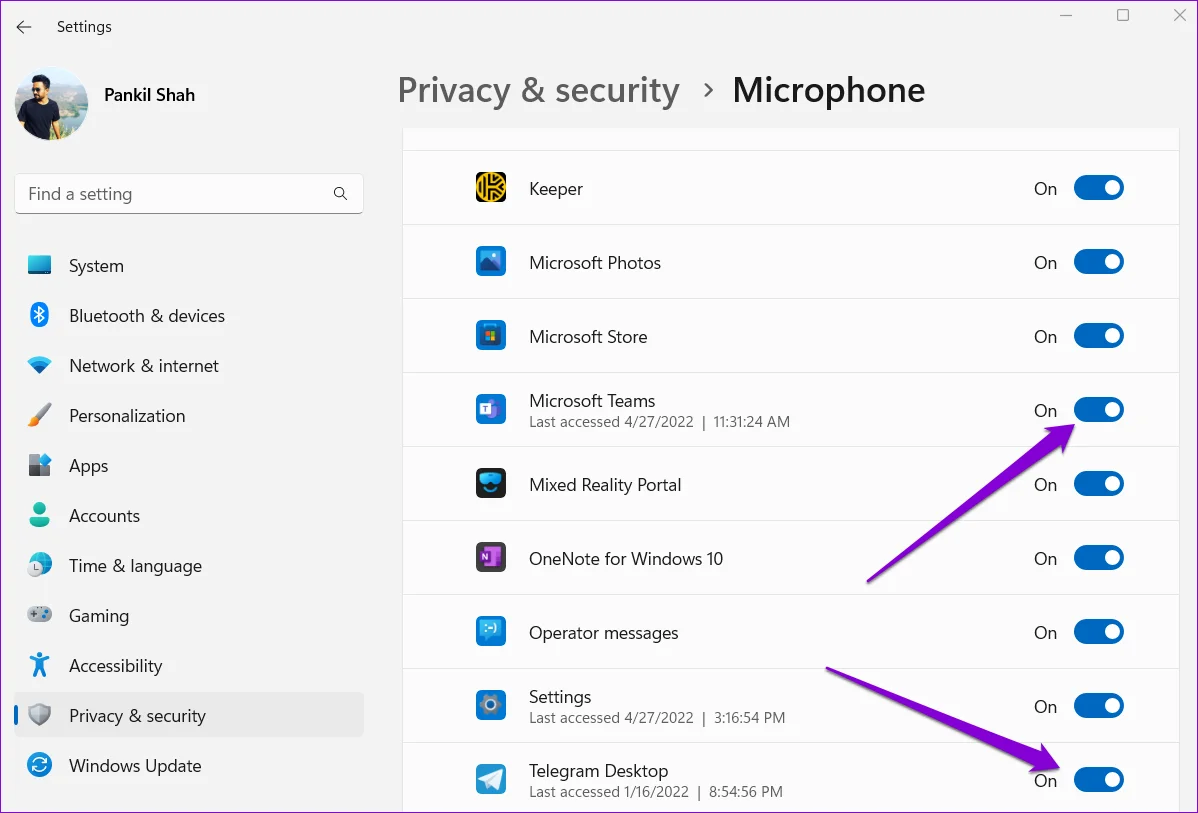
- Navigate to Privacy & security > Microphone.
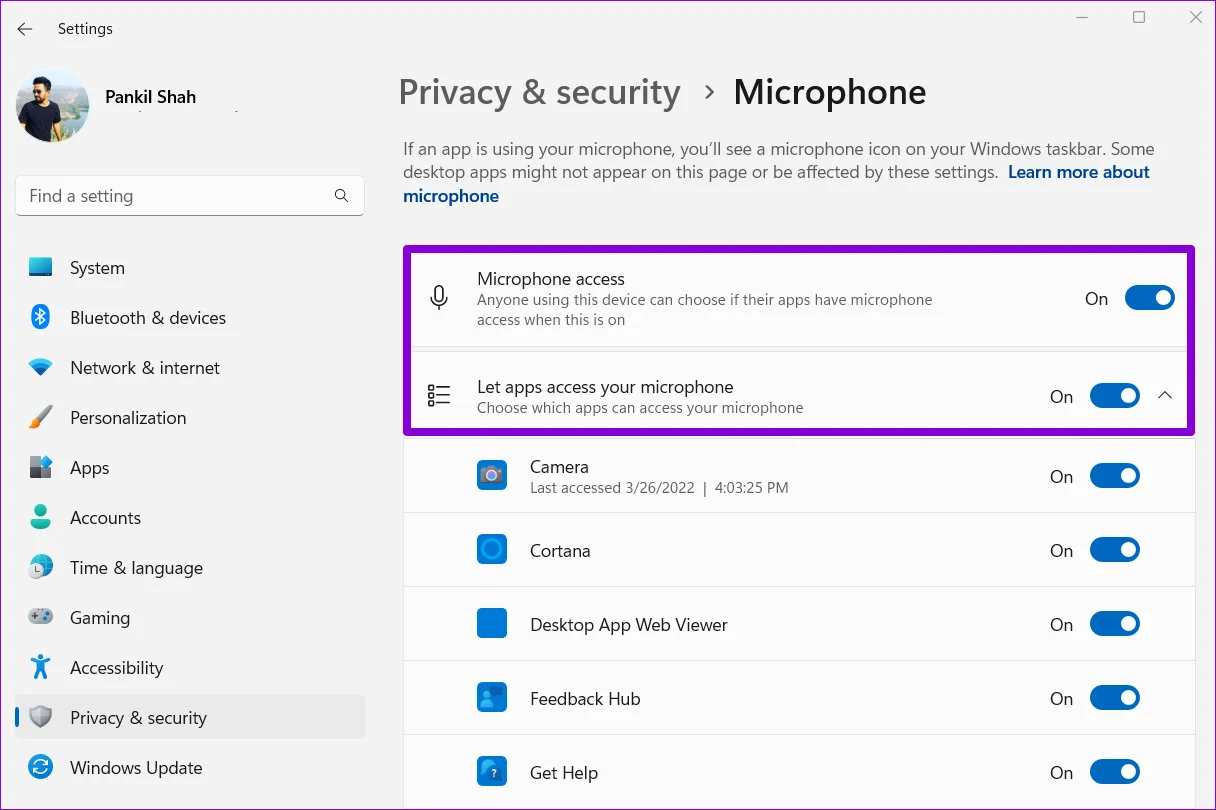
- Ensure the toggle for Microphone access is turned On.
- Scroll down and toggle on Let apps access your microphone, ensuring specific apps like Zoom or Teams have permission.
3. Set the Correct Default Input Device
If you have multiple audio devices connected, Windows might be listening to the wrong one.
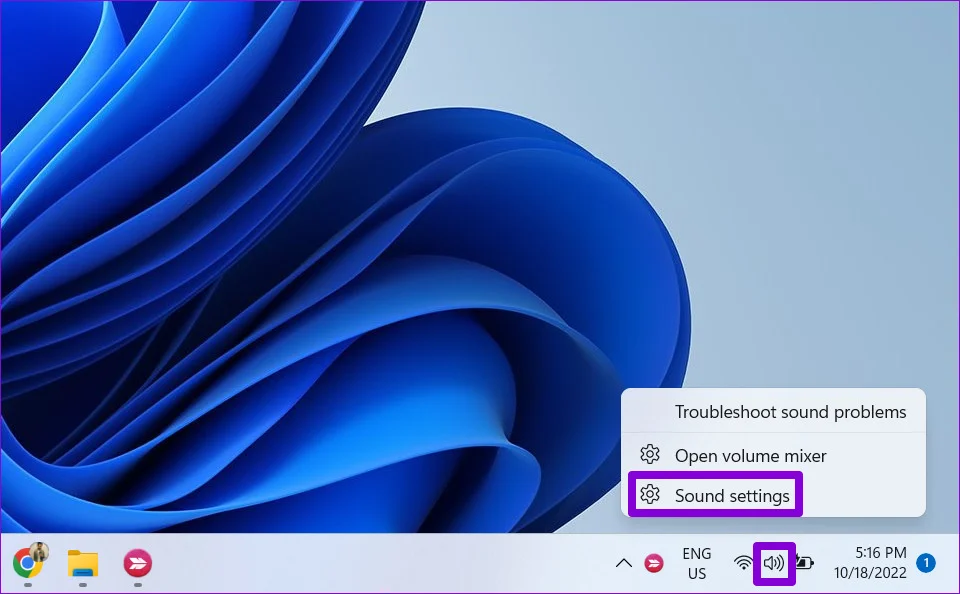
- Right-click the speaker icon on the taskbar and choose Sound settings.
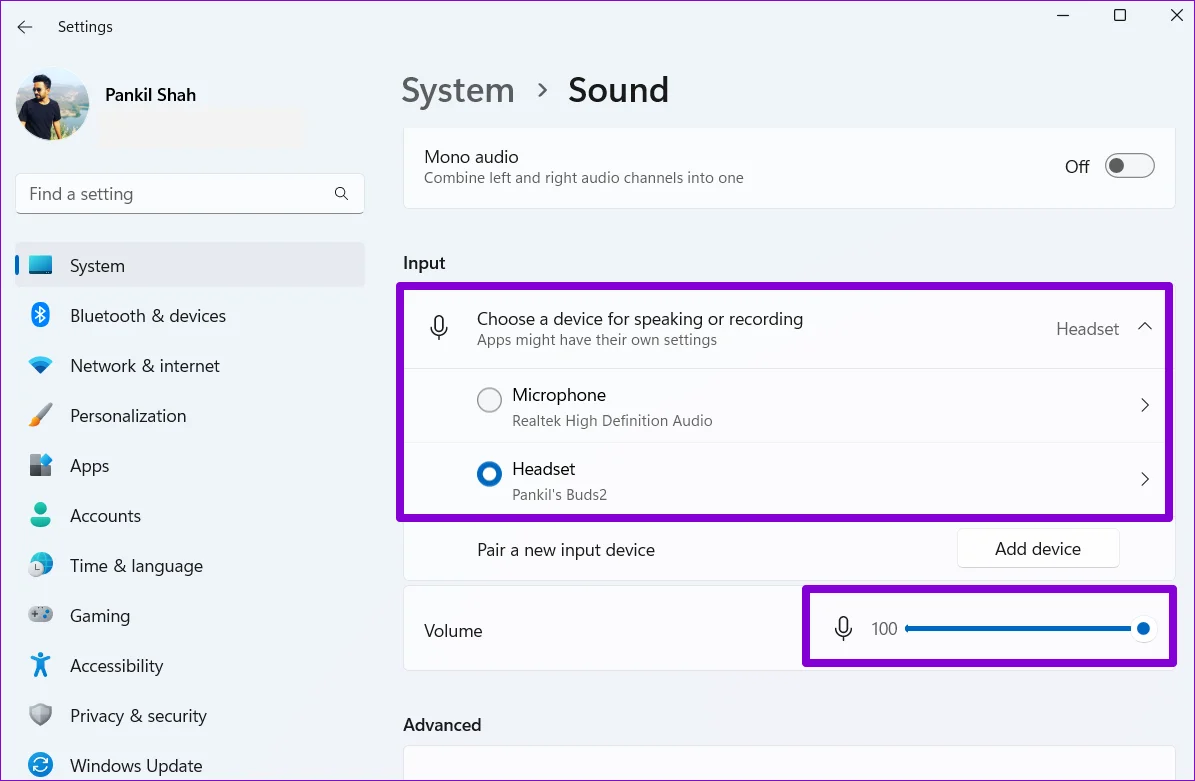
- Look under the Input section.
- Click the dropdown menu to select your preferred microphone.
- Test the microphone by speaking into it; the volume bar should move.
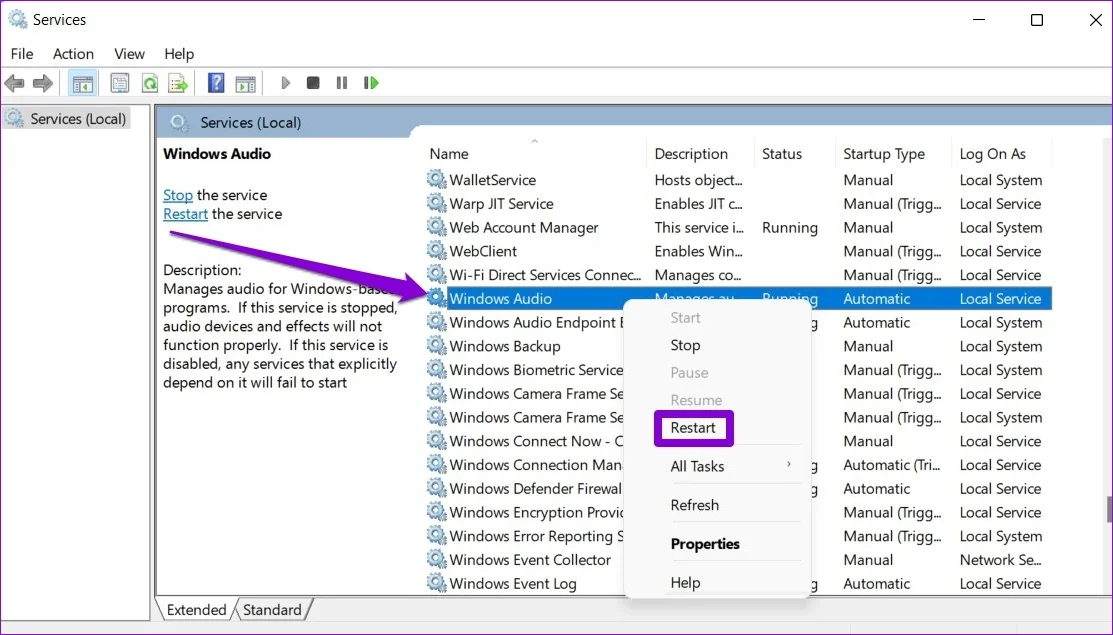
4. Restart the Windows Audio Service
The Windows Audio service manages all sound devices. If it glitches, your mic may stop working.
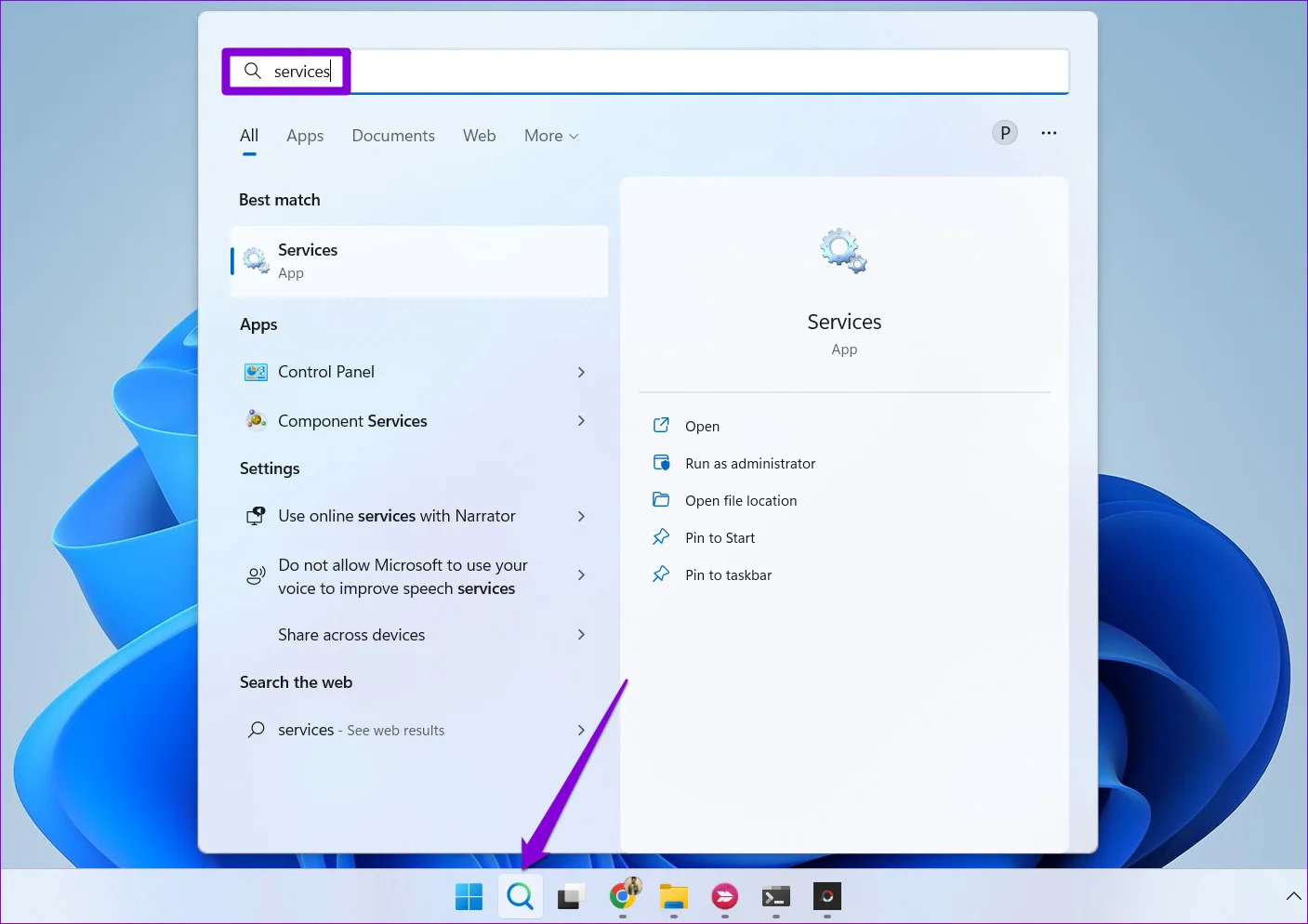
- Click Start, type
services, and press Enter. - In the Services window, scroll down to find Windows Audio.
- Right-click it and select Restart.
5. Run the Recording Audio Troubleshooter
Windows has a built-in tool to detect and fix audio problems automatically.
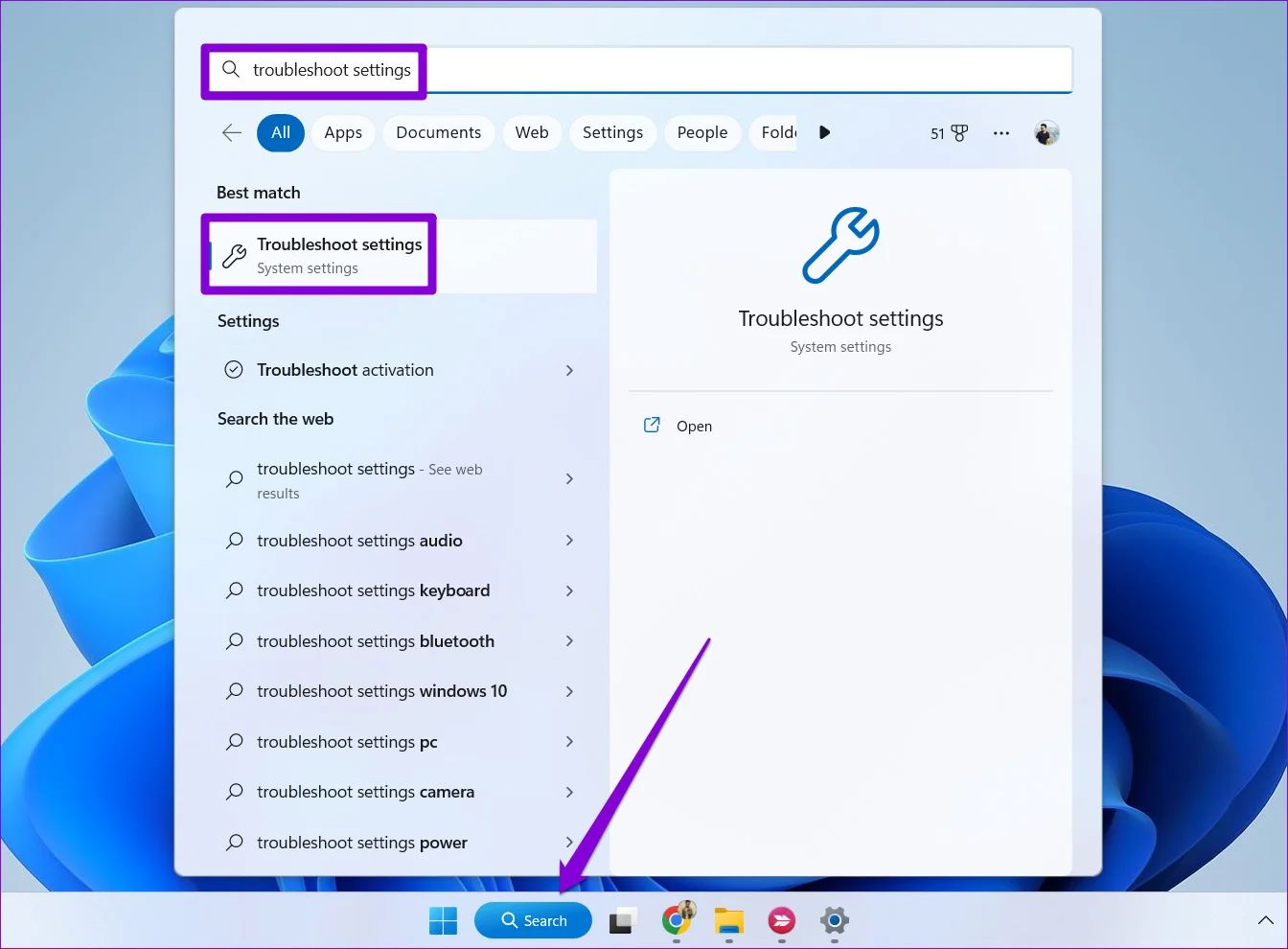
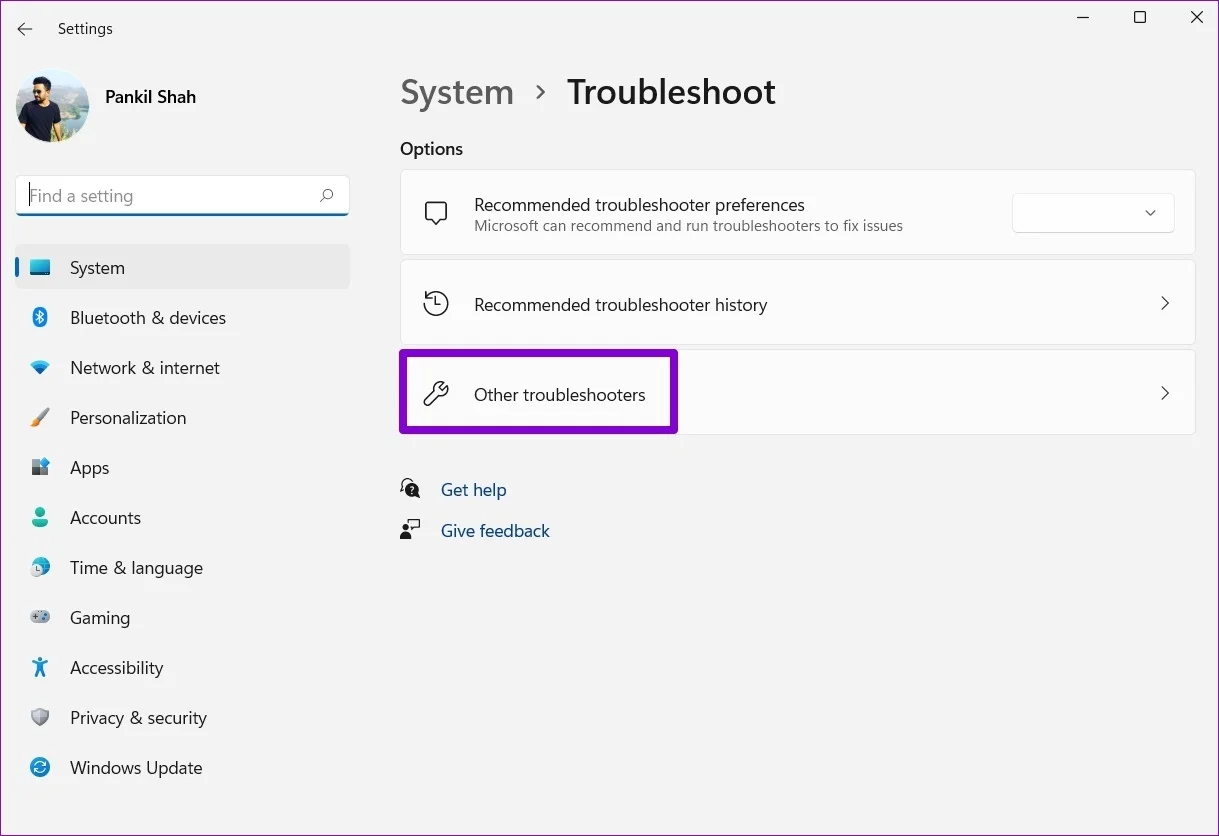
- Go to Settings > System > Troubleshoot.
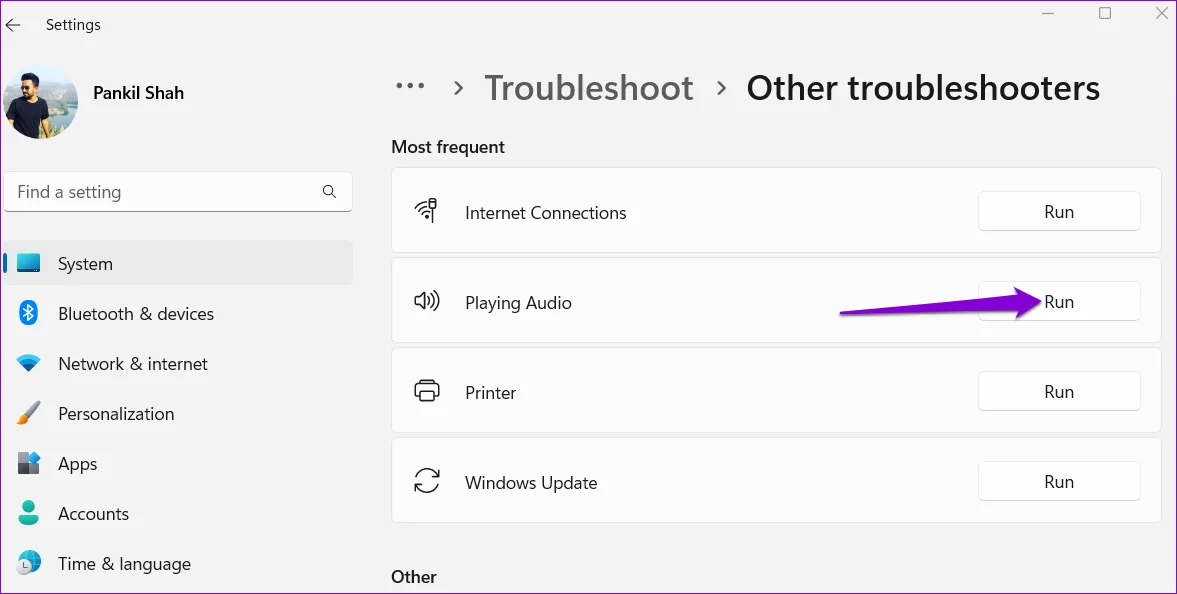
- Click on Other troubleshooters.
- Locate Recording Audio and click the Run button. Follow the on-screen instructions.
6. Update or Reinstall Microphone Drivers
Corrupt or outdated drivers are a common cause of hardware failure. To rule this out:
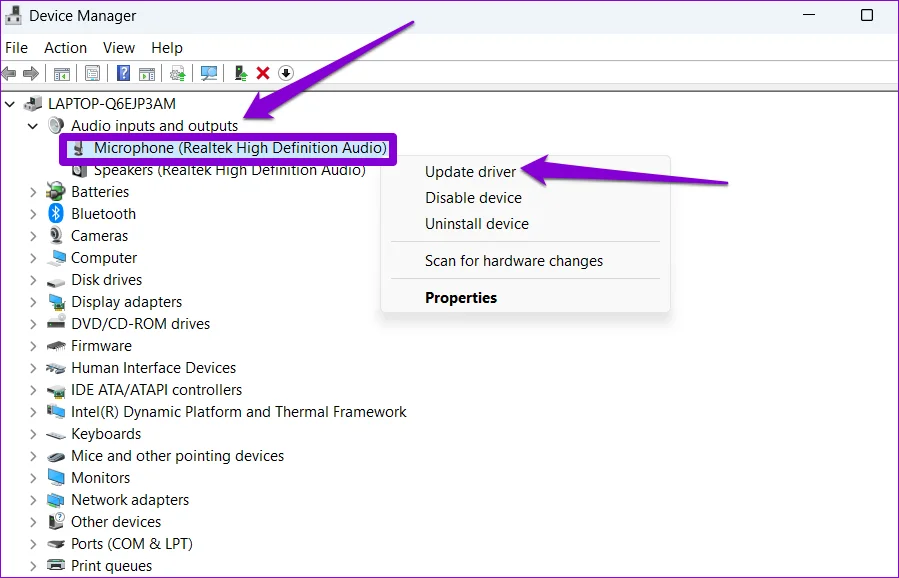
- Open Device Manager and expand Audio inputs and outputs.
- Right-click your microphone and select Update driver. Choose Search automatically for drivers.
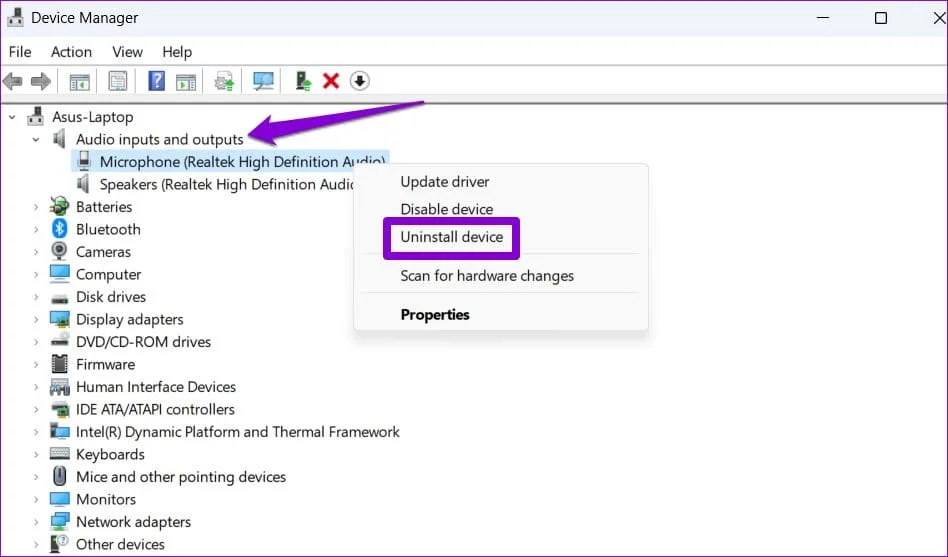
- If updating doesn't work, right-click the device again and select Uninstall device.
- Restart your PC. Windows will automatically reinstall the missing driver upon boot.
7. Disable Exclusive Mode
Sometimes, one application takes "exclusive control" of the microphone, blocking other apps from using it.
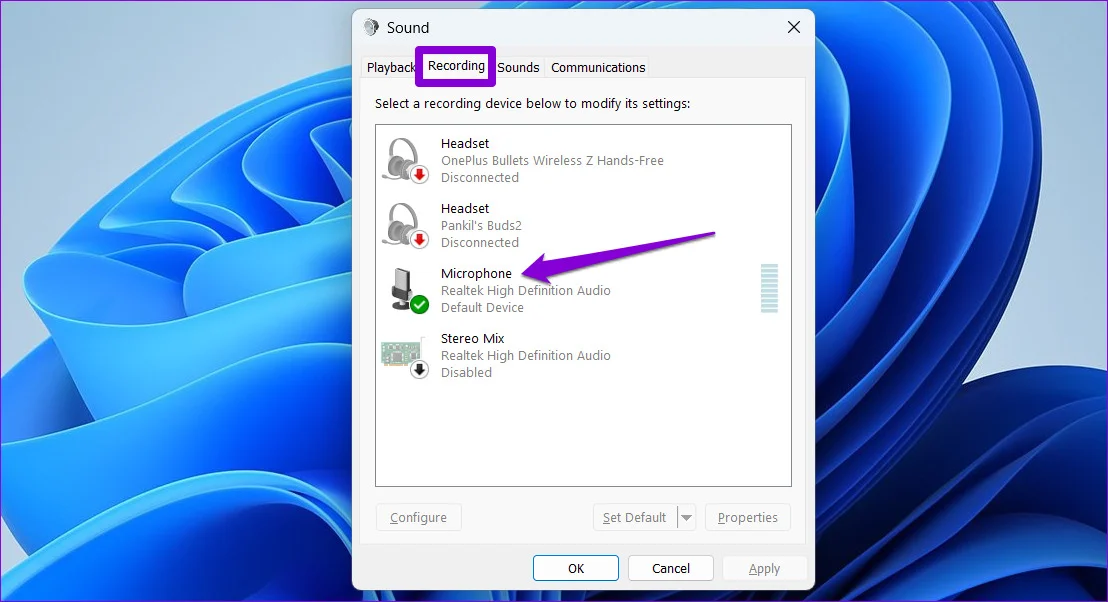
- Press Windows key + R, type
mmsys.cpl, and hit Enter. - Switch to the Recording tab.
- Double-click your default microphone to open Properties.
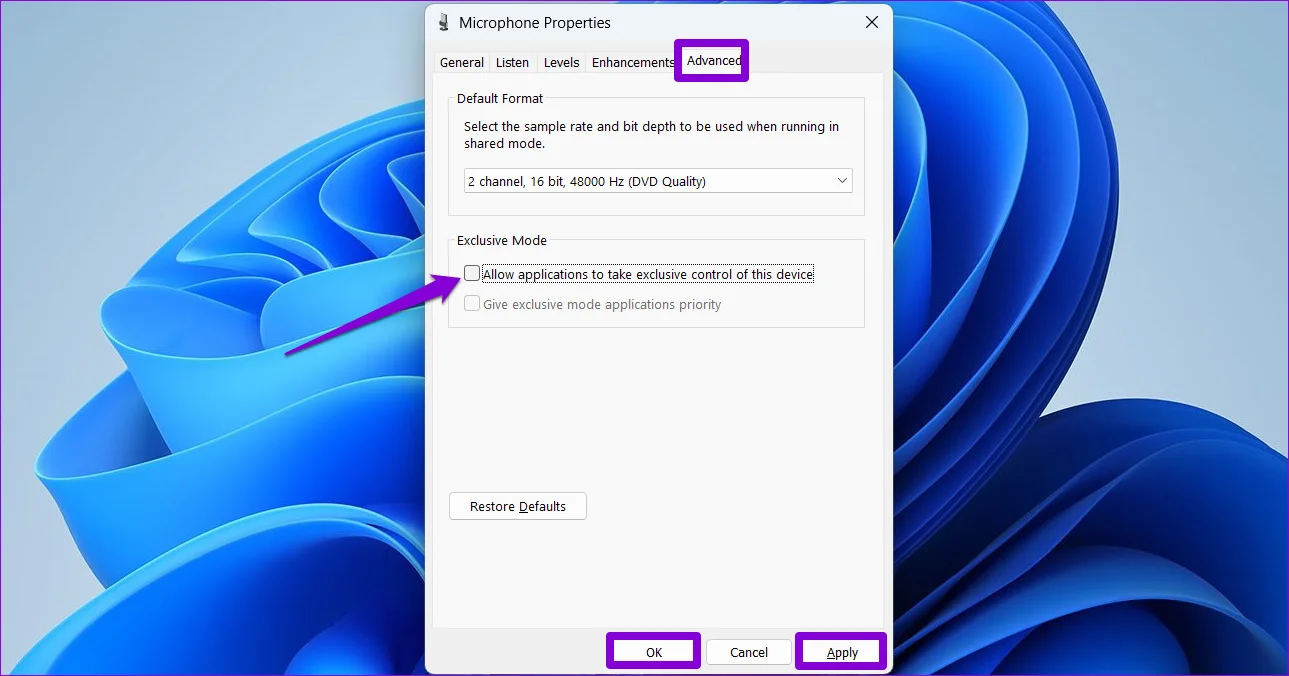
- Go to the Advanced tab and uncheck Allow applications to take exclusive control of this device.
- Click Apply and OK.
Still Having Issues?
If you have followed all the steps above and your microphone still isn't picking up sound, the issue might lie with the hardware itself. Before buying a new one, test your equipment using a reliable online tool to ensure it is functioning correctly.
Visit AudioTest.app to verify your hardware and ensure your input is working as expected.