Experiencing a "No Signal" message on your monitor can be incredibly frustrating, especially when you can see your computer's lights are on and fans are spinning. This error indicates that while your PC is powered up, the communication link between your graphics card and the display has been interrupted. Before you assume your hardware is dead, let's walk through the most effective ways to diagnose and resolve this common issue.
The "No Signal" error can stem from something as simple as a loose plug or as complex as a driver conflict. If you've recently performed a screen test and everything seemed fine, the problem likely lies in the connection or the signal source. Below are the steps to get your display back up and running.
Solution 1: Inspect and Reseat Your Video Cables
Most "No Signal" problems are caused by a physical connection issue. Whether you are using HDMI, DisplayPort, DVI, or VGA, the cable must be securely seated at both ends. Over time, cables can wiggle loose or internal wires can become damaged.
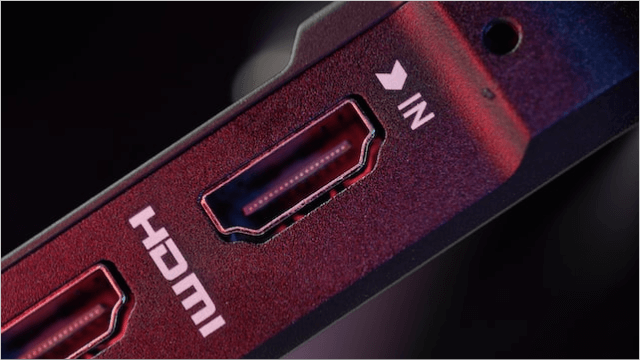
- Unplug and Reconnect: Fully remove the cable from both the monitor and the PC, then plug them back in firmly.
- Check for Damage: Look for bent pins in the connectors or frays along the cable length.
- Swap the Cable: If you have a spare HDMI or DisplayPort cable, try using it to rule out a faulty wire.
- Try Different Ports: Many modern GPUs have multiple outputs. Try plugging into a different port on the back of your computer.
- Check Adapters: If you are using a converter (like a DisplayPort to HDMI adapter), this is often a point of failure. Try a direct connection if possible.
Solution 2: Select the Correct Input Source
Modern monitors often feature multiple inputs to accommodate various devices like consoles and laptops. If your monitor is manually set to "HDMI 1" but your PC is connected to "HDMI 2" or "DisplayPort," you will see a "No Signal" message.
- Locate the Menu or Input button on your monitor (typically found on the bottom or back panel).
- Cycle through the available input options.
- Ensure the selected source matches the cable type and port you are using.
- If your monitor has an "Auto-Detect" feature, try toggling it off and then back on to force a refresh.
Solution 3: Update or Reinstall Your Display Drivers
Your Graphics Processing Unit (GPU) relies on software drivers to communicate with your monitor. If these drivers become corrupted—often after a forced Windows update—the signal can drop entirely. This is a common hurdle mentioned in our troubleshooting guides.
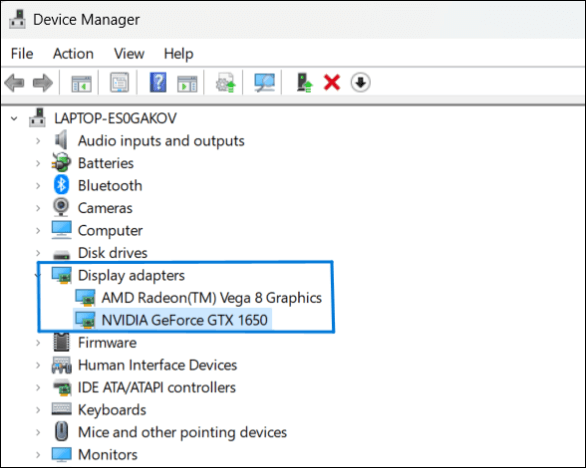
To refresh your drivers, follow these steps:
- If you have no visual at all, try booting into Safe Mode.
- Right-click the Start button and open Device Manager.
- Expand the Display adapters section.
- Right-click your graphics card (NVIDIA, AMD, or Intel) and select Update driver.
- Choose "Search automatically for drivers."
- If the issue persists, select "Uninstall device," restart your PC, and Windows will attempt to reinstall a clean driver automatically.
Solution 4: Run a Hardware Diagnostic Check
If the software and cables aren't to blame, there may be an internal hardware conflict. Components like RAM sticks or the GPU itself can occasionally shift out of place, breaking the circuit required for a video signal.
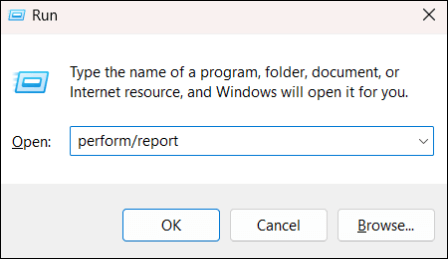
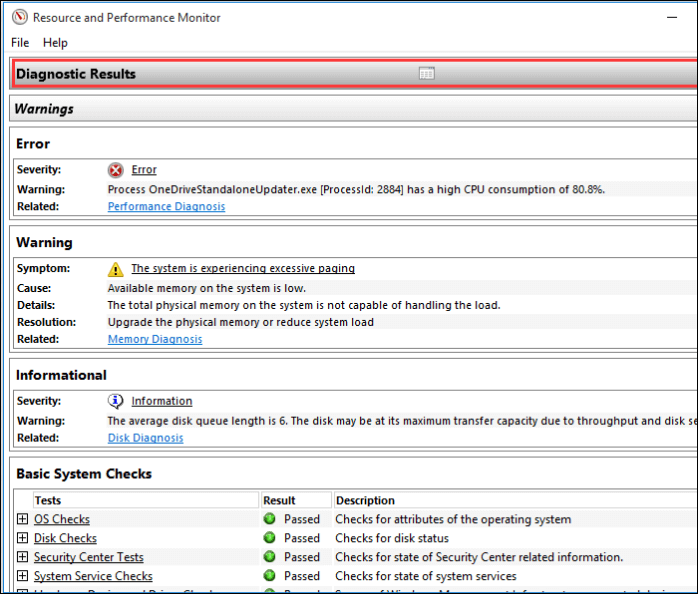
- Press Windows + R, type
perfmon /report, and hit Enter to run a system health check. - Reseat the RAM: Power down the PC, remove the RAM sticks, and click them back into their slots firmly.
- Check the GPU: Ensure your graphics card is fully seated in its PCIe slot and that all power cables are connected.
- Listen for Beeps: Many motherboards use "beep codes" to signal hardware failures. Check your motherboard manual if you hear any unusual sounds during startup.
- While checking hardware, ensure your other peripherals are working using our keyboard test and mouse test tools.
Solution 5: Isolate the Fault with Another Device
To determine if the problem lies with your PC or the monitor itself, you need to test the hardware independently. This "isolation" step is crucial for accurate diagnosis.
- Test the Monitor: Connect the monitor to a laptop, gaming console, or streaming stick. If it works there, your monitor is fine, and the issue is with your PC's GPU or settings.
- Test the PC: Connect your PC to a different monitor or a TV. If you get a picture, your original monitor may have internal hardware damage.
- If you suspect your display is failing, you can use our screen test tool on a working device to check for dead pixels or backlight issues.
Related Articles
Frequently Asked Questions
Why is my monitor saying "No Signal" even though the computer is running?
This usually indicates that the monitor isn't receiving data from the GPU. Common causes include a loose cable, incorrect input settings, or a driver crash. In some cases, it can indicate a hardware failure within the PC.
How can I force Windows to detect my display?
Try the keyboard shortcut Windows + Ctrl + Shift + B. This restarts your graphics driver without rebooting your computer. You can also go to Settings > System > Display and click "Detect" under the Multiple Displays section.
Can a low-quality HDMI cable cause signal loss?
Yes. Poorly shielded or old HDMI cables may struggle with high resolutions or refresh rates, leading to intermittent signal loss or a total "No Signal" error. Always use high-speed rated cables for modern displays.
What should I do if my GPU isn't being detected?
First, ensure the GPU is getting enough power from the PSU. If you have integrated graphics (a port on the motherboard itself), try plugging into that to see if you can access Windows and reinstall the GPU drivers.
Is my monitor dead if it says "No Signal"?
Not necessarily. The fact that it displays the "No Signal" message means the screen is still receiving power and the internal logic is working. It simply isn't getting a video feed from your source device.