Why Your Monitor Shows "No Signal"
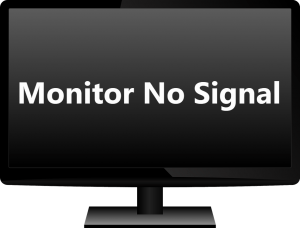
Seeing a "No Signal" message on your monitor is one of the most frustrating experiences for any Windows user. Whether you're in the middle of an important project or settling in for a gaming session, a blank screen with that dreaded error can bring everything to a halt. The good news? In most cases, the fix is straightforward once you know where to look.
The "No Signal" error means your monitor isn't receiving any video input from your computer. This could stem from something as simple as a loose cable, or it might indicate a deeper hardware issue. Before you panic, try testing your screen online to confirm the monitor itself is functional, then work through the solutions below.
Fix 1: Check Your Display Cable Connection
The most common culprit behind a "No Signal" error is a loose or damaged display cable. This is especially true if you've recently moved your computer or desk setup.
What to do:
- Power off both your monitor and PC completely.
- Disconnect the display cable (HDMI, DisplayPort, DVI, or VGA) from both ends.
- Inspect the cable connectors for bent pins, fraying, or visible damage.
- Reconnect the cable firmly at both the monitor and the PC/GPU end.
- Ensure any thumbscrews or locking mechanisms are tightened securely.
If the cable appears damaged, try a different one. A faulty HDMI or DisplayPort cable can cause intermittent signal loss even when it looks fine on the outside.
Fix 2: Verify the Correct Input Source
Modern monitors often have multiple input ports (HDMI, DisplayPort, VGA, DVI), and they need to be told which one to use. If the monitor is set to the wrong input, you'll get a "No Signal" message even though everything is properly connected.
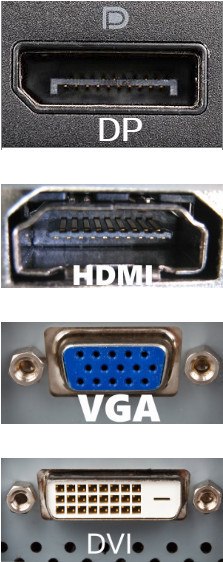
How to select the correct input source:
- Make sure both your PC and monitor are powered on.
- Press the Menu or Input button on your monitor (usually on the side or bottom bezel).
- Navigate to Input Source in the on-screen menu.
- Select the port your cable is connected to (e.g., HDMI 1, DisplayPort, VGA).
Some monitors auto-detect the active input, but this feature isn't always reliable. Manually selecting the correct source often resolves the issue immediately.
Fix 3: Test With Integrated Graphics
If you have a dedicated graphics card and integrated graphics on your CPU, you can isolate the problem by connecting your monitor directly to the motherboard's video output. This step helps determine whether the issue lies with your dedicated GPU or somewhere else in the system.
Step 1: Confirm Your CPU Has Integrated Graphics
Not all processors include integrated graphics. Here's how to check:
- Press Windows + R, type msinfo32, and press Enter.
- Under System Summary, find your processor model.
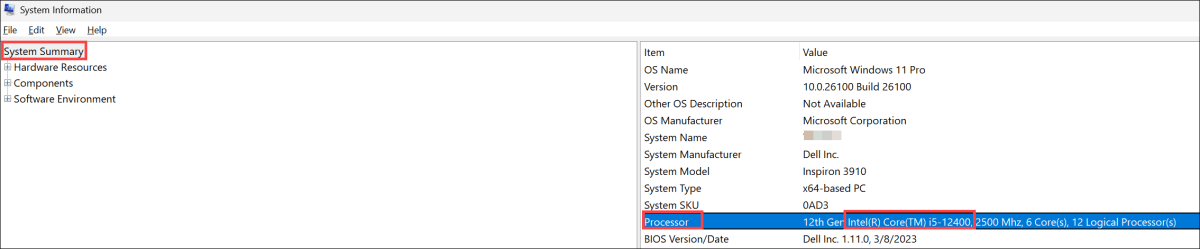
Intel processors: Most Intel Core processors (i3, i5, i7, i9) include integrated graphics. The main exceptions are models with an "F" suffix (e.g., i5-12400F), which do not have integrated graphics.
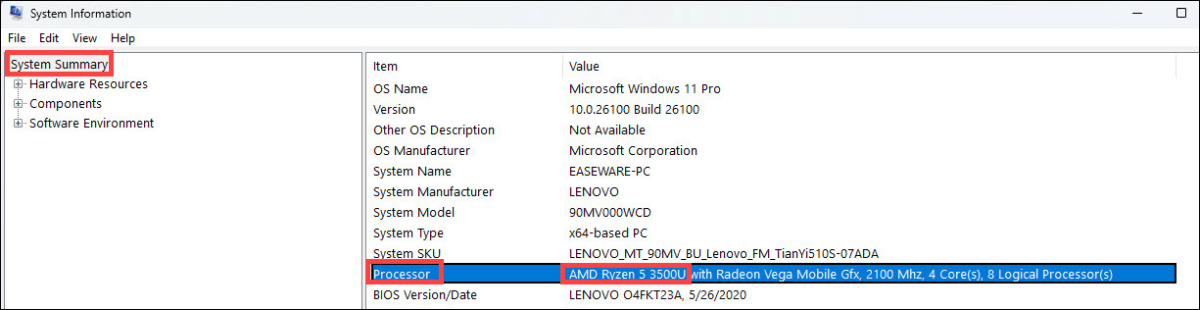
AMD processors: Many AMD Ryzen processors include integrated Radeon graphics, particularly models with a "G" suffix (e.g., Ryzen 5 5600G). Standard Ryzen models without the G suffix typically do not include integrated graphics.
Step 2: Look Up Your CPU's Specifications
For Intel processors: Search your processor model on Intel's official website (e.g., Intel Core i5-12400).
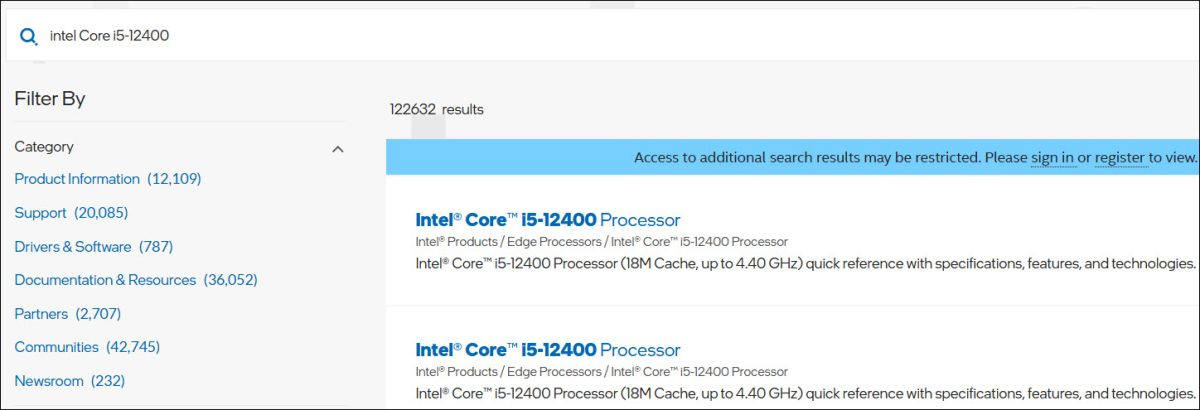
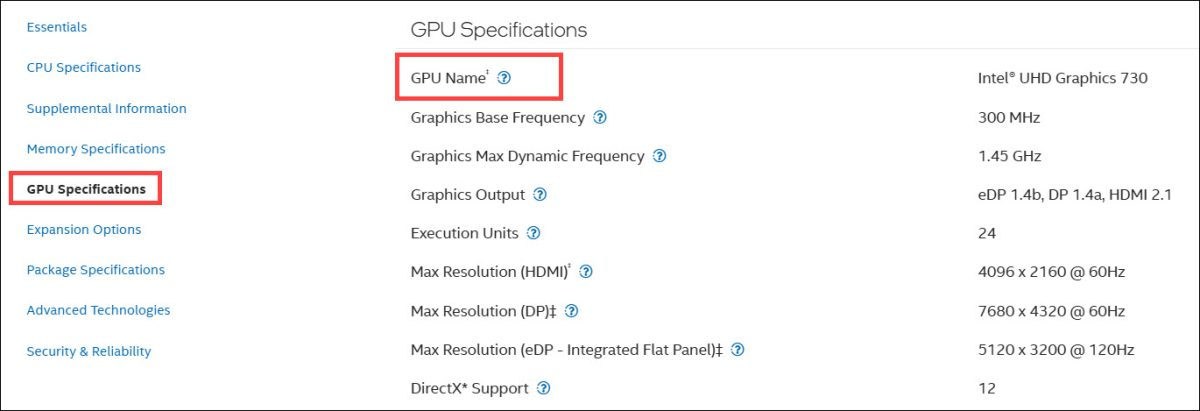
Look for a GPU Specifications section. If it lists a specific graphics model (such as Intel UHD Graphics 730), your CPU has integrated graphics.
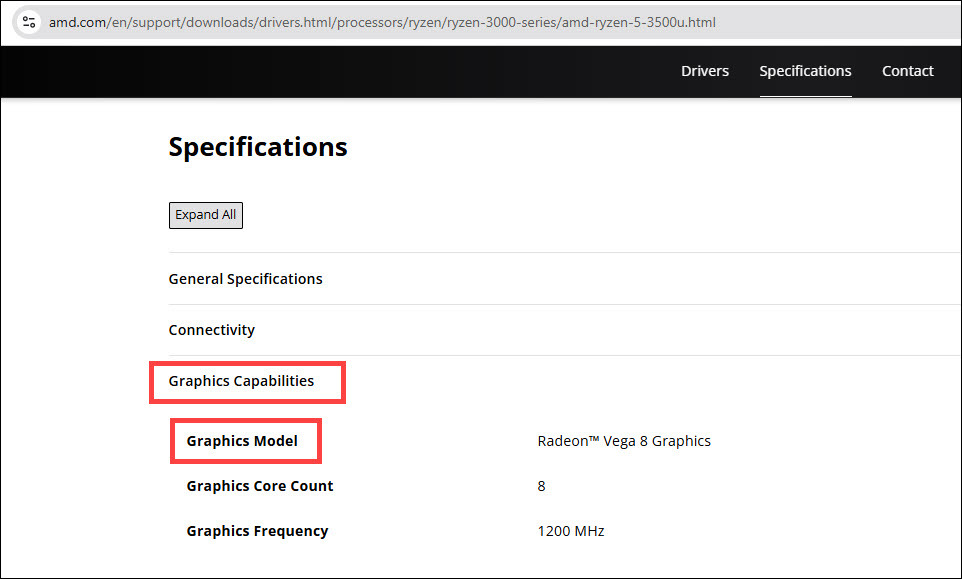
For AMD processors: Search your processor model on AMD's official website.

Check for a Graphics Capabilities section. If a specific model is listed (such as Radeon Vega 8 Graphics), your processor supports integrated graphics.
Step 3: Switch to Integrated Graphics
- Shut down your computer completely and unplug the power cable.
- Disconnect the monitor from your dedicated GPU.
- Connect the monitor to the motherboard's display output (usually located near the USB ports).
- Power on the computer and check for display output.
What the Results Mean
If the Display Works With Integrated Graphics
This points to an issue with your dedicated graphics card. Try these steps:
- Reseat the GPU: Power down, open the case, remove the graphics card, inspect for damage or debris, and firmly reinsert it. Reconnect all power cables and test again.
- Update GPU drivers: While using integrated graphics, download the latest drivers from NVIDIA, AMD, or Intel's website. Outdated or corrupted drivers are a leading cause of display issues. You can also use our troubleshooting tools to diagnose related problems.
- Test the GPU again: Reconnect the monitor to the dedicated GPU. If there's still no signal after reseating and updating drivers, the GPU itself may be faulty.
If There's Still No Display
If neither the dedicated GPU nor the integrated graphics produce a signal, the problem may involve your motherboard, CPU, RAM, or power supply. At this point, it's best to:
- Test your RAM sticks individually in different slots.
- Check that all power connectors are properly seated.
- Listen for beep codes when powering on (if your motherboard has a speaker).
- Consult a professional technician for further diagnosis.
Frequently Asked Questions
Why does my monitor say "No Signal" when the PC is on?
This typically means the monitor isn't receiving video input. Check that the display cable is securely connected, the correct input source is selected, and your GPU is properly seated. A faulty cable or incorrect input source accounts for the majority of these cases.
Can a bad HDMI cable cause "No Signal"?
Absolutely. HDMI cables can fail internally even without visible damage. Try a different cable to rule this out. If possible, test with a different cable type (e.g., switch from HDMI to DisplayPort) to see if the issue persists.
How do I know if my GPU is dead?
If your system works fine with integrated graphics but shows "No Signal" when connected to the dedicated GPU — even after reseating it and updating drivers — the GPU may have failed. Test it in another system if possible, or check for physical signs of damage like burnt components or unusual odors.
Does "No Signal" mean my monitor is broken?
Not necessarily. The "No Signal" message actually proves your monitor is working — it's displaying the error on screen. The problem is usually with the connection, input source, or the computer's graphics output. Use our free screen test to verify your monitor is functioning properly.
Can outdated BIOS cause monitor no signal issues?
Yes, an outdated BIOS can sometimes cause compatibility issues with newer GPUs, resulting in no display output. Check your motherboard manufacturer's website for BIOS updates and installation instructions. However, only update BIOS if you're comfortable with the process, as a failed update can brick your motherboard.