In today's world of remote work and virtual meetings, a functioning webcam is an essential tool. However, encountering a "camera not found" error or a persistent black screen on Windows 11 can be incredibly frustrating. Whether you're using a built-in laptop camera or an external USB webcam, most issues are caused by simple setting conflicts or outdated software.
Before diving into complex technical fixes, we recommend using our free online camera test to confirm whether your browser can detect the hardware. If the test fails, follow the comprehensive steps below to restore your video connection.
1. Inspect Physical Obstructions and Hardware Connections
It may sound obvious, but many "broken" cameras are simply blocked or switched off at the hardware level. Modern laptops frequently include built-in privacy shutters—small sliding plastic covers that physically block the lens. If you see a solid black or orange circle where your lens should be, ensure the shutter is fully open.
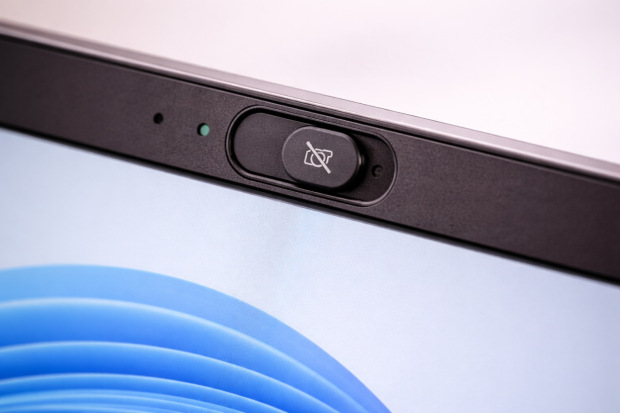
Additionally, check your keyboard for a dedicated camera toggle key (usually F8, F10, or a key with a camera icon). Pressing this key with the Fn button can often enable or disable the hardware. For external webcam users, ensure the USB cable is securely plugged into a high-speed port. If the device remains unresponsive, try a different port or consult our general troubleshooting guide for peripheral connectivity issues.
2. Verify Windows 11 Privacy and App Permissions
Windows 11 includes robust privacy controls that can prevent applications from accessing your camera. If you've recently updated your system, these permissions might have been reset. To verify this, right-click the Start button, select Settings, and navigate to Privacy & Security > Camera.
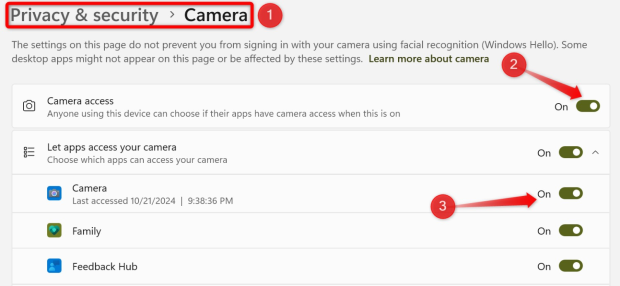
Ensure that Camera access is toggled to "On." Furthermore, scroll down to the "Let apps access your camera" section and verify that the specific application you are using (such as Zoom, Teams, or your web browser) has its individual permission switch enabled. If you are also having audio issues, you can check your microphone permissions in the same menu.
3. Select the Correct Camera Device
Computers with multiple video inputs—such as a laptop with both an integrated camera and an external high-definition webcam—can occasionally default to the wrong device. This mismatch often results in an "In Use" error or a blank screen in your video software.
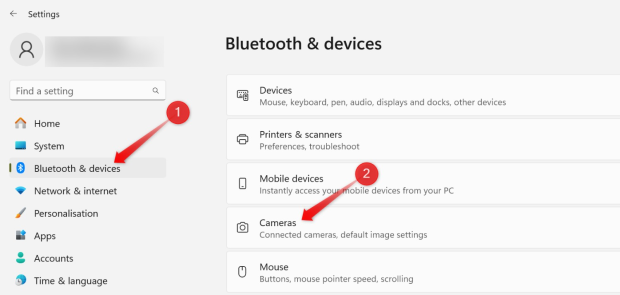
Navigate to Settings > Bluetooth & Devices > Cameras to see a list of connected imaging hardware. Ensure your preferred device is enabled. Within your specific meeting app, enter the Settings or Video menu to manually select the correct camera from the dropdown list. This step is also useful if you need to switch between different audio output devices during a call.
4. Identify Background App Conflicts
Windows 11 generally allows only one application to control the webcam at a time. If your camera light is on but the screen is black in your current app, another program is likely "stealing" the feed in the background. Look for the camera icon in the system tray (near the clock) to see which app is active.
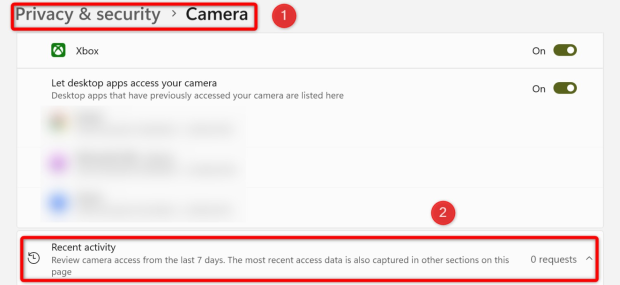
Hover over the icon to identify the conflicting software and close it immediately. If the camera remains locked, check the "Recent activity" section in your Privacy settings to see if any unrecognized background processes have accessed the device recently. If you suspect hardware failure, you can also run a keyboard test or mouse test to see if other USB peripherals are experiencing similar lag or disconnects.
5. Update or Reinstall Camera Drivers
Drivers act as the translator between your hardware and Windows. If your webcam driver is corrupted or outdated, the camera will fail to initialize. To fix this, right-click the Start button and select Device Manager. Locate the Cameras or Imaging devices category and right-click your webcam.
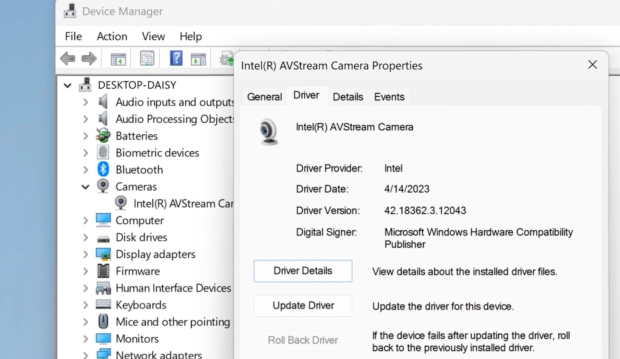
Select Update driver and choose "Search automatically for drivers." If Windows fails to find a new version, select Uninstall device, then restart your computer. Upon reboot, Windows 11 will automatically attempt to reinstall the cleanest version of the driver. For specialized external webcams (like Logitech or Razer), it is always best to download the official software directly from the manufacturer's support page.
6. Enable Camera Hardware in BIOS/UEFI
On some professional laptops (like Dell Latitude or Microsoft Surface), the webcam can be disabled at the firmware level for security purposes. If the camera does not even appear in the Device Manager, it might be turned off in the BIOS. Restart your PC and press the BIOS key (usually F2, F12, or Del) during the boot process.
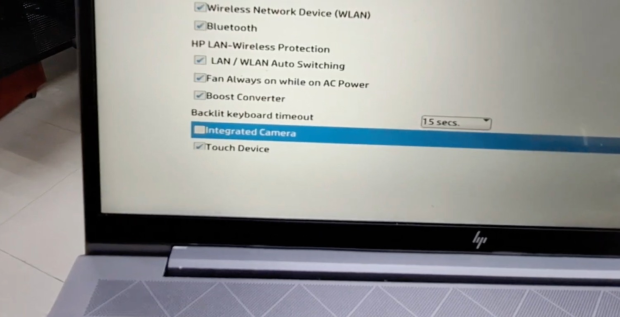
Look for a menu labeled System Configuration, Miscellaneous Devices, or Integrated Peripherals. Ensure that the "Enable Camera" or "Integrated Webcam" option is checked. Save your changes and exit. If your screen remains blank after these steps, you may want to perform a screen test to ensure there aren't deeper display driver issues affecting your video output.
Frequently Asked Questions
Why is my webcam showing a black screen but the light is on?
This usually indicates that the hardware is powered but the video feed is being blocked by a privacy shutter, a software conflict (another app using the camera), or a privacy setting in Windows 11.
How do I know if my webcam is physically broken?
Try connecting an external USB webcam to your PC. If the external one works but the built-in one doesn't (after trying all the steps above), the internal hardware or ribbon cable may be damaged.
Can a Windows update break my camera?
Yes, occasionally updates can cause driver incompatibilities. Using the "Roll Back Driver" option in Device Manager can often fix issues that started immediately after a system update.