Few things are more frustrating than preparing for a meeting or starting a movie only to find your laptop speakers are completely silent. Before you assume it is a hardware failure, it is worth performing a quick speaker test to confirm the issue. Often, the culprit is a software glitch or a configuration error that you can fix yourself.
Why Are My Laptop Speakers Not Working?
There are several common reasons why audio might stop playing through your built-in speakers:
- Accidental Muting: The system or application volume might be turned off.
- Incorrect Playback Device: Windows may be trying to send audio to a disconnected monitor or Bluetooth device.
- Software Conflicts: Third-party audio enhancers or drivers can interfere with the sound output.
- Incompatible Enhancements: Windows audio "improvements" sometimes cause more harm than good.
- Outdated or Corrupt Drivers: The communication bridge between your OS and hardware is broken.
- Hardware Malfunction: Physical damage to the speakers or the audio jack.
How to Fix Laptop Speakers: Step-by-Step Solutions
1. Reinstall Your Audio Drivers
If your driver software has become corrupted, a fresh installation is often the best remedy. This forces Windows to reset the audio configuration.
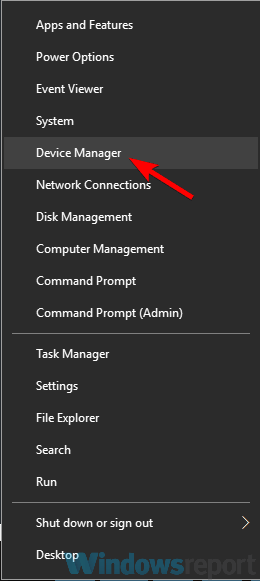
First, right-click the Start button and select Device Manager from the power user menu.
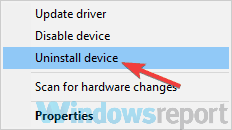
Locate "Sound, video and game controllers," right-click your primary audio device (usually Realtek or Intel High Definition Audio), and select Uninstall device.
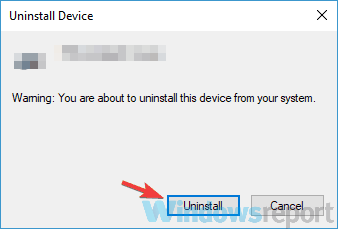
In the confirmation window, check the box for "Delete the driver software for this device" if available, then click Uninstall.
Restart your computer, or click the Scan for hardware changes icon at the top of the Device Manager window. Windows will automatically detect the hardware and install a clean version of the default driver.
2. Update Your Audio Drivers
An outdated driver can lead to compatibility issues, especially after a Windows update. If you are also experiencing issues with other peripherals, you might want to run a microphone test or camera test to see if it is a system-wide driver problem.
Right-click the Start menu and open Device Manager again.
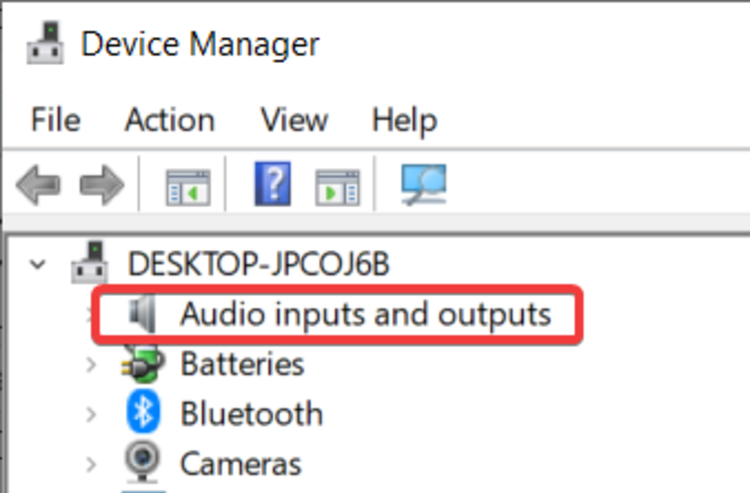
Expand "Audio inputs and outputs," right-click your speakers, and select Update driver. Choose the option to Search automatically for drivers to let Windows find the latest verified version online.
3. Modify Windows Registry Permissions
For users on Asus or other laptops using Realtek drivers, a common bug involves restricted permissions in the Windows Registry that prevent the audio service from running correctly.
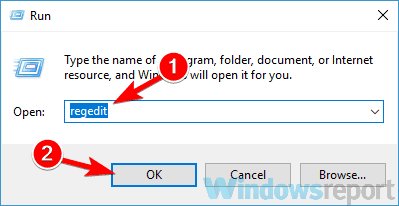
Press Windows Key + R, type regedit, and hit Enter.
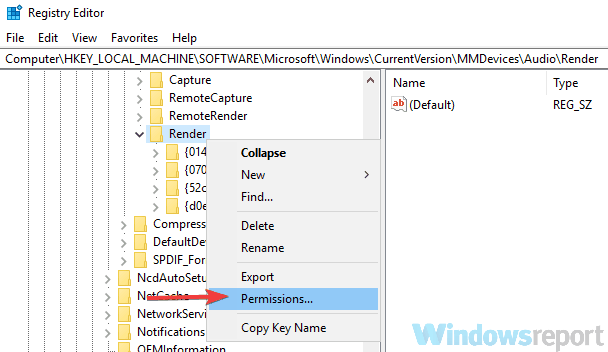
Navigate to: HKEY_LOCAL_MACHINE\SOFTWARE\Microsoft\Windows\CurrentVersion\MMDevices\Audio\Render
Right-click the Render folder in the left sidebar and select Permissions.
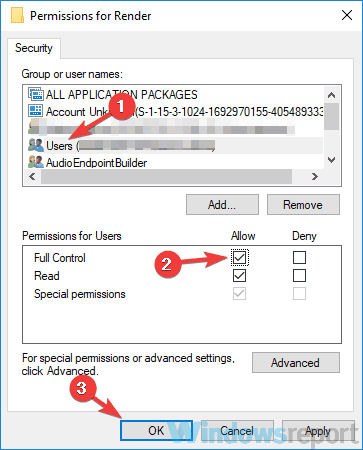
Select "Users" from the list, check the Full Control box under the "Allow" column, and click Apply and OK. Restart your laptop to see if the sound returns.
4. Check the Physical Audio Sensor
Modern laptops feature a 3.5mm audio jack with a physical sensor. When you plug in headphones, the sensor triggers a switch that mutes the internal speakers. Sometimes, dust or a mechanical glitch can cause this sensor to get "stuck," making the laptop believe headphones are permanently connected.
Try plugging and unplugging a pair of headphones several times to "wake up" the sensor. If that doesn't work, ensure there is no debris inside the jack. If you find your keyboard is also behaving oddly, our keyboard test can help identify if there are broader hardware issues.
5. Verify Volume and Mixer Settings
It sounds simple, but it is easy to accidentally mute the system via a keyboard shortcut. Check the volume icon in your taskbar and ensure it isn't crossed out.
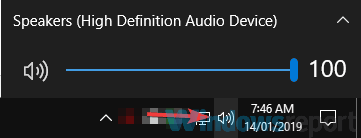
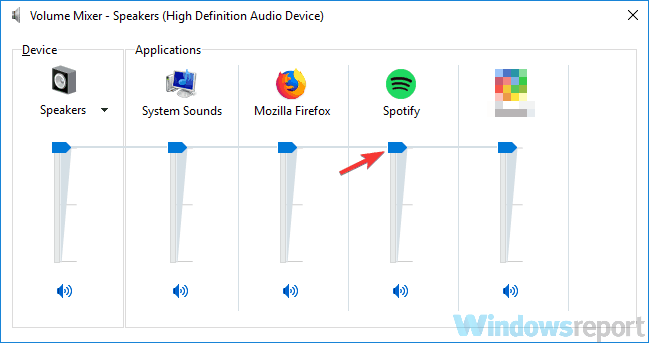
Sometimes the master volume is up, but a specific app is muted in the Volume Mixer. To check this, right-click the volume icon and select Open Volume Mixer.
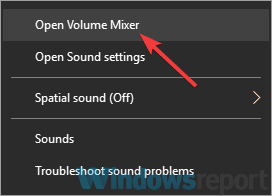
Ensure that the sliders for your browser, media player, and "System Sounds" are all turned up. If you still hear nothing, visit our troubleshooting page for more advanced tips.
6. Set the Correct Default Playback Device
Windows can sometimes lose track of which device should be playing sound, especially if you frequently use external monitors via HDMI or DisplayPort.
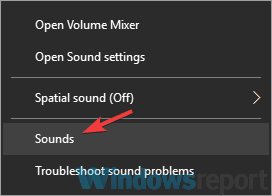
Right-click the volume icon and select Sounds (or "Playback devices").
Under the Playback tab, right-click any empty space and ensure both "Show Disabled Devices" and "Show Disconnected Devices" are checked.
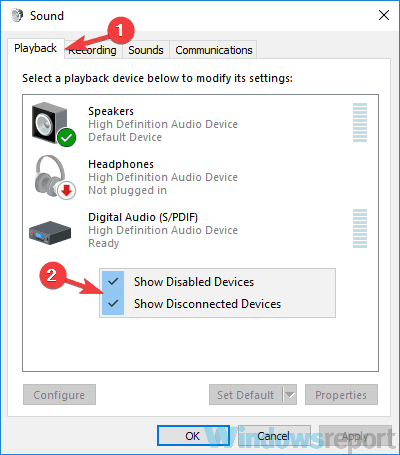
Find your laptop speakers, right-click them, and choose Set as Default Device. Click Apply to confirm.
7. Use the Windows Audio Troubleshooter
Windows includes built-in diagnostic tools that can automatically detect and fix common audio services issues.
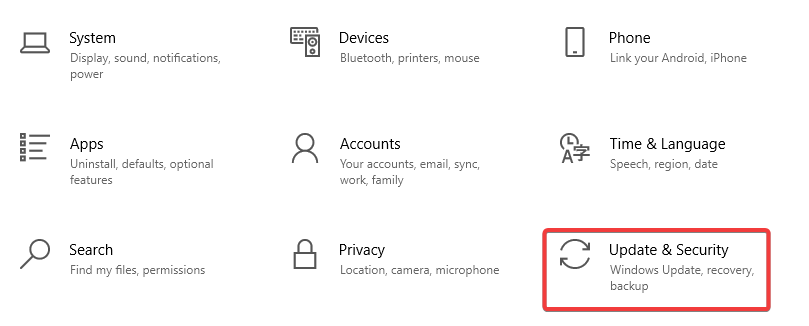
Go to Settings > Update & Security (or System in Windows 11).
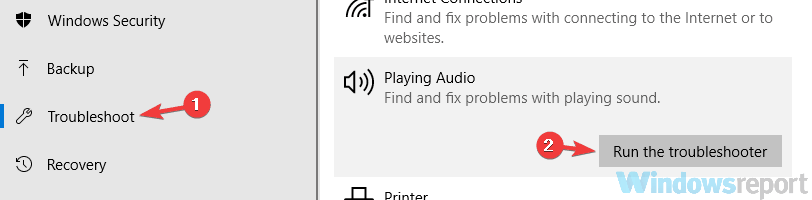
Navigate to the Troubleshoot section, find Playing Audio, and click Run the troubleshooter. Follow the on-screen prompts to apply any recommended fixes.
8. Test with External Hardware
If none of the software fixes work, you need to determine if the internal speakers are physically dead. Connect a pair of external speakers or headphones. If sound plays through the external device but not the laptop speakers, the internal hardware is likely faulty.
If you have established that your audio hardware is fine, you might also want to verify your other peripherals using our mouse test or screen test to ensure your entire setup is in top condition.
Frequently Asked Questions
Why do my laptop speakers work but headphones don't?
This is typically caused by a faulty 3.5mm audio jack, incorrect default playback device selection, or a stuck headphone sensor. Try setting your headphones as the default device in Sound settings, and clean the audio jack port.
Can a Windows update break my laptop speakers?
Yes, Windows updates can sometimes replace your audio driver with an incompatible version. If your speakers stopped working after an update, try rolling back the driver in Device Manager or reinstalling the manufacturer's driver.
How do I know if my laptop speakers are physically damaged?
Connect external speakers or headphones. If they work but internal speakers don't, and all software solutions have failed, the internal speakers may be physically damaged. You can verify with a quick online speaker test.
Why is there a buzzing sound from my laptop speakers?
Buzzing or crackling can be caused by electrical interference, outdated drivers, or audio enhancement settings. Try disabling audio enhancements in your speaker properties and updating your audio drivers.
Do I need to open my laptop to fix the speakers?
In most cases, no. Software and driver fixes resolve the majority of speaker issues. Only if the speakers are physically damaged would you need hardware repair, which should be done by a professional.