How to Fix Wireless Mouse Not Working on Windows 10 & 11: A Definitive Troubleshooting Guide
In the modern computing era, the mouse remains the primary bridge between human intent and digital execution. For Windows 10 and 11 users, a wireless mouse offers a clutter-free desk and the freedom of movement essential for both productivity and high-stakes gaming. However, when that connection fails—manifesting as a frozen cursor, erratic movement, or a complete lack of detection—it can bring your workflow to a grinding halt. If you are currently struggling with a device that won't respond, you might find it helpful to first verify if your hardware is sending any signals at all by using a mouse test tool.
Whether you are using a high-end Logitech gaming mouse, a sleek Microsoft Surface mouse, or a budget-friendly RF peripheral, the underlying architecture of how Windows handles pointing devices is remarkably consistent. This means that most wireless mouse failures are not due to terminal hardware damage but are instead caused by software conflicts, power management glitches, or signal interference. In this comprehensive guide, we will walk through five expert-verified methods to diagnose and resolve wireless mouse issues on Windows 10 and Windows 11.
Common Symptoms of Wireless Mouse Problems
Identifying the specific "flavor" of your mouse issue is the first step toward a successful fix. Wireless mouse problems typically fall into one of four categories, each pointing toward different potential causes. If you're on Windows 10 or 11, you may experience several frustrating issues with your wireless mouse:
- Erratic Pointer Movement: The cursor "stutters," jumps across the screen, or moves on its own without input. This is often a sign of signal interference or a dirty sensor.
- Unresponsive Input: You move the physical device, but the pointer remains stationary. This suggests a total loss of connection between the transmitter and receiver.
- Intermittent Failure: The mouse works perfectly for ten minutes and then suddenly dies, requiring a restart or a replug to function again. This is a classic symptom of power management or "Fast Startup" issues.
- Non-Detection: Windows does not acknowledge the device at all, even when the USB receiver is plugged into a known working port.
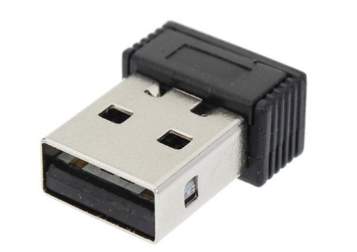
These problems can usually be fixed with systematic troubleshooting. Before you consider purchasing a replacement, follow these 5 proven methods to get your wireless mouse working again. If you suspect other peripherals might be affected, you can also perform a keyboard test or a camera test to ensure your system's USB bus is functioning correctly.
Method 1: Reinstall the Wireless Mouse Driver
The "driver" is the software translator that allows the Windows operating system to understand the signals sent by your mouse hardware. If this translator becomes corrupted or "confused" due to a system update or a registry error, the mouse will stop working. One of the first things to try when hardware isn't functioning properly is to reinstall its driver, forcing Windows to rebuild the connection from scratch.
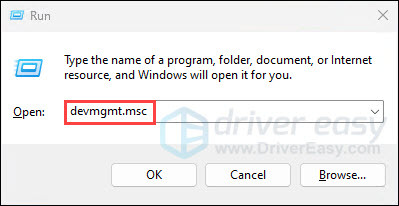
To begin, you will need to navigate Windows using only your keyboard—a vital skill when your primary pointing device is offline. On your keyboard, press the Windows logo + R keys simultaneously to open the Run box. Type devmgmt.msc and hit Enter to launch the Device Manager.
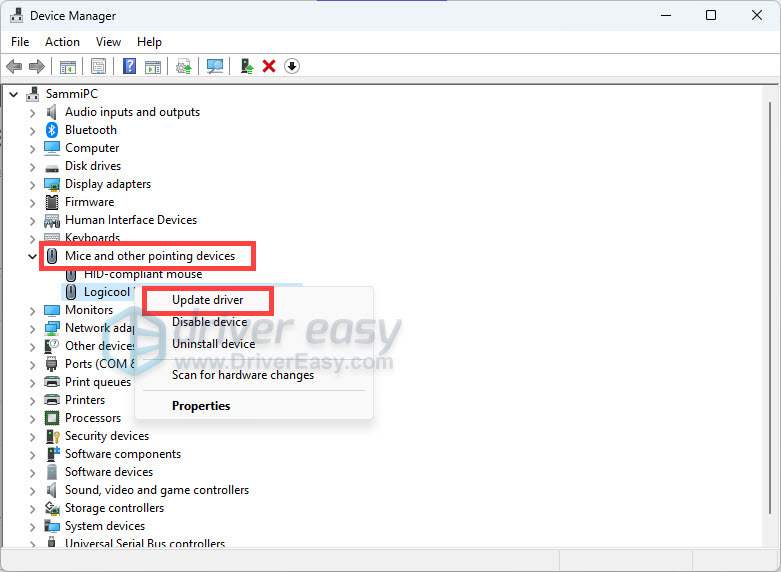
Once Device Manager is open, use the Tab key and Arrow keys to navigate the list. Expand the section titled Mice and other pointing devices. Locate your specific wireless mouse (it may be listed as an "HID-compliant mouse"), right-click it (using the Menu key on your keyboard if available, or Shift + F10), and click Update Driver.
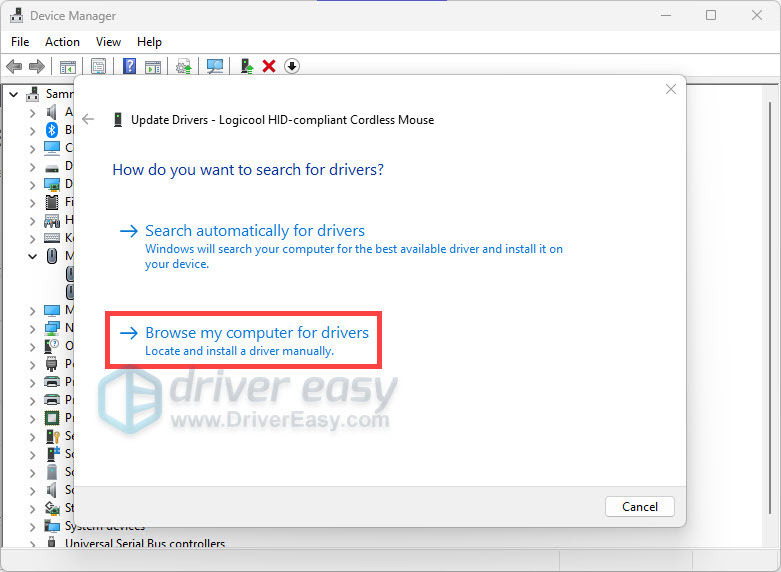
A window will appear asking how you want to search for drivers. To perform a deep reinstall, click "Browse my computer for drivers".
On the next screen, click "Let me pick from a list of available drivers on my computer". This allows you to bypass the automatic selection and manually choose the generic or specific driver provided by Windows. Uncheck "Show compatible hardware", select your device from the list (or the generic HID-compliant driver), and click Next.
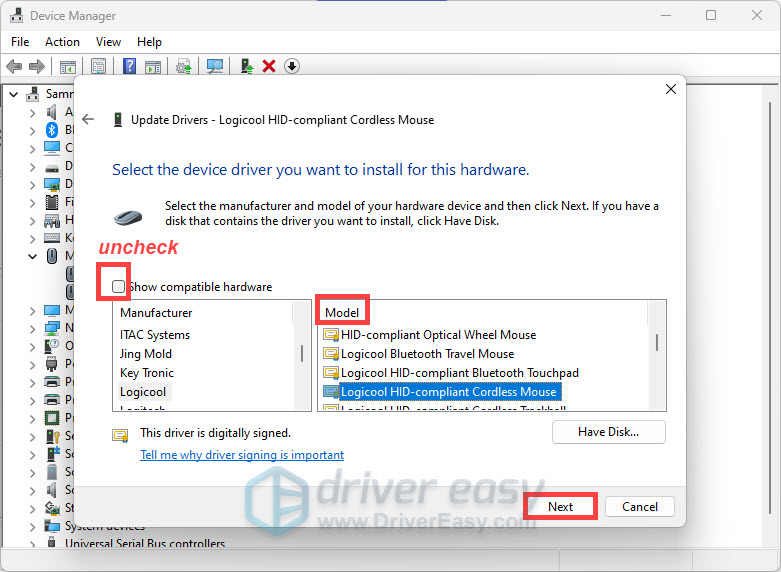
Wait for the installation to complete, then reboot your device. After restarting, repeat the process but this time check "Show compatible hardware" and select the correct, most recent driver for your specific model. This "double-refresh" often clears out deep-seated driver conflicts that a simple update cannot reach.

Method 2: Update Your Device Drivers
If reinstalling the existing driver didn't help, you might be using the wrong or outdated driver that lacks compatibility with the latest Windows 10/11 security patches. Unlike generic drivers, manufacturer-specific drivers (from brands like Razer, Corsair, or Logitech) often include specialized firmware updates for the wireless receiver itself. You can update drivers manually via Device Manager or by visiting the manufacturer's official support website.

To update manually, open Device Manager, expand "Mice and other pointing devices", right-click your mouse, and select "Update driver". This time, choose "Search automatically for drivers". Windows will query its online database to see if a newer version is available. If Windows claims you have the best driver, it is still worth checking the manufacturer's site, as Windows Update often lags behind official releases.

Method 3: Check Your Hardware and Connections
Before diving deeper into software settings, it is crucial to eliminate "Occam's Razor" solutions. Sometimes the issue is purely physical or environmental. Here is a checklist of physical hardware checks you should perform:
- Try a different USB port: USB ports can fail or become underpowered. Connect the mouse receiver to a different port. If you are on a desktop, use a port directly on the motherboard (at the back of the case) rather than the front-panel ports, which often have more power and less electrical noise.
- Replace the battery: Wireless mice are notorious for behaving erratically when power is low. Even if the "low battery" light isn't on, a fresh pair of high-quality alkaline batteries can often solve "laggy" cursor issues.
- Re-establish the wireless connection: Unplug the USB receiver, wait about 10 seconds to allow the USB bus to reset, and then plug it back in. If your mouse has a "Connect" or "Sync" button, press it while the receiver is in "search" mode.
- Test on another computer: This is the ultimate diagnostic step. If the mouse fails on a second machine, the hardware is likely defective. If it works perfectly, the problem is localized to your specific Windows installation.
If you find that your mouse works on other computers but not yours, you may have a more systemic issue with your OS. Check our troubleshooting guide for more general Windows hardware tips.
Method 4: Disable Fast Startup
Fast Startup is a feature in Windows 10 and 11 designed to reduce the time it takes for your computer to boot up from a complete shutdown. It does this by saving a snapshot of your drivers and system state to a hibernation file. However, this means that drivers are not truly "restarted" when you turn the PC off and on. If a wireless mouse driver hangs, Fast Startup will keep it in that hung state indefinitely. Here's how to disable it to ensure a clean driver initialization:
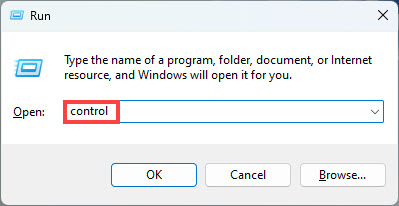
Press Windows + R, type control and press Enter to open the classic Control Panel.
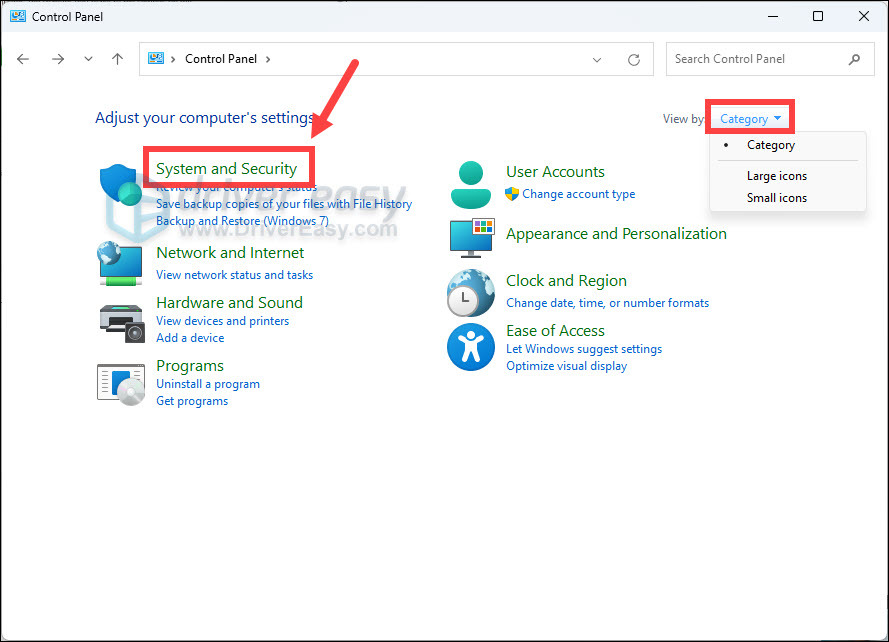
Once the Control Panel is open, ensure your "View by" setting is set to "Category," then click on "System and Security".
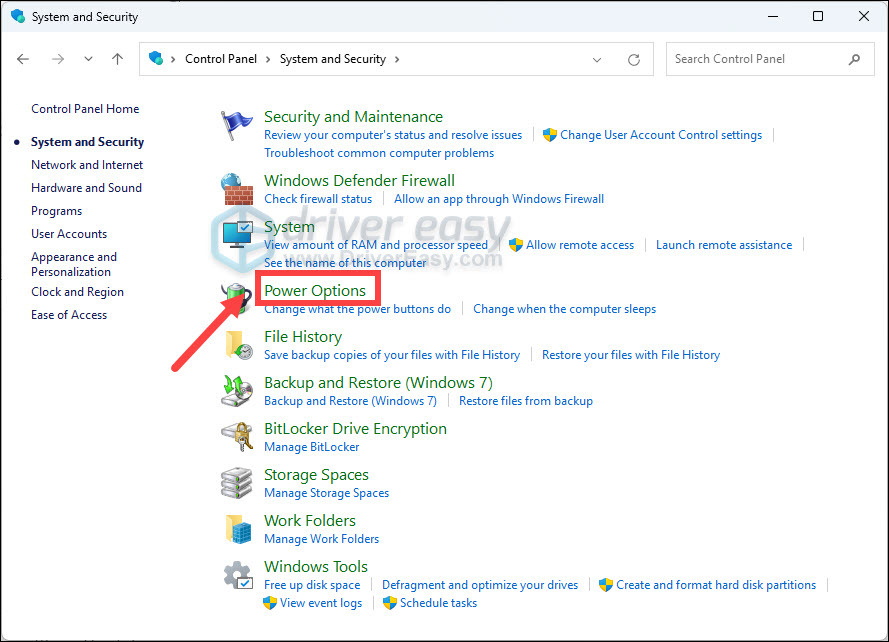
Under the System and Security menu, find and click "Power Options".
In the left-hand pane, click the link that says "Choose what the power buttons do". This menu controls the hidden shutdown settings of Windows.
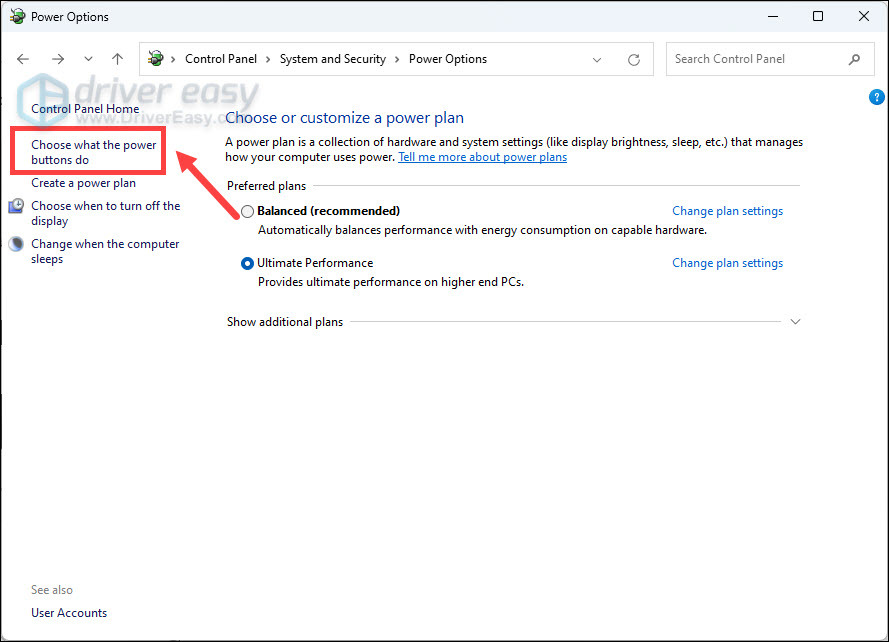
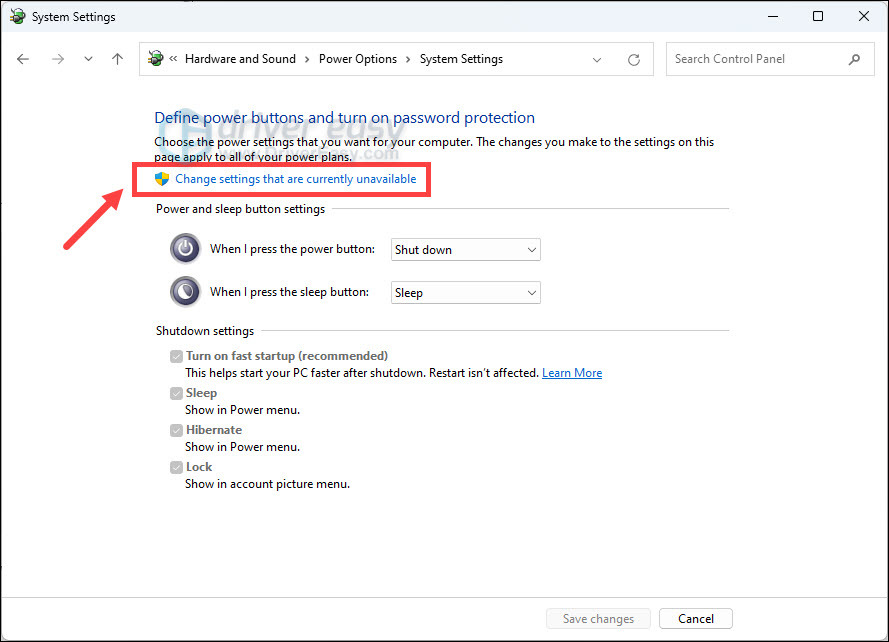
By default, the shutdown settings are greyed out for security. Click "Change settings that are currently unavailable" at the top of the window (this requires Administrator privileges).
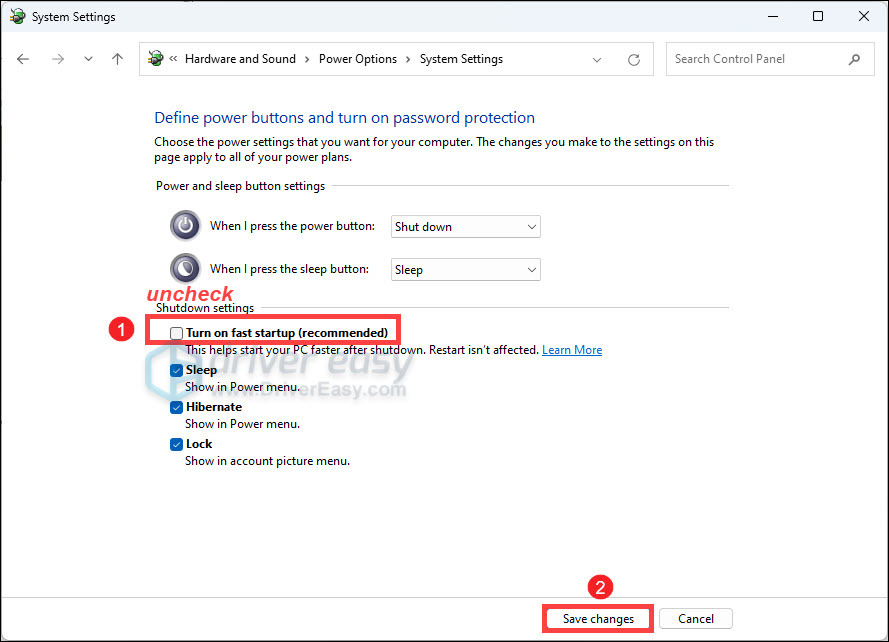
Under the "Shutdown settings" section, uncheck the box for "Turn on fast startup (recommended)" and click Save changes.
Restart your computer. You may notice that the boot process takes 5-10 seconds longer than before, but this is a small price to pay for ensuring that every hardware driver, including your wireless mouse, is initialized from a completely fresh state.
Method 5: Repair System Files
If you have tried driver reinstallation and hardware checks to no avail, the problem may lie deeper within the Windows system itself. Corrupted system files—specifically those related to the "Human Interface Device" (HID) stack—can cause Windows to lose track of mouse inputs. This often happens after an interrupted Windows Update or a sudden power loss. Fortunately, Windows has a built-in "doctor" tool called System File Checker (SFC).
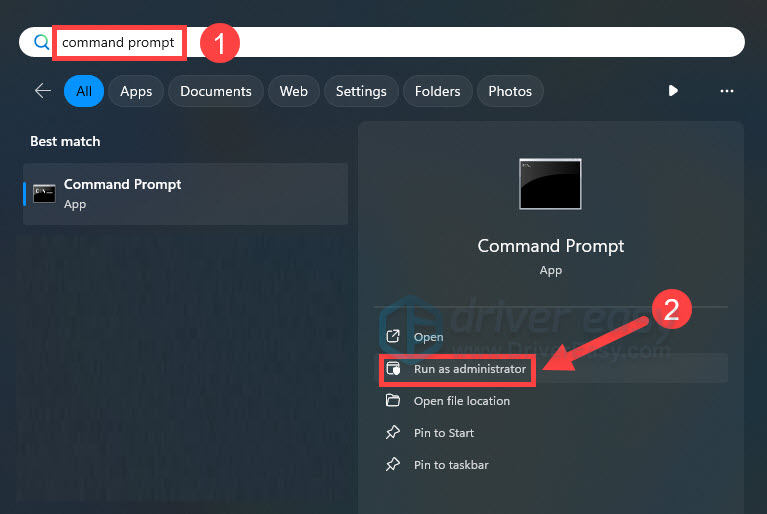
To run this repair, you must open the Command Prompt as an administrator. Press the Windows key, type command prompt, and select "Run as administrator" from the options on the right.
In the black command window, type SFC /scannow and press Enter. This command instructs Windows to scan every critical system file on your drive and compare it against a "known-good" cached version. If it finds a discrepancy, it will automatically replace the corrupted file.
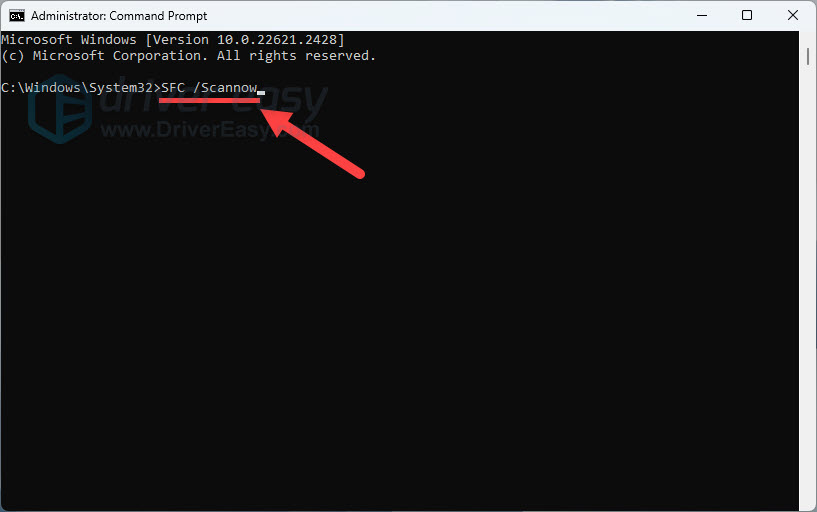
Wait for the process to reach 100%. Once complete, it will report whether it found any issues and if it was able to fix them. Regardless of the message, reboot your computer and test your mouse again. For more insights on fixing system-level audio or input errors, check our guide on fixing Bluetooth stuttering, which shares many of the same underlying causes.
Advanced Troubleshooting: Signal Interference
If you have followed all five methods and your mouse still stutters or jumps, you may be a victim of Radio Frequency (RF) Interference. Most non-Bluetooth wireless mice operate on the 2.4 GHz frequency—the same frequency used by Wi-Fi routers, microwaves, and even some smart home devices.
To minimize interference:
- Keep your wireless router at least 3 feet away from your computer.
- Do not place the USB receiver behind a metal computer case; metal is an excellent shield for 2.4 GHz signals. Use a USB extension cable to bring the receiver closer to the mouse if necessary.
- Avoid using USB 3.0 ports for your mouse receiver if they are right next to an active USB 3.0 hard drive. USB 3.0 data transmission is known to emit noise in the 2.4 GHz spectrum.
Conclusion
A malfunctioning wireless mouse is often a symptom of a software-hardware "handshake" gone wrong rather than a sign of a broken device. By systematically reinstalling drivers, checking for physical obstructions, disabling Fast Startup, and repairing system files with SFC, you can resolve over 90% of wireless mouse issues on Windows 10 and 11. Remember to regularly visit AudioTest.app to verify all your peripherals—from speakers to screens—are operating at peak performance.
Related Articles
Frequently Asked Questions (FAQ)
Why does my wireless mouse keep disconnecting every few minutes?
This is usually caused by Windows Power Management. In Device Manager, right-click your mouse and the "USB Root Hub" it is connected to, select Properties, and go to the "Power Management" tab. Uncheck the box that says "Allow the computer to turn off this device to save power."
Does a wireless mouse need a specific driver to work?
Most wireless mice are "Plug and Play" and use the generic Microsoft HID-compliant driver. However, high-end mice with extra buttons or RGB lighting often require software like Logitech G Hub or Razer Synapse to function correctly and receive firmware updates.
Can my Wi-Fi router interfere with my wireless mouse?
Yes. Both Wi-Fi and most wireless mouse receivers use the 2.4 GHz radio frequency. If your router is too close to your computer or your Wi-Fi channel is congested, it can cause the mouse cursor to lag or jump.
Is it better to use a Bluetooth mouse or a USB receiver mouse?
Mice with a dedicated USB receiver (RF) typically have lower latency and more stable connections for gaming. Bluetooth mice are more convenient for laptops with limited ports but can sometimes experience more "wake-up" lag after being idle.
How do I know if my wireless mouse is actually broken?
If you have replaced the batteries, tried multiple USB ports, and the mouse still doesn't work on a completely different computer, the hardware has likely failed. Check for physical damage to the optical sensor or the USB receiver.