Is Google Chrome Blocking Your Camera Access?
Google Chrome is widely regarded as one of the most reliable browsers available, yet webcam issues remain a common hurdle for many users. Whether you're preparing for a business meeting or a casual video call, finding that Chrome has blocked your camera can be frustrating. Typically, this happens because of strict privacy settings or a missed permission prompt. When a site first requests access, Chrome asks for your consent; if denied, the browser remembers that choice and continues to block the device until you manually intervene.
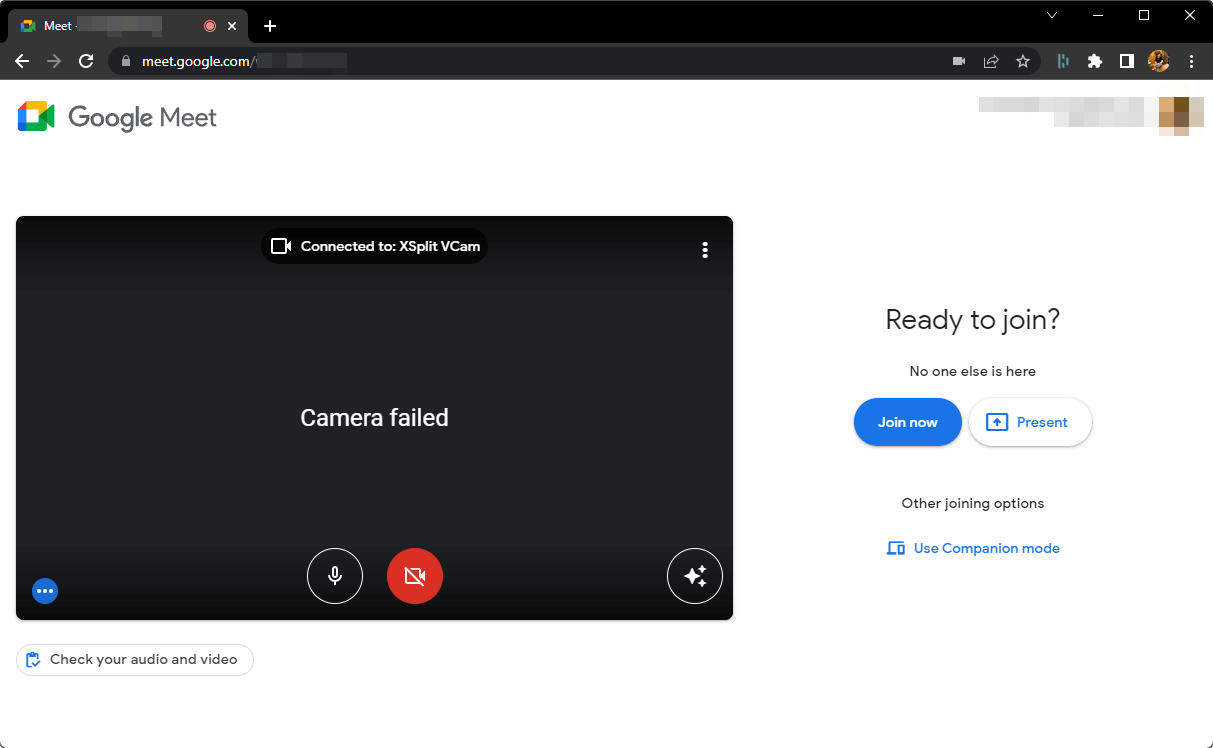
The good news is that these issues are almost always software-related and easy to fix. If you've already verified your hardware using our online camera test and found no faults, the problem likely lies within your browser or system settings. Here are seven effective methods to restore your camera functionality in Chrome.
Step-by-Step Guide to Fixing Chrome Webcam Issues
1. Identify and Close Competing Applications
Webcams are generally designed to be used by one application at a time. If software like Zoom, Microsoft Teams, Skype, or even your built-in Camera app is running in the background, Chrome may be unable to "grab" the video stream. Close all other media-heavy applications and refresh your browser tab to see if the connection is restored.
2. Perform a System Restart
It may sound basic, but restarting your computer is a powerful troubleshooting step. Background processes or driver glitches can sometimes "lock" the camera hardware, making it unavailable to applications. A fresh boot clears the system memory and resets hardware interfaces, often resolving stubborn connectivity problems.
3. Update Windows Camera Privacy Settings
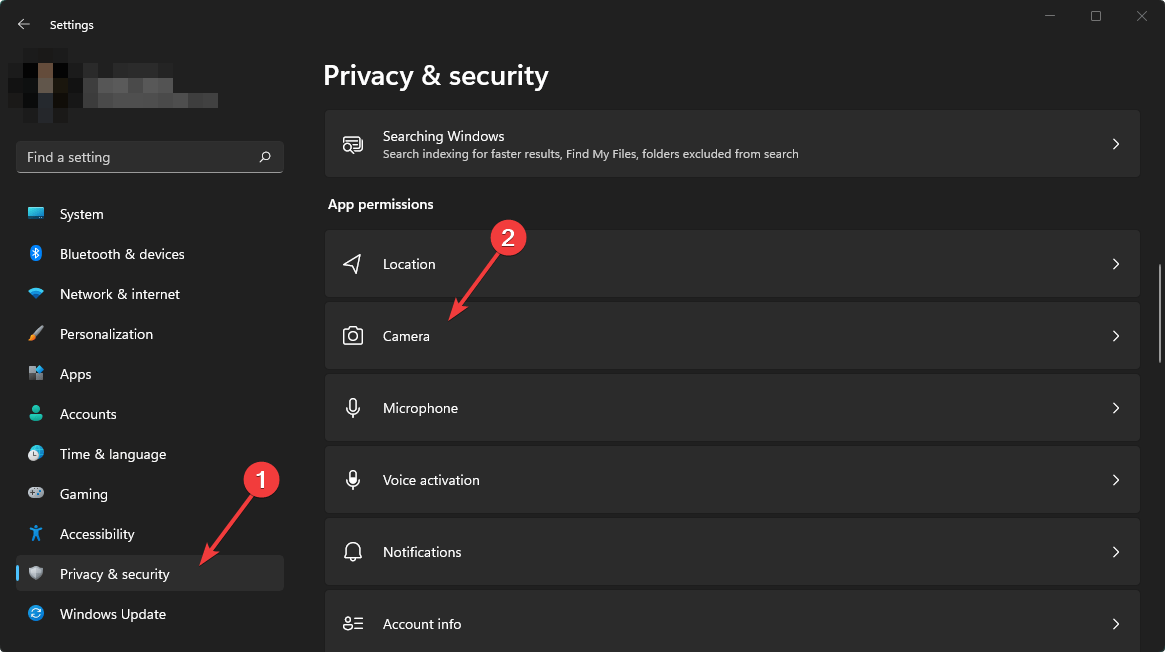
- Open your Settings menu by pressing Win + I.
- Navigate to the Privacy & Security section and select Camera.
- Verify that the toggle for Let desktop apps access your camera is switched to On.
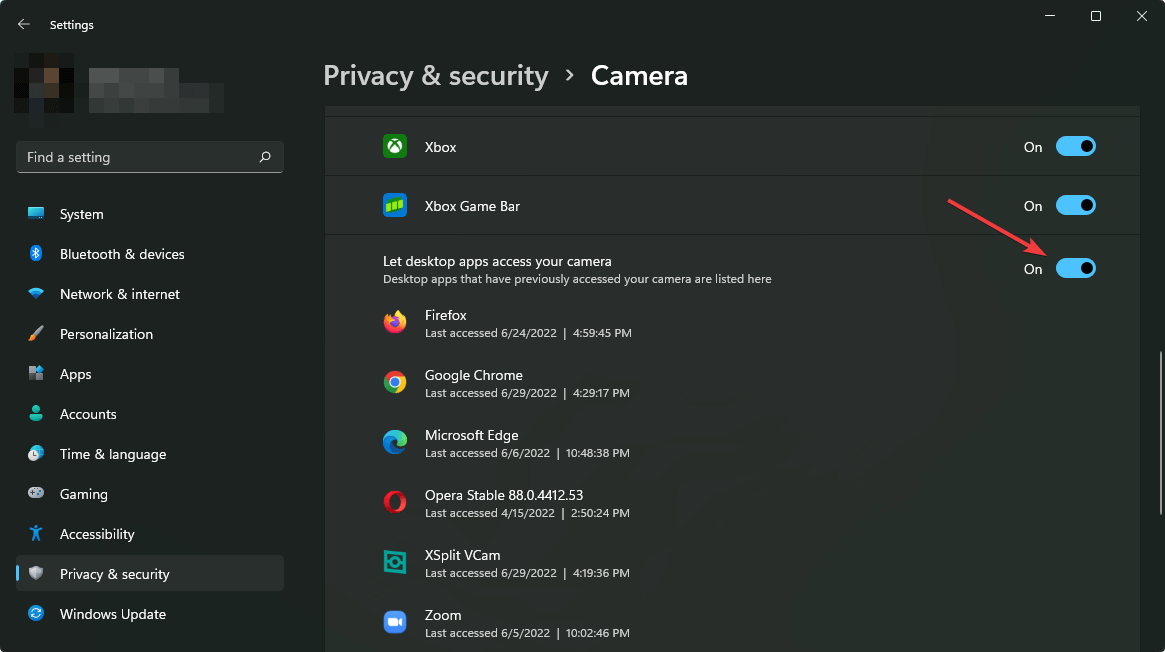
Windows acts as a gatekeeper for your hardware. If this global setting is disabled, Chrome won't have the necessary permissions to access your webcam, regardless of its internal settings.
4. Manage Chrome's Internal Camera Permissions
- Launch Google Chrome and type
chrome://settings/content/camerainto the address bar, then hit Enter. - Ensure your preferred webcam is selected in the dropdown menu and that Sites can ask to use your camera is enabled.
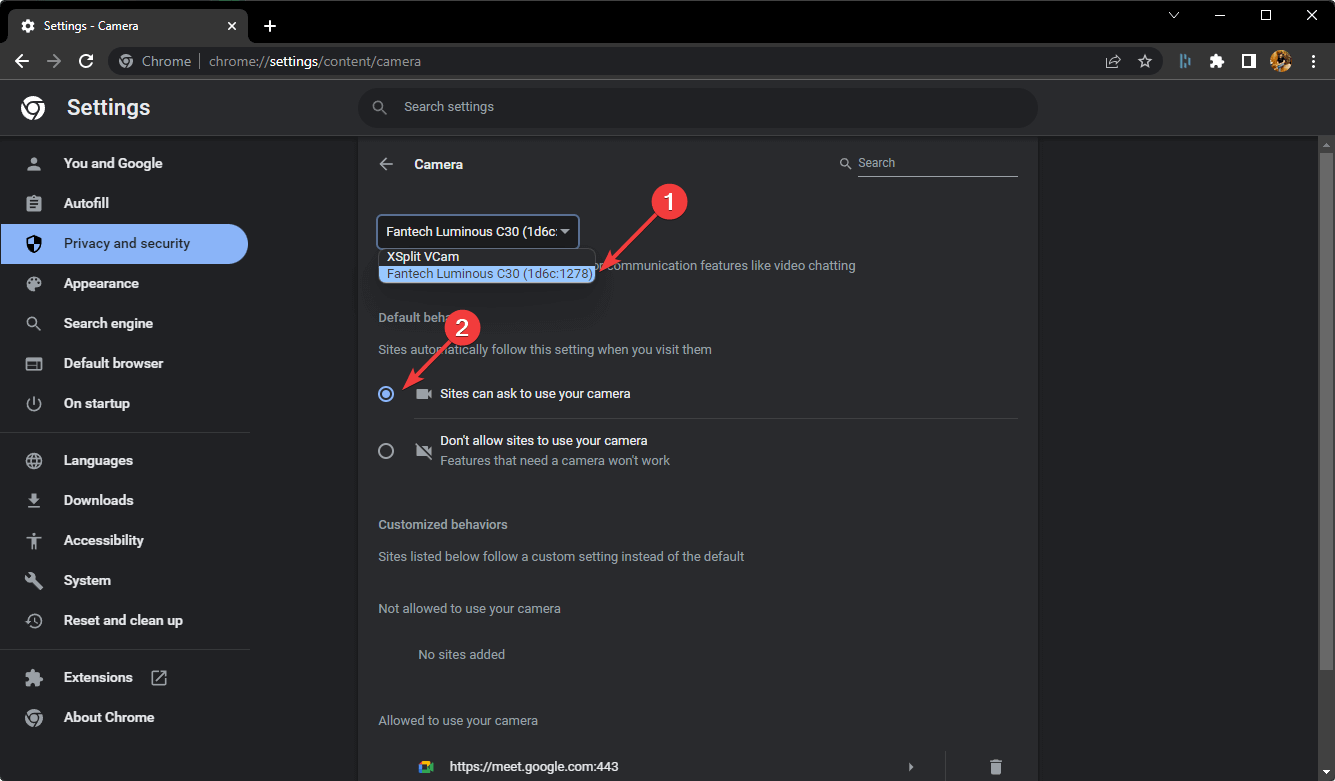
- Review the "Not allowed to use your camera" list and remove any websites that were blocked accidentally.
For more detailed browser-specific help, check our troubleshooting guide. Once updated, return to your website; Chrome should prompt you for permission again.
5. Check Your Security and Antivirus Software
- Open your antivirus dashboard (e.g., Bitdefender, Norton, or Kaspersky).
- Locate the Privacy or Protection tab.
- Search for Video & Audio Protection or "Webcam Protection" settings.
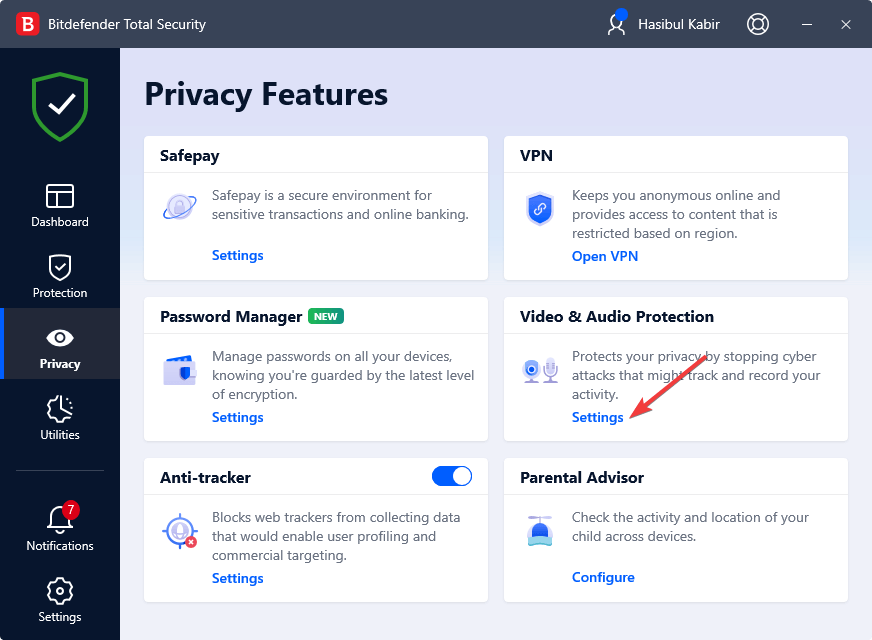
- Ensure that Google Chrome is listed as a "Trusted" or "Allowed" application.
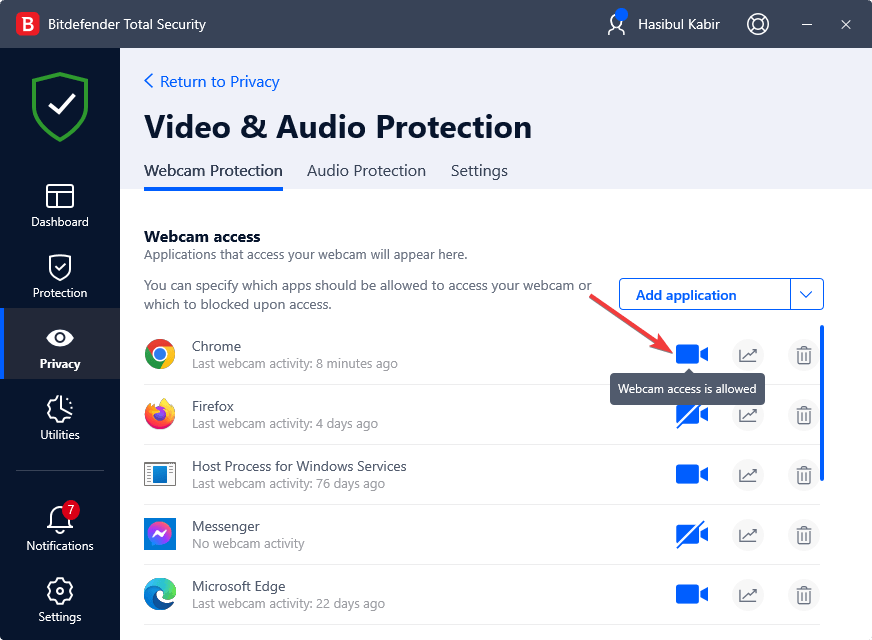
Modern security suites often include a "webcam shield" to prevent unauthorized spying. Sometimes, this feature is too aggressive and blocks legitimate browser requests.
6. Audit and Disable Conflicting Extensions
- Click the Puzzle Piece icon in the top-right corner of Chrome and select Manage extensions.
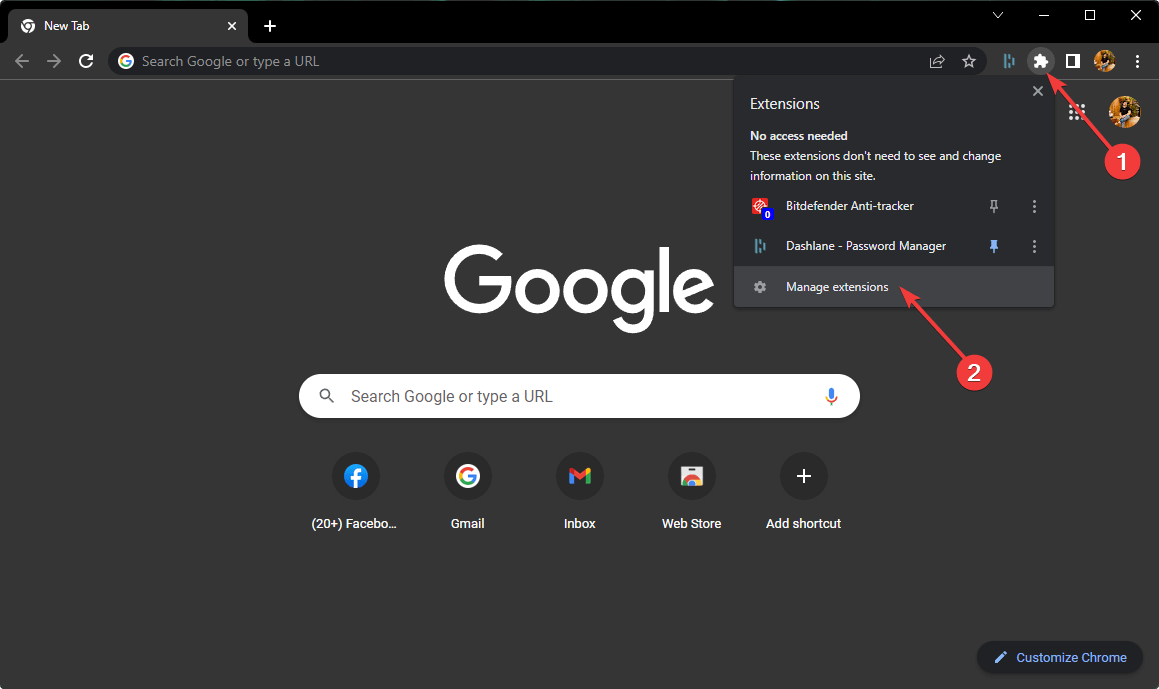
- Temporarily toggle off any extensions related to privacy, security, or ad-blocking.
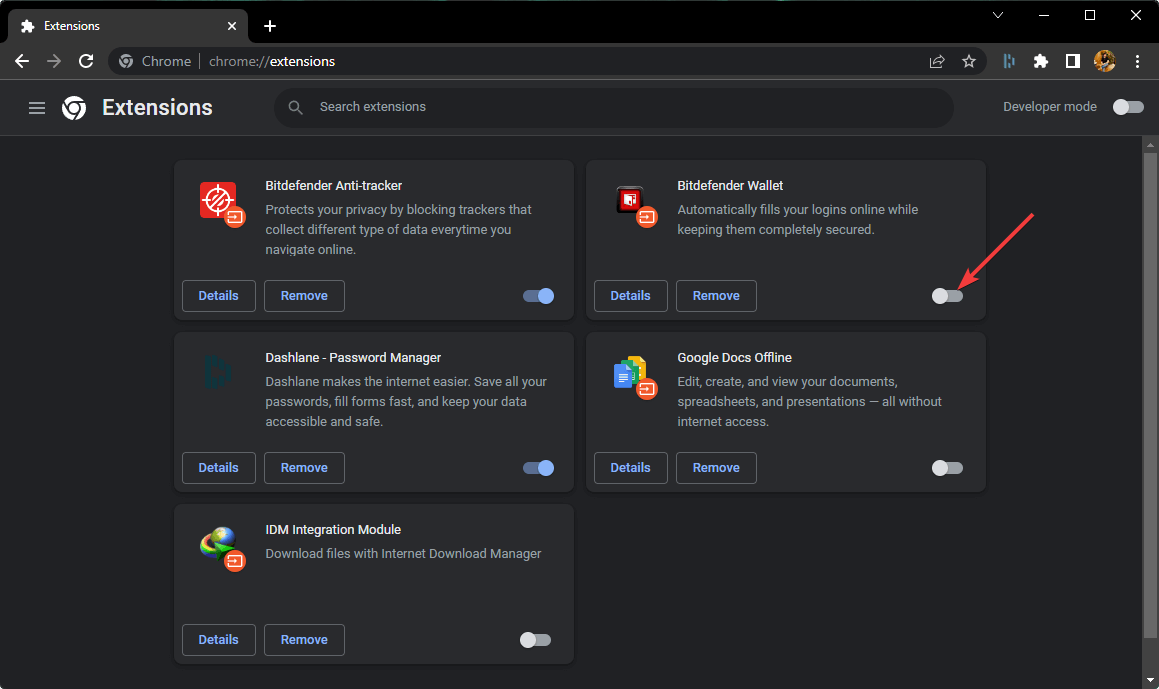
Certain extensions designed to protect your privacy can interfere with how Chrome communicates with your hardware. If disabling an extension fixes the issue, you may need to adjust that specific extension's whitelist.
7. Utilize the Windows Camera Troubleshooter
- Go to Settings (Win + I) > System > Troubleshoot.
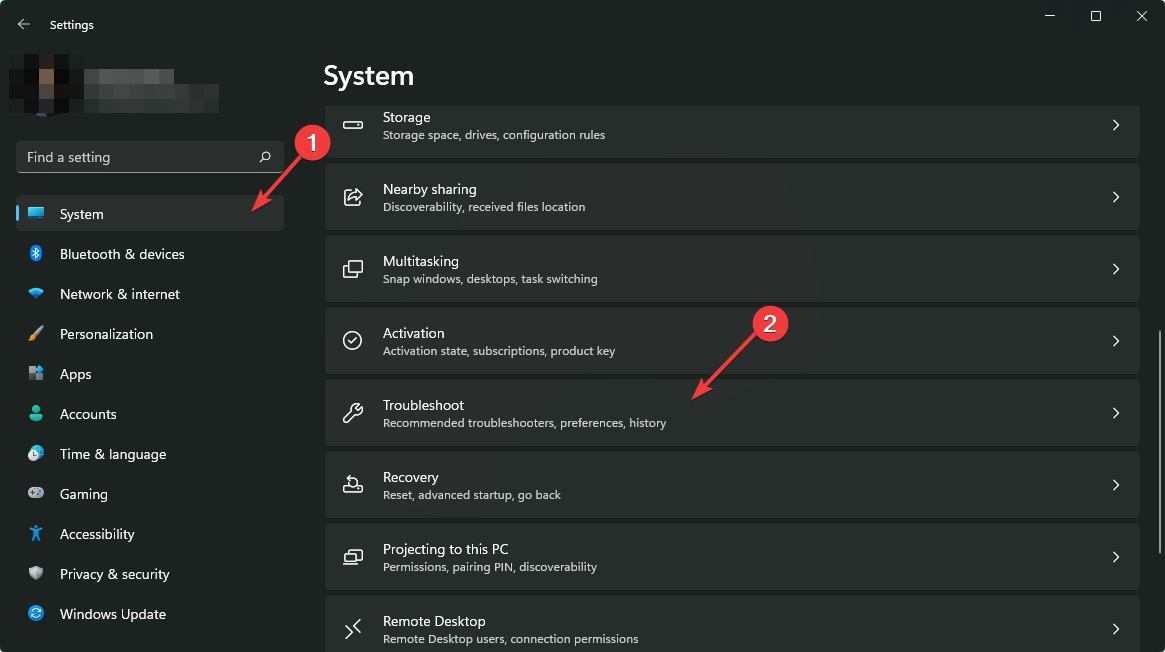
- Click on Other troubleshooters.
- Find Camera and click the Run button.
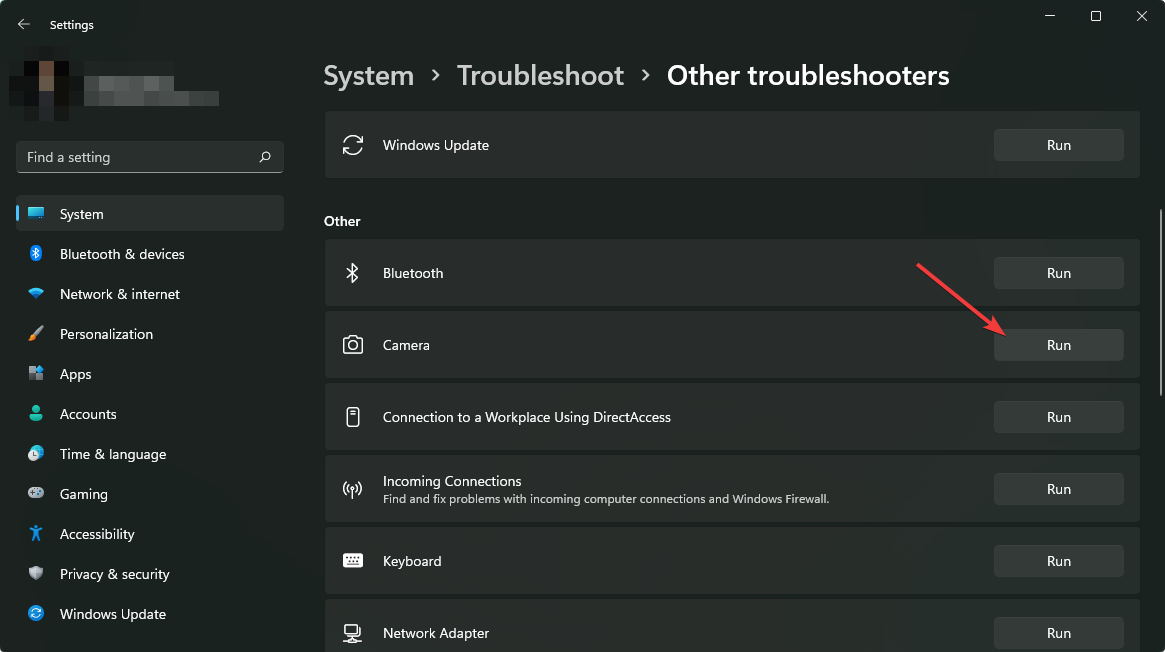
- Follow the automated prompts to repair your drivers or configuration.
The built-in troubleshooter is excellent for identifying hardware failures or missing drivers that might prevent Chrome from seeing the device entirely.
Verifying Your Results
Once you've applied these fixes, it's essential to confirm that everything is working correctly across all your hardware components.
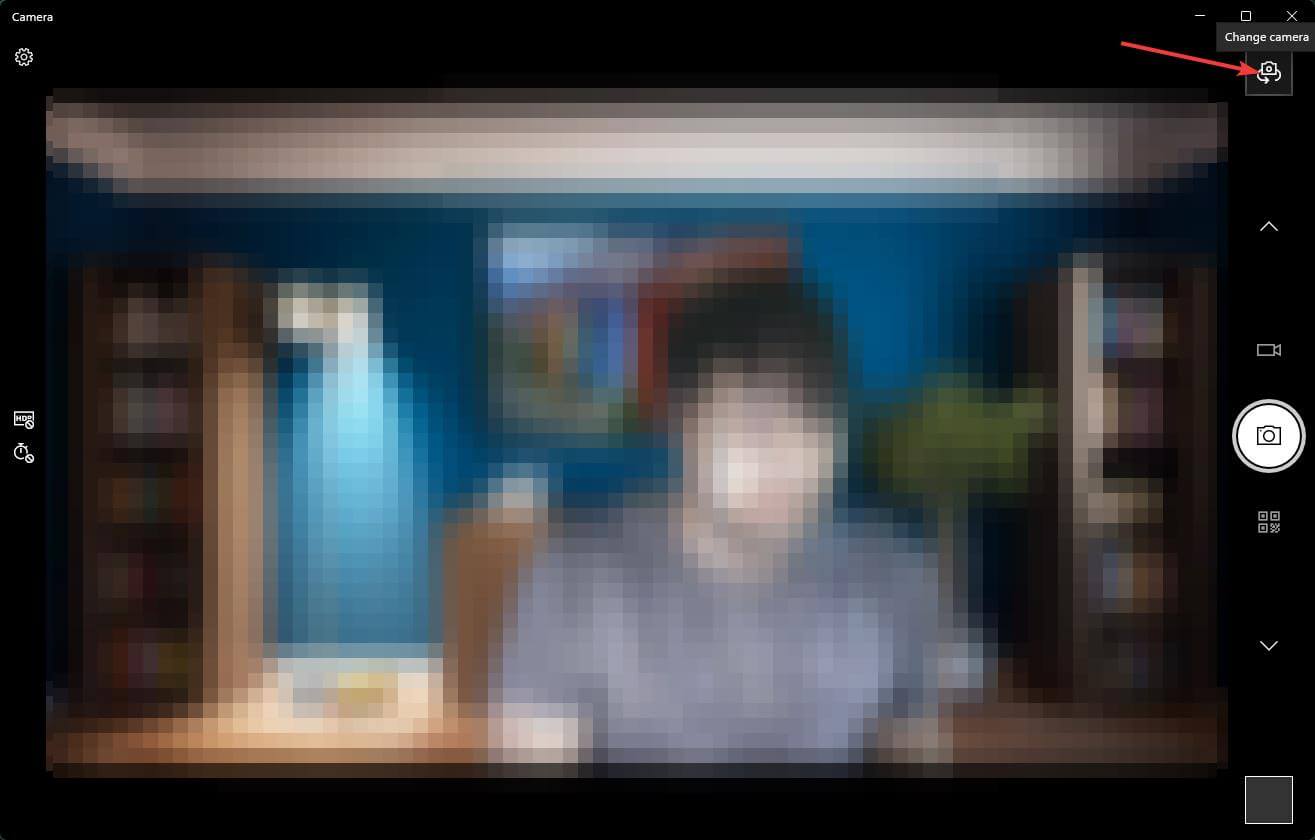
Windows Users: Search for the "Camera" app in the Start Menu. If the preview is black, try the "Change camera" button to toggle between integrated and external webcams.
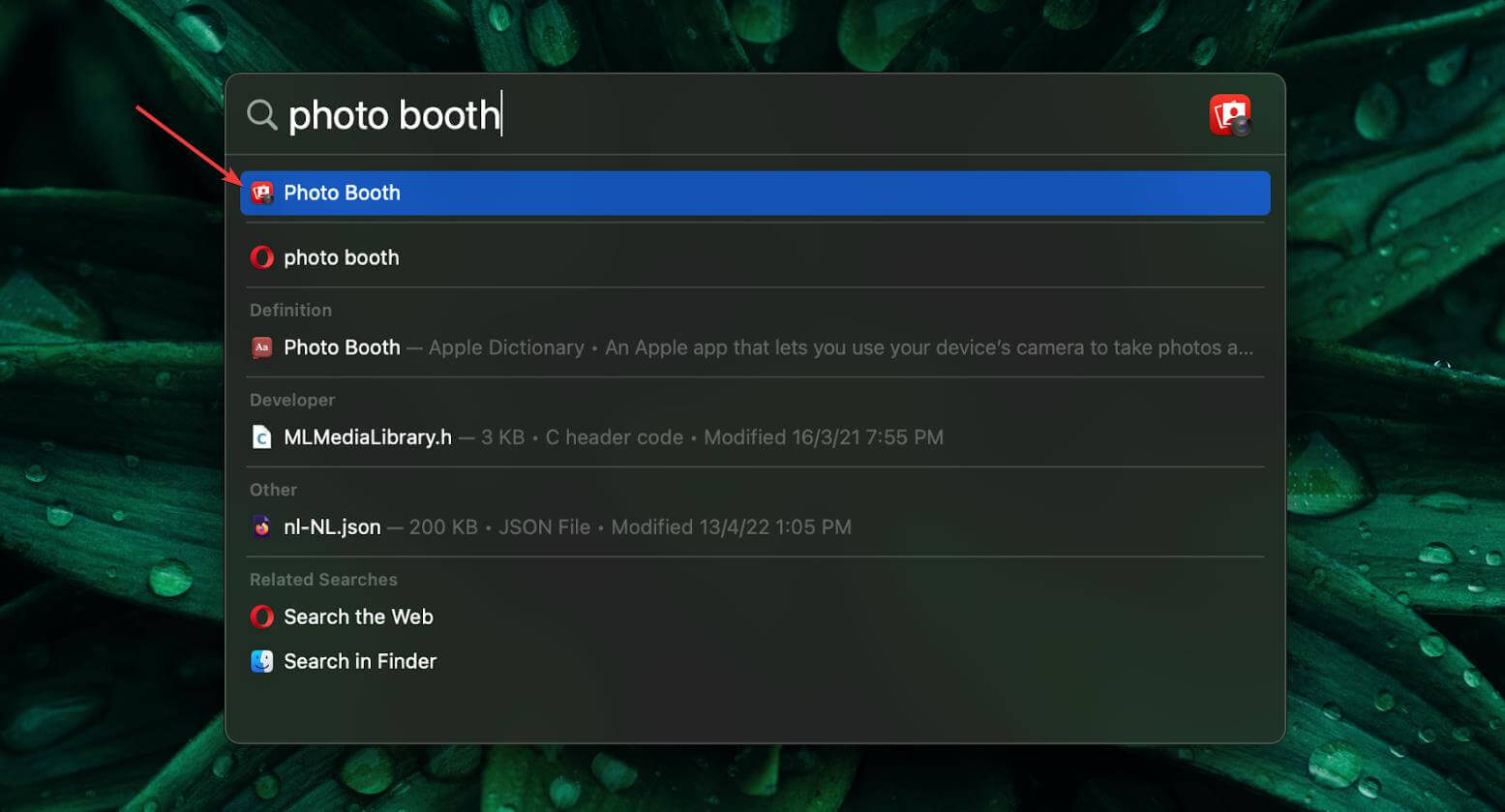
Mac Users: Open Photo Booth via Spotlight (Cmd + Space) to check for a live video feed.
For the most accurate results, use the audiotest.app camera test. While you're at it, you might also want to run a quick microphone test or a speaker test to ensure your entire communication setup is production-ready. We also offer specialized tools like the keyboard test, mouse test, and screen test for a full device health check.
Frequently Asked Questions
Why does Chrome display a "Camera failed" error message?
This usually indicates a "hardware access" conflict. It means Chrome knows the camera exists but cannot reach it because another app is using it, or system-level privacy settings are blocking the connection.
Can I allow camera access for just one specific website?
Yes. When you visit a site, click the Lock icon (or settings icon) next to the URL in the address bar. You can toggle "Camera" access to "Allow" specifically for that domain.
What if my webcam works in other apps but not in Chrome?
This confirms your hardware is fine. The issue is likely within Chrome's permissions (chrome://settings/content/camera) or a browser extension that is interfering with the media stream.
Is it safe to give Chrome access to my camera?
Chrome includes built-in security to ensure that sites can only access your camera when you explicitly allow them. For maximum privacy, always choose the "Sites can ask to use your camera" option so you maintain control over every request.